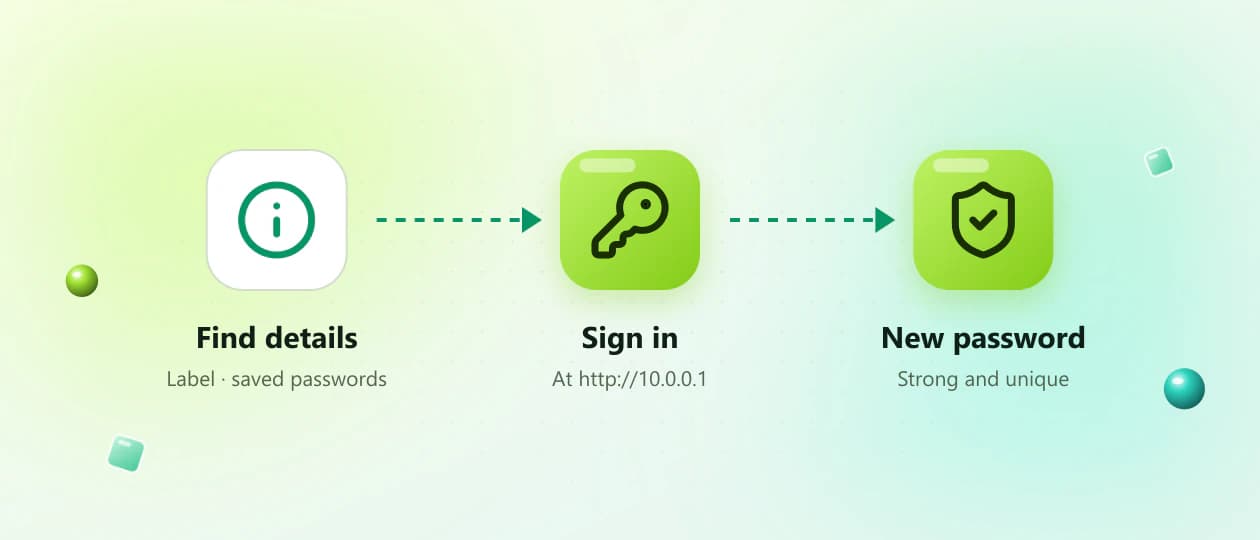
Credentials · http://10.0.0.1
10.0.0.1 Username and Password – Router Login Help
Your 10.0.0.1 username and password provide authorized access to the router admin panel when 10.0.0.1 is your network’s Default Gateway. These credentials may allow you to change the Wi-Fi password, rename the network, review connected devices and manage router security.
Opens your router login page in a new tab. Works only on your own network.
- Router label
- Saved passwords
- ISP documents

On this page22
Overview
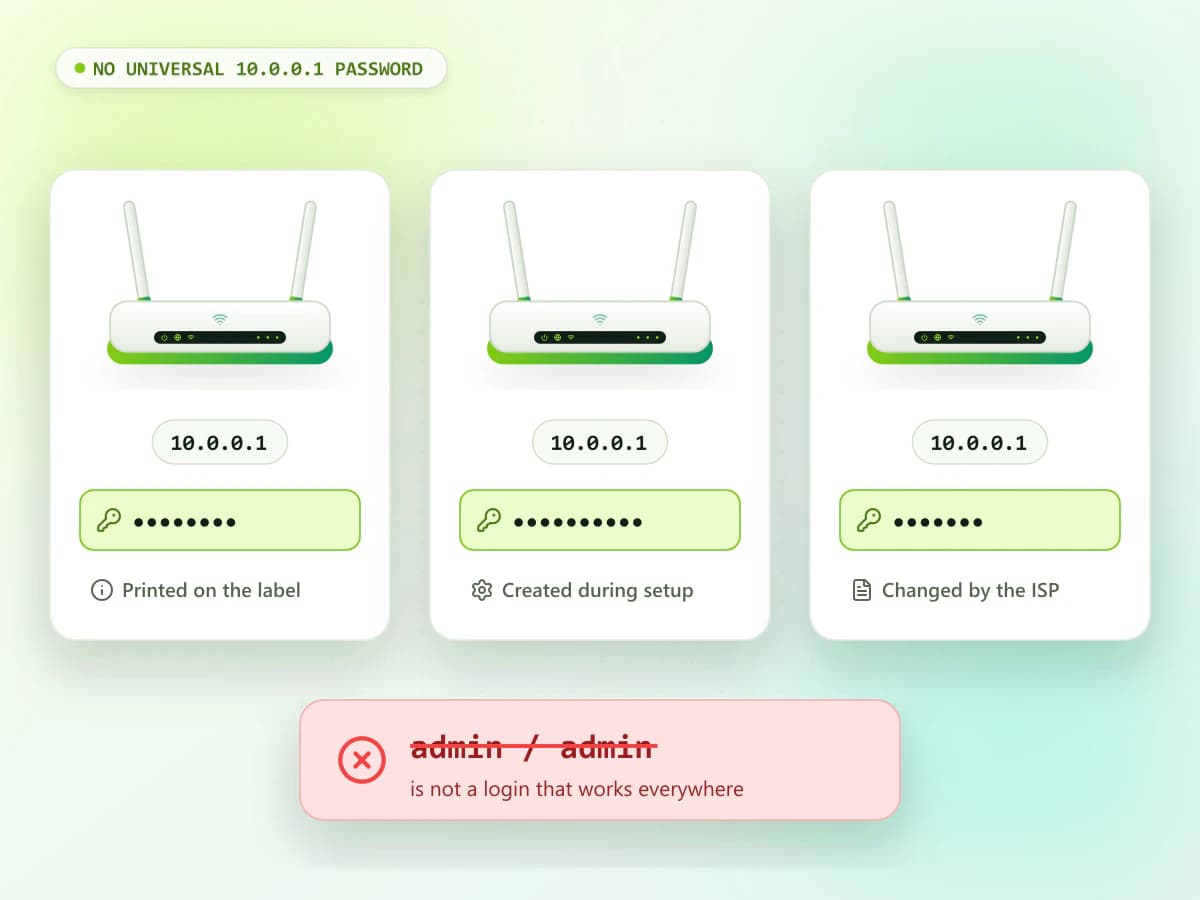
No universal login
There is no universal username and password for every router that uses 10.0.0.1. The correct login details depend on your router brand, model, internet provider and previous configuration.
This guide explains where to find your router credentials, how to open the login page and what to do when the password does not work.
The basics
What Is the 10.0.0.1 Username and Password?
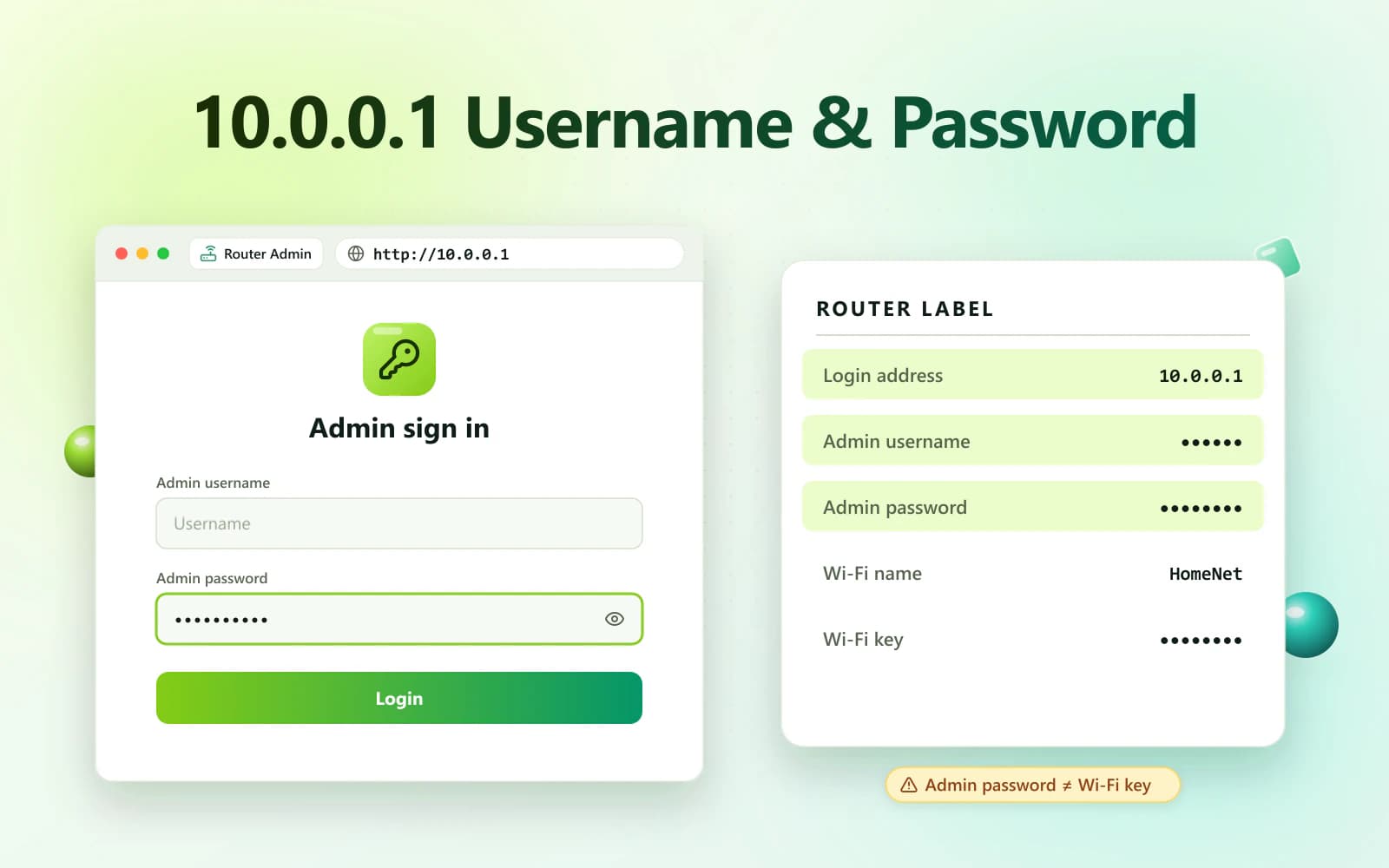
The router username identifies the administrator account. The admin password protects the router’s settings from unauthorized changes.
These credentials are used on the local router login page:
http://10.0.0.1
Some routers provide default details on a label. Others ask the owner to create an admin password during initial setup.
Your router credentials may be described as:
- Admin username
- Admin password
- Login password
- Device password
- Web password
- Router password
- Access key
- GUI password
Do not confuse the admin password with the password used to connect to Wi-Fi.
Default login
Is There a Default Username and Password for 10.0.0.1?
No single 10.0.0.1 default password works on every router.
Some devices may use a general username such as admin or user, but the password can be unique to the individual router. Other routers have no preset administrator password and require one to be created during setup.
Credentials may also be changed by:
- The router owner
- A network administrator
- An installation technician
- An internet service provider
- The router’s initial setup process
Only use credentials confirmed for your exact router model. Avoid repeatedly testing random combinations because the account may become temporarily locked.
Where to look
How to Find the 10.0.0.1 Username and Password
Use these safe methods before considering a factory reset.
Check the Router Label
Inspect the bottom, back and sides of the router. The label may contain:
- Router IP address
- Admin username
- Admin password
- Default Wi-Fi name
- Wi-Fi password
- Model number
- Serial number
Look for labels such as Admin Password, Device Password, Login Password or Web Access Key.
Do not share a photograph of the router label publicly. It may reveal private network credentials.
Method 01Check the Router Manual
The setup manual may list the default login address and explain how the administrator password is created.
If you no longer have the printed manual, find the exact model number on the router label. Search for that model on the manufacturer’s official support website.
Method 02Check the Original Router Box
Some manufacturers place login or setup details on a card inside the original box. Check the packaging, quick-start guide and installation card.
Method 03Check Your ISP Documents
Routers supplied by an internet service provider may use custom credentials or special setup instructions.
Review:
- Installation documents
- Customer account portal
- Welcome email
- Setup text messages
- ISP mobile application
- Provider’s official support page
Contact the ISP if the supplied details do not work.
Method 04Check Saved Browser Passwords
If you previously logged in, your browser may have stored the admin credentials.
Search the browser password manager for:
- 10.0.0.1
- Router
- Gateway
- Router brand
- Router model
- Admin panel
Only reveal saved passwords on a trusted personal device.
Method 05Check Your Password Manager
Search your password manager using terms such as router, Wi-Fi, gateway, administrator or the device model.
The router password may have been stored when the network was first configured.
Method 06Ask the Person Who Set Up the Router
A family member, network administrator or technician may have changed the default details during installation.
Ask whether a new admin username or password was created. Do not attempt to access a network without permission.
Method 07
Step by step
How to Open the 10.0.0.1 Login Page
Follow these steps:
- 01
Connect your phone or computer to the router.
- 02
Open a trusted web browser.
- 03
Select the browser’s address bar.
- 04
Enter http://10.0.0.1.
- 05
Press Enter or Go.
- 06
Wait for the router login page.
- 07
Enter the authorized username and password.
- 08
Select Login, Sign In or Submit.
If the page does not appear, verify that 10.0.0.1 is your correct Default Gateway.
Get the address right
Correct and Incorrect Login Addresses
Correct address
- http://10.0.0.1
Use thisCommon incorrect variations
- 10.0.0.0.1
- 1.0.0.0.1
- 10.00.1
- 10.0.01
- 10.0 0.1
- 10..0.0.1
- 10.0.0.l
- http //10.0.0.1
The final character is the number 1, not a lowercase L.
Enter the address directly into the browser’s address bar. Do not use a search-engine box.
Avoid these
Check first
Confirm That 10.0.0.1 Is Your Router IP
Not all routers use the same gateway. Your device may display another address, such as:
- 192.168.0.1
- 192.168.1.1
- 192.168.1.254
- 10.0.1.1
If your device displays another gateway, use that address instead of 10.0.0.1.
Check on Windows
- Press Windows + R.
- Enter cmd.
- Type ipconfig.
- Press Enter.
- Find your active connection.
- Check Default Gateway.
WindowsCheck on macOS
Open System Settings > Network or Wi-Fi > Connected Network > Details > TCP/IP and find Router.
macOSCheck on Android
Open the connected Wi-Fi network’s details and look for Gateway or Router. Menu names vary by manufacturer.
AndroidCheck on iPhone or iPad
Open Settings > Wi-Fi, tap the information icon beside the connected network and find Router.
iPhone / iPad
Know which password
Wi-Fi Password vs Router Admin Password
The Wi-Fi password and router admin password may be different.
| Credential | Purpose |
|---|---|
| Wi-Fi name or SSID | Identifies the wireless network |
| Wi-Fi password | Connects devices to Wi-Fi |
| Admin username | Identifies the router administrator |
| Admin password | Protects the router settings |
Wi-Fi name or SSID
- Purpose
- Identifies the wireless network
Wi-Fi password
- Purpose
- Connects devices to Wi-Fi
Admin username
- Purpose
- Identifies the router administrator
Admin password
- Purpose
- Protects the router settings
The Wi-Fi password may appear on the label as:
- Wi-Fi Key
- WLAN Key
- Wireless Key
- Network Key
- Pre-Shared Key
The admin password may be labelled:
- Admin Password
- Login Password
- Device Password
- Web Password
- Access Key
Entering the Wi-Fi password on the router login page may produce an incorrect-password error.
Troubleshooting
Why Does the 10.0.0.1 Password Not Work?
Several issues can cause a login failure.
The Password Was Changed
The default password stops working after someone creates a new one. Check saved passwords or ask the person who configured the router.
Cause 01You Entered the Wi-Fi Password
The wireless password may not provide access to the admin panel. Check for separate administrator credentials.
Cause 02The Credentials Are Case-Sensitive
Uppercase and lowercase letters may be treated differently. Enter the username and password exactly as printed or saved.
Cause 03The Browser Entered an Old Password
Autofill may insert outdated details. Remove the filled information and type the credentials manually.
Cause 04Your ISP Uses Custom Credentials
An ISP-provided router may use credentials that are different from the manufacturer’s normal setup. Contact the provider for authorized login help.
Cause 05Extra Spaces Were Added
Copied passwords may include spaces before or after the text. Type the password manually.
Cause 06You Opened the Wrong Router Page
If another device is using 10.0.0.1, you may be viewing the wrong admin panel. Verify the Default Gateway and network connection.
Cause 07The Account Is Temporarily Locked
Repeated incorrect attempts may cause a temporary login lock. Stop testing passwords and wait before trying the confirmed credentials again.
Cause 08
Recovery
Forgot the 10.0.0.1 Admin Password?
Try the following recovery steps:
- Check the router label.
- Review the setup manual.
- Check the original box.
- Search saved browser passwords.
- Check your password manager.
- Ask the network owner or installer.
- Contact the router manufacturer.
- Contact your ISP.
- Consider a factory reset only as the final option.
Do not use software that promises to bypass, reveal or hack the router password. Such tools may be unsafe and could steal your data.
Without a reset
Can You Recover the Password Without Resetting?
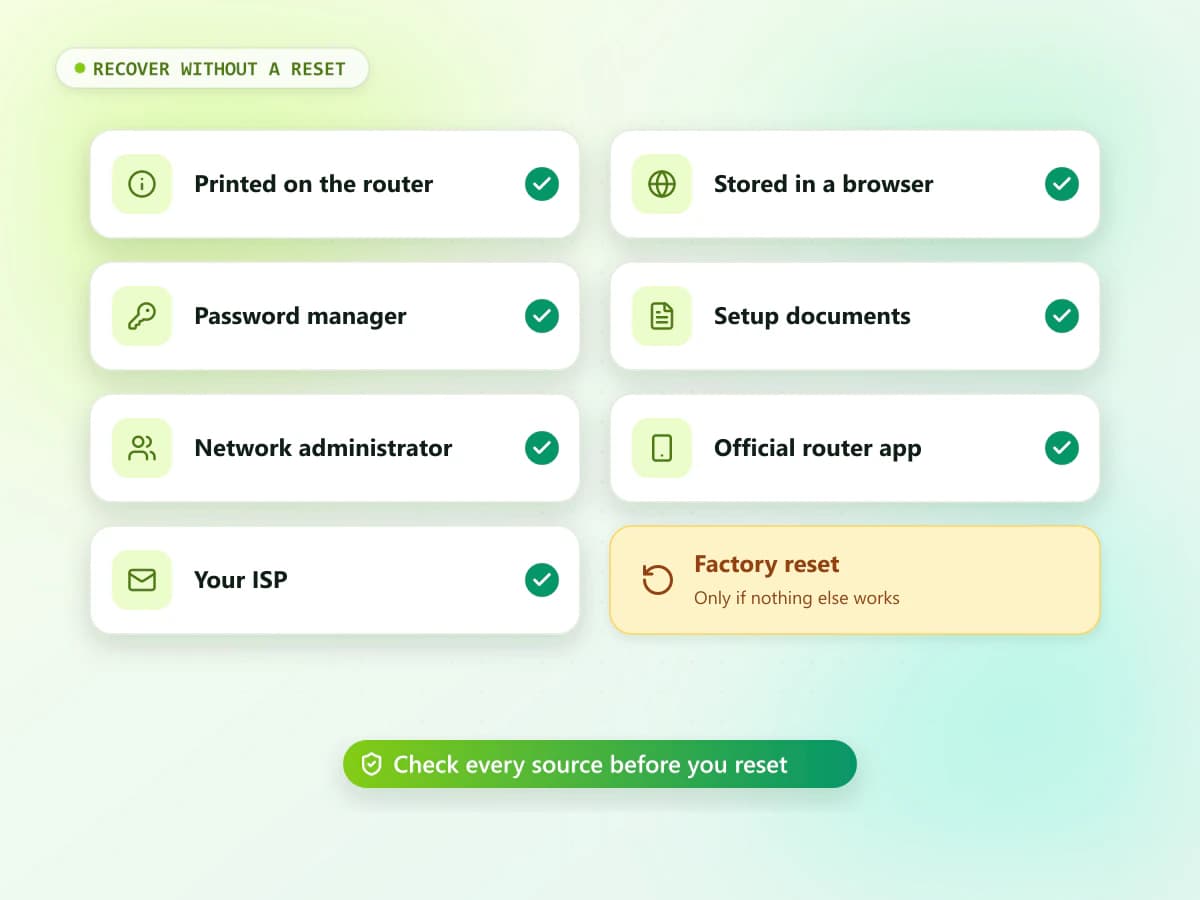
You may recover the password without resetting if it is:
- Printed on the router
- Stored in a browser
- Saved in a password manager
- Recorded in setup documents
- Available from the network administrator
- Recoverable through an official router application
- Available through your ISP
If the admin password was changed and never saved, the router may not offer a recovery option. In that case, official support or a factory reset may be required.
Last resort
Should You Factory Reset the Router?
A factory reset restores the router’s original configuration. It may also remove important settings.
You could lose:
- Current Wi-Fi name
- Wi-Fi password
- Admin password
- Internet connection details
- Guest network
- Parental controls
- Blocked-device list
- Port-forwarding rules
- Local IP configuration
- Other customized options
Contact your ISP before resetting provider-supplied equipment. You may need special information to restore internet access.
Use only the official reset procedure for your exact router model.
After a reset
How to Log In After a Factory Reset
After a reset:
- Wait for the router to start completely.
- Check the label for the default Wi-Fi details.
- Connect your phone or computer.
- Find the new Default Gateway.
- Open the gateway in a browser.
- Enter the original or label credentials.
- Complete the setup process.
- Create a new, secure admin password.
- Configure the Wi-Fi name and password.
- Reconnect your devices.
A reset may cause the router to use a different address from the one used before.
Admin password
How to Change the Router Admin Password
Once you have signed in:
- Open Administration, System or Account Settings.
- Find Admin Password or Login Password.
- Enter the current password.
- Create a strong new password.
- Confirm it.
- Save or apply the changes.
- Store the new password securely.
Menu names vary between routers.
Use a password that is:
- Long and unique
- Difficult to guess
- Different from your Wi-Fi password
- Different from email and social-media passwords
- Stored in a trusted password manager
Wi-Fi password
How to Change the Wi-Fi Password
If 10.0.0.1 is your correct router gateway:
- Open http://10.0.0.1.
- Sign in with the admin details.
- Open Wireless, Wi-Fi or WLAN Settings.
- Select Security or Wireless Security.
- Find Password, Security Key or Pre-Shared Key.
- Enter a strong new Wi-Fi password.
- Save the changes.
- Reconnect devices using the new password.
Changing the Wi-Fi password normally disconnects all wireless devices.
Wi-Fi name
How to Change the Wi-Fi Name
The Wi-Fi name is also called an SSID.
- Sign in to the router.
- Open the wireless settings.
- Find SSID or Network Name.
- Enter the new name.
- Save the changes.
- Reconnect your devices.
Avoid using your full name, phone number or home address as the Wi-Fi name.
Not opening
10.0.0.1 Login Page Not Opening
If the page does not load, try these solutions:
- Confirm the Default Gateway.
- Connect to the router’s main Wi-Fi.
- Turn off mobile data temporarily.
- Enter http://10.0.0.1 in the address bar.
- Pause your VPN or proxy.
- Open an incognito browser window.
- Clear the browser cache.
- Test another browser or device.
- Restart the router normally.
- Try an Ethernet connection.
Do not factory reset the router simply because the page fails to open.
Refused
10.0.0.1 Refused to Connect
A refused connection may mean:
- 10.0.0.1 is not the correct gateway
- The router uses HTTPS
- Browser management is disabled
- The router requires an official app
- Your device is on a guest network
- A VPN is blocking local access
- The router has not started completely
Check the manufacturer’s official instructions for the router model.
Security
Is It Safe to Use Default Router Credentials?
Default credentials should only be used for the initial authorized login. If the router still uses a known default password, change it after signing in.
To improve security:
- Create a unique admin password.
- Do not share the admin login.
- Keep remote management disabled when unnecessary.
- Update firmware through official methods.
- Use modern Wi-Fi security when supported.
- Log out after making changes.
- Never submit credentials to public router-login websites.
- Keep a secure backup of important settings.
Stay safe
Protect Yourself From Fake Router Login Pages
A private router page normally opens directly from your local gateway. Be careful if a public website asks for the router username and password.
Before entering credentials:
- Confirm the Default Gateway.
- Check the browser address bar.
- Make sure you are connected to your own network.
- Avoid search-result advertisements claiming to be router login pages.
- Do not download unknown login applications.
- Never provide payment details.
Only access a router that you own or are authorized to manage.
FAQ
10.0.0.1 Username and Password FAQs
What is the default username and password for 10.0.0.1?
There is no universal login combination. Check your router label, manual, ISP documents or manufacturer’s official support website.
How do I open the 10.0.0.1 login page?
Connect to the router and enter http://10.0.0.1 directly into a trusted browser’s address bar.
Is the router admin password the same as the Wi-Fi password?
Not always. The Wi-Fi password connects devices to the network, while the admin password provides access to router settings.
Why does the default router password not work?
It may have been changed during setup, customized by the ISP or replaced with a unique password printed on the router label.
Where is the router password printed?
Check the label underneath or behind the router. Look for Admin Password, Device Password, Login Password or Web Password.
Can I recover the admin password without resetting?
You may find it in saved browser passwords, a password manager, setup documents or an official router app. If it was changed and not saved, a reset may be required.
Will resetting the router restore the default password?
A factory reset normally restores the original configuration, but it can also remove Wi-Fi, ISP and other custom settings.
Can I use the Wi-Fi password to log in to 10.0.0.1?
Only if the router was specifically configured to use the same password. Many routers use separate Wi-Fi and admin credentials.
Why is 10.0.0.1 not opening?
It may not be your router’s gateway. Mobile data, a VPN, browser cache or an incorrect network connection can also prevent access.
Is it safe to enter my router password on 10.0.0.1?
It is generally safe when 10.0.0.1 is your verified local gateway and you are connected to a network you own or manage. Never enter it on an unrelated public website.
Conclusion
The correct 10.0.0.1 username and password depend on the router model, internet provider and existing configuration. There is no universal login that works for every device. Check the router label, manual, saved passwords and ISP documents before attempting a reset. Make sure you use the admin password rather than the Wi-Fi password. After regaining access, replace known default credentials with a strong, unique administrator password and store it securely.