Wi-Fi password · Router settings
How to Change Your Wi-Fi Password Through Router Settings
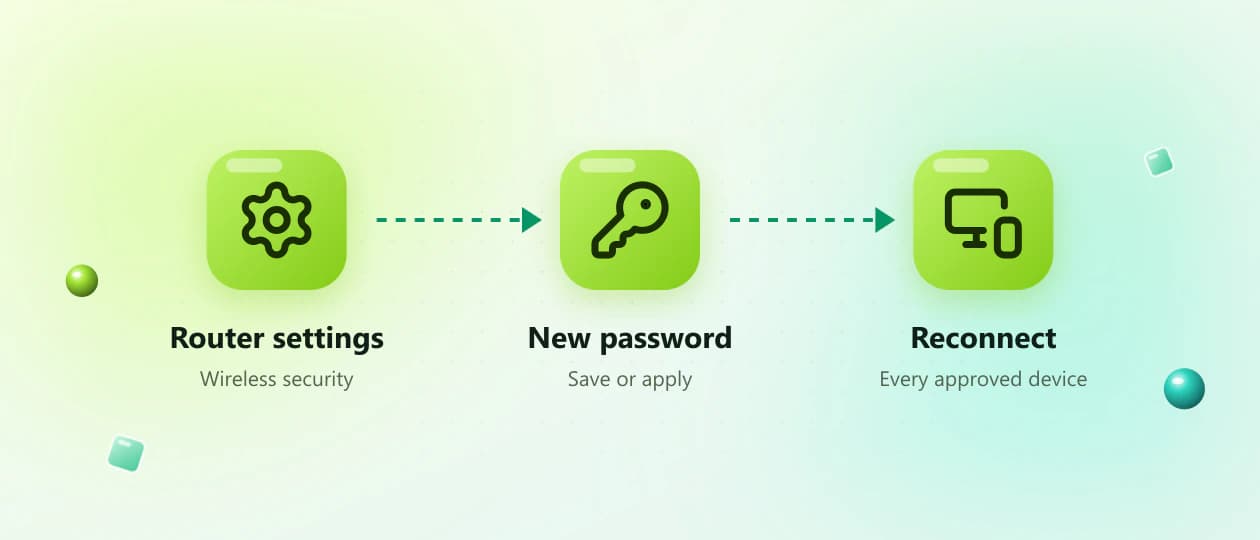
Learning how to change your Wi-Fi password can help protect your network and remove access from devices that should no longer be connected. You can normally update the password through your router settings using a phone, tablet or computer.
- Phone or computer
- Strong password
- Reconnect devices

On this page20
Overview
How it works
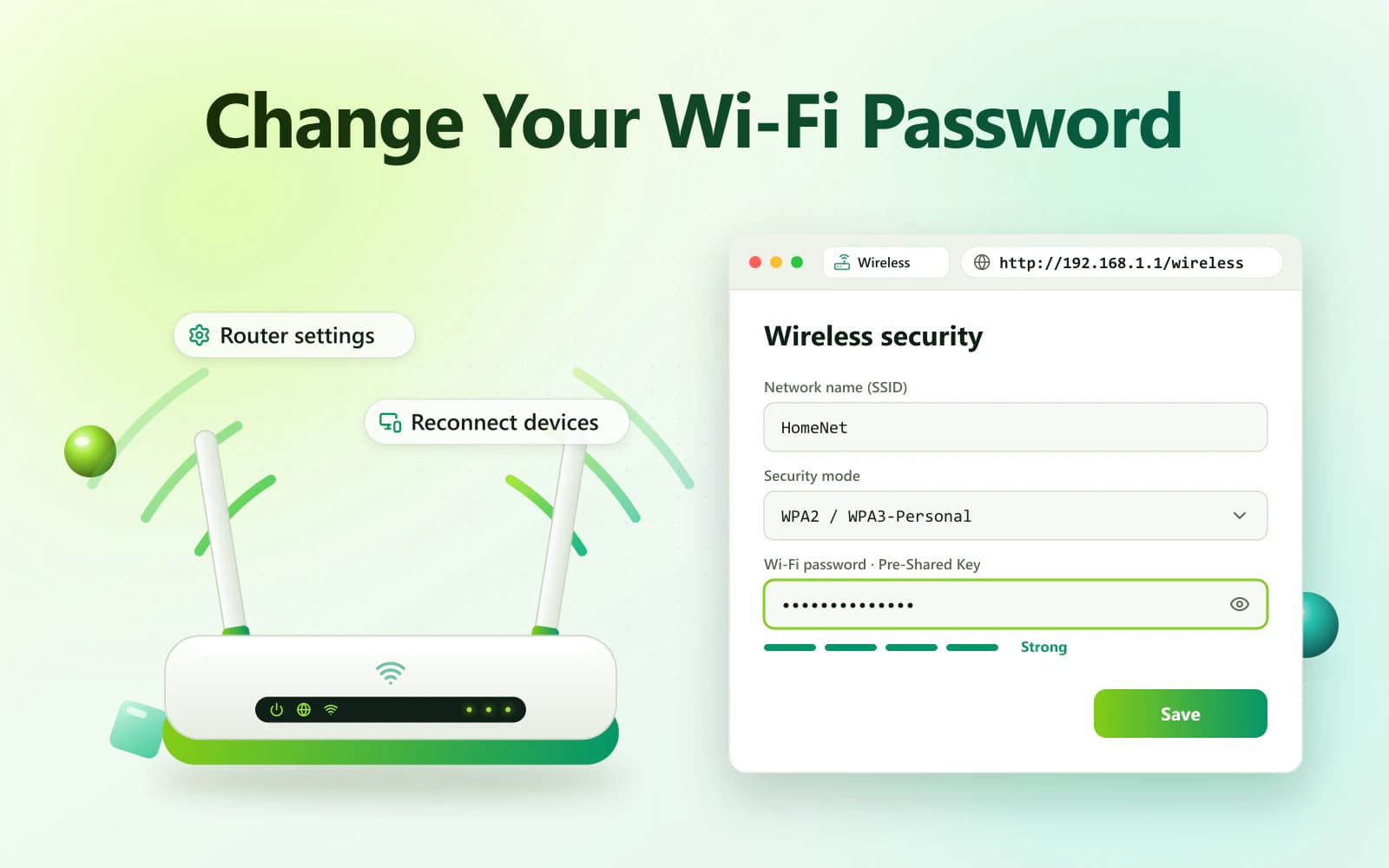
First, connect to the router and find its local IP address. Open that address in a trusted browser, sign in with the administrator details and locate the wireless security settings.
The exact menu names differ between router brands, but the general process is similar.
Step by step
Quick Steps to Change Your Wi-Fi Password
Follow these basic steps:
- 01
Connect your device to the router.
- 02
Find the router’s IP address.
- 03
Open the address in a web browser.
- 04
Enter the router admin username and password.
- 05
Open Wi-Fi, Wireless or WLAN Settings.
- 06
Select Security or Wireless Security.
- 07
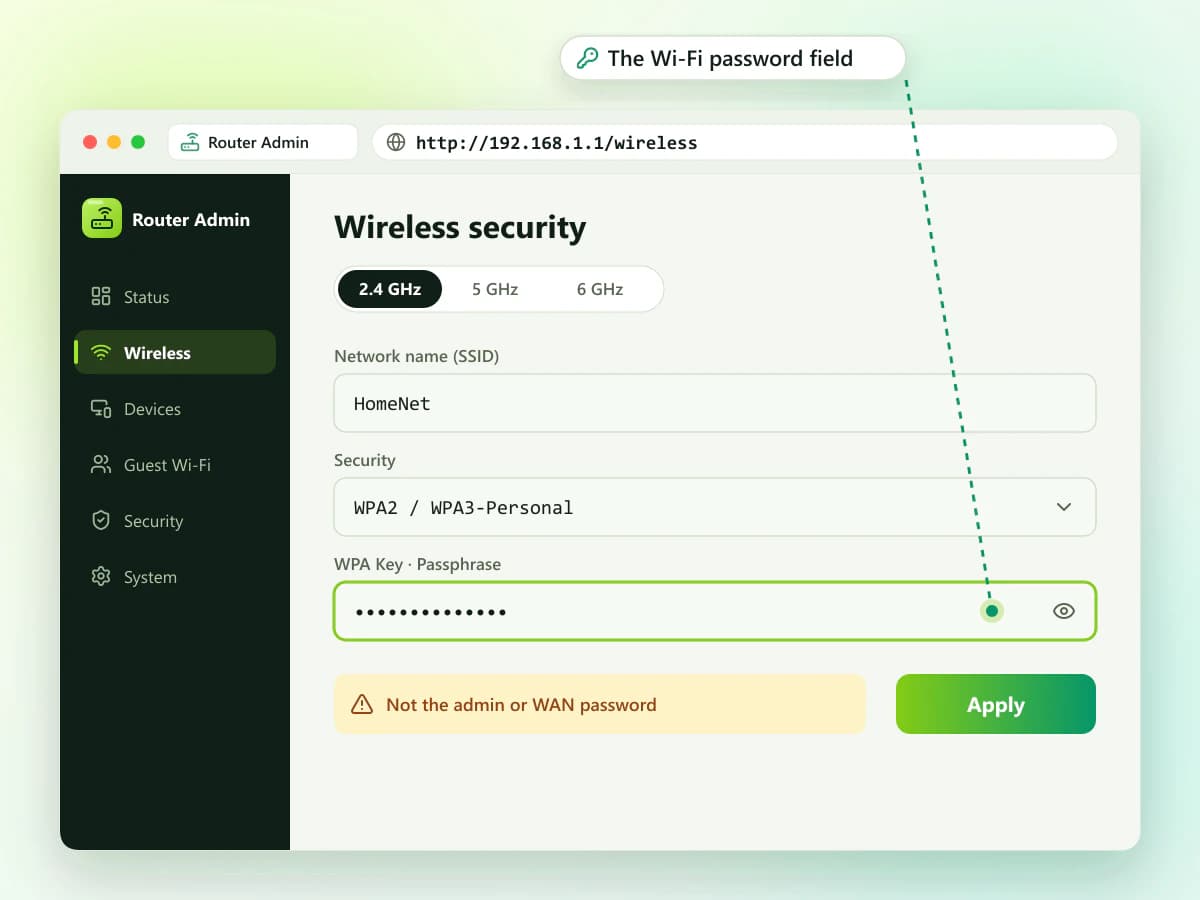
Find the Wi-Fi password field.
- 08
Enter a strong new password.
- 09
Save or apply the changes.
- 10
Reconnect your devices using the new password.
Only change settings on a router you own or are authorized to manage.
Why change it
Why Should You Change Your Wi-Fi Password?
Changing the wireless password may be useful when:
- You are installing a new router
- The current password is too simple
- Too many people know the password
- An unknown device is connected
- A former guest still has access
- The password was shared publicly
- The router still uses its original Wi-Fi key
- You are improving your network security
- Your ISP or technician recommends a change
A new password disconnects devices using the old credentials. Each approved device must be connected again.
Before you start
What You Need Before Changing the Password
Prepare the following information:
- A phone, tablet or computer
- A Wi-Fi or Ethernet connection to the router
- The router’s local IP address
- Router administrator username and password
- A strong new Wi-Fi password
- ISP information if the router requires it
Using an Ethernet connection can be helpful. A computer connected by cable may remain connected while the wireless network restarts.
Know which password
Wi-Fi Password vs Router Admin Password
The Wi-Fi password and router admin password can be different.
| Credential | Purpose |
|---|---|
| Wi-Fi password | Connects phones and computers to the wireless network |
| Router admin password | Provides access to router settings |
| Wi-Fi name or SSID | Identifies the wireless network |
| Admin username | Identifies the router administrator |
Wi-Fi password
- Purpose
- Connects phones and computers to the wireless network
Router admin password
- Purpose
- Provides access to router settings
Wi-Fi name or SSID
- Purpose
- Identifies the wireless network
Admin username
- Purpose
- Identifies the router administrator
You usually need the router admin password to sign in before you can change the Wi-Fi password. The router label may use different terms.
Wi-Fi password labels
- Wi-Fi Key
- WLAN Key
- Wireless Key
- Network Key
- Security Key
- Pre-Shared Key
Admin password labels
- Admin Password
- Device Password
- Login Password
- Web Password
- Access Key
Entering the Wi-Fi password on the router login page may produce an incorrect-password error.
Default gateway
How to Find Your Router IP Address
Your router address may appear as Default Gateway, Gateway or Router in your device settings.
Common examples include:
- 192.168.0.1
- 192.168.1.1
- 192.168.1.254
- 10.0.0.1
- 10.0.1.1
These are only examples. Check your device instead of guessing.
Find the Router IP on Windows
- Press Windows + R.
- Type cmd.
- Select OK.
- Enter: ipconfig
- Press Enter.
- Find the active Wi-Fi or Ethernet adapter.
- Check Default Gateway.
The value beside Default Gateway is normally the router IP.
WindowsFind the Router IP on macOS
- Open the Apple menu.
- Select System Settings.
- Open Network or Wi-Fi.
- Select the connected network.
- Open Details and then TCP/IP, if required.
- Find Router.
macOSFind the Router IP on Android
- Open Settings.
- Select Network & internet, Connections or Wi-Fi.
- Tap the connected network.
- Open Network details or Advanced.
- Find Gateway or Router.
Menu names vary between Android devices.
AndroidFind the Router IP on iPhone or iPad
- Open Settings.
- Tap Wi-Fi.
- Tap the information icon beside the connected network.
- Scroll to the IPv4 section.
- Find Router.
Use this address to open the router settings.
iPhone / iPad
Admin login
How to Open the Router Settings
Once you have found the correct gateway:
- Connect to the router through Wi-Fi or Ethernet.
- Open Chrome, Edge, Safari or another trusted browser.
- Select the address bar.
- Enter the router IP exactly as displayed.
- Press Enter or Go.
- Wait for the admin login page.
- Enter the authorized admin username and password.
- Select Login or Sign In.
For example, if the gateway is 10.0.0.1, enter:
http://10.0.0.1
If it is 192.168.1.1, enter:
http://192.168.1.1
Never enter router credentials on an unrelated public website.
Credentials
How to Find the Router Username and Password
Check these places:
- Label underneath or behind the router
- Setup manual
- Original packaging
- Documents supplied by the ISP
- Browser’s saved passwords
- Trusted password manager
- Manufacturer’s official support website
Some routers have unique admin passwords printed on their labels. Others ask the owner to create one during initial setup.
Do not test long lists of random credentials. Repeated failed attempts may temporarily lock the administrator account.
How to Change Your Wi-Fi Password on a Computer
You can use a Windows, Mac, Linux or Chromebook computer.
- Connect the computer to the router.
- Open a trusted browser.
- Enter the router’s gateway address.
- Sign in with the admin details.
- Open Wireless, Wi-Fi or WLAN Settings.
- Select the main wireless network.
- Open Security or Wireless Security.
- Find the password field.
- Delete the old password.
- Enter the new Wi-Fi password.
- Select Save, Apply or Confirm.
- Wait for the router to update.
The computer will disconnect if it was using Wi-Fi. Select the network again and enter the new password.
ComputerHow to Change Your Wi-Fi Password on Android
A separate application is not always required.
- Connect your Android phone to the Wi-Fi network.
- Temporarily turn off mobile data.
- Open Chrome or another trusted browser.
- Enter the router gateway in the address bar.
- Sign in with the admin credentials.
- Open Wi-Fi, Wireless or WLAN Settings.
- Select Security.
- Find the Wi-Fi password field.
- Enter the new password.
- Save the changes.
- Reconnect the phone with the new password.
If the phone continues using mobile data, it may not reach the local router page.
AndroidHow to Change Your Wi-Fi Password on iPhone or iPad
- Connect the iPhone or iPad to the router.
- Open Safari.
- Enter the Router address shown in the Wi-Fi details.
- Sign in to the admin panel.
- Open the wireless settings.
- Find the security or password option.
- Enter a new Wi-Fi password.
- Save the changes.
- Reconnect using the new password.
If the old password remains stored, open Settings > Wi-Fi, select the network and choose Forget This Network. Then reconnect with the new credentials.
iPhone / iPad
Menu names
Where Is the Wi-Fi Password Setting?
Menu names vary by manufacturer. Look for one of these sections:
- Wireless
- Wi-Fi Settings
- WLAN
- Wireless Setup
- Network
- Basic Settings
- Advanced Settings
- Wireless Security
- Security
The password field may be labelled:
- Password
- Wi-Fi Password
- Wireless Password
- Security Key
- Network Key
- Pre-Shared Key
- WPA Key
- Passphrase
Avoid changing fields such as the router admin password, WAN password or ISP account password by mistake.
Strong password
How to Choose a Strong Wi-Fi Password
A strong password helps prevent unauthorized access.
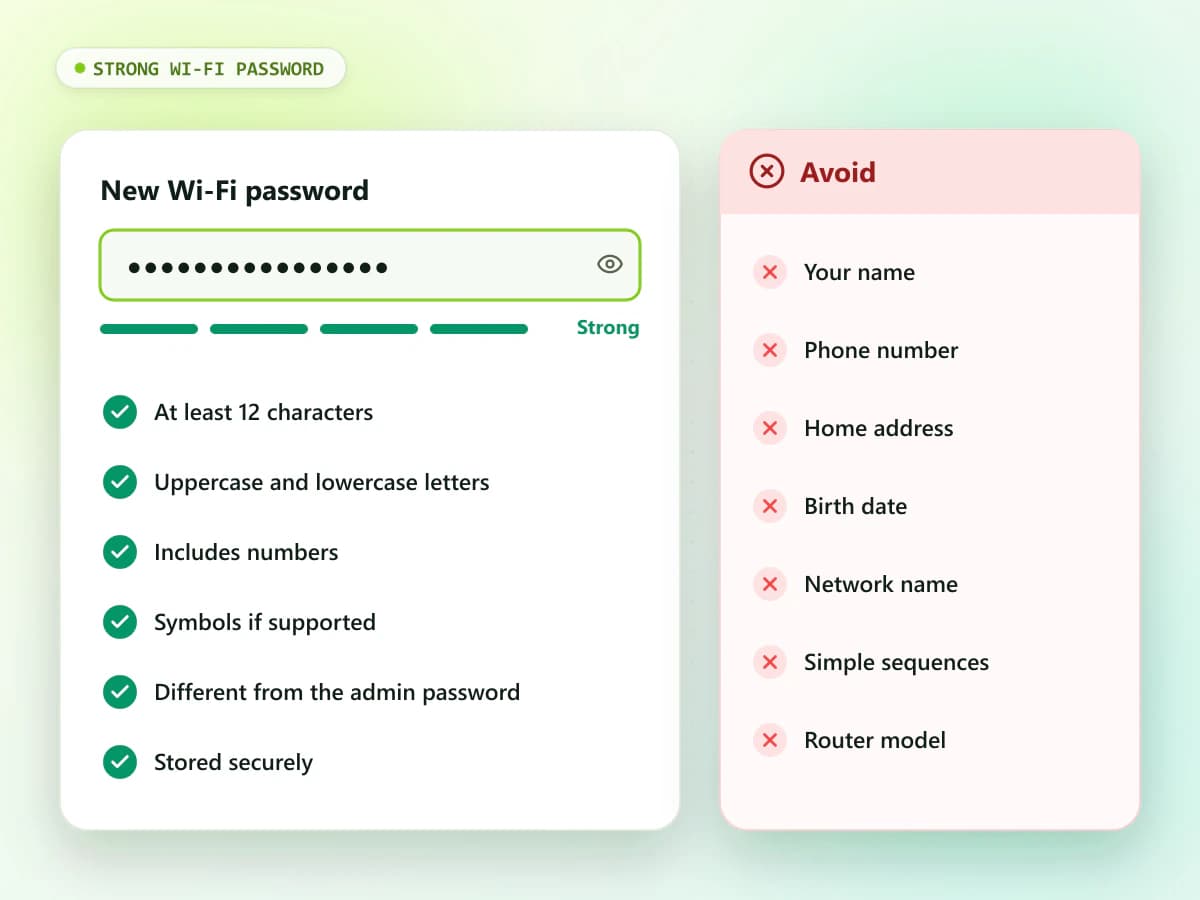
Your new Wi-Fi password should:
- Be at least 12 characters long
- Use uppercase and lowercase letters
- Include numbers
- Include symbols if supported
- Avoid personal information
- Be different from the router admin password
- Be difficult to guess
- Be stored securely
Avoid passwords based on:
- Your name
- Phone number
- Home address
- Birth date
- Network name
- Simple sequences
- Common words
- Router model
A memorable multiword passphrase with added numbers or symbols can be easier to use while remaining difficult to guess.
Wi-Fi name
Should You Change the Wi-Fi Name Too?
Changing the Wi-Fi name, also called an SSID, is optional.
To change it:
- Open the wireless settings.
- Find SSID or Network Name.
- Enter a new name.
- Save the changes.
- Reconnect your devices.
Avoid using your full name, house number, phone number or other private information in the SSID.
Wi-Fi bands
How to Change Passwords for 2.4 GHz and 5 GHz Wi-Fi
Some routers display separate networks for:
- 2.4 GHz
- 5 GHz
- 6 GHz, when supported
You may need to update each band separately.
If the router uses one combined network name, a single password change may apply to all bands. Check the settings before saving.
Using the same password across the router’s own bands can make reconnection easier, but each network should still use strong security.
After saving
What Happens After Changing the Wi-Fi Password?
The router may briefly restart its wireless service. All devices using the old password will normally disconnect.
You will need to reconnect:
- Phones
- Computers
- Tablets
- Smart TVs
- Streaming devices
- Security cameras
- Smart speakers
- Printers
- Game consoles
- Home automation devices
Enter the new password on every approved device.
Reconnect
How to Reconnect Devices With the New Password
Android
- Open Settings.
- Select Wi-Fi.
- Tap the network.
- Enter the new password.
- Select Connect.
If it does not ask for a password, forget the network and reconnect.
AndroidiPhone or iPad
- Open Settings > Wi-Fi.
- Tap the network.
- Enter the new password.
- Tap Join.
Use Forget This Network if the old password remains saved.
iPhone / iPadWindows
- Select the Wi-Fi icon.
- Choose the network.
- Select Connect.
- Enter the new security key.
If Windows repeatedly rejects it, forget the saved network profile and connect again.
WindowsSmart Devices
Open the device’s official application and update its Wi-Fi details. Some devices may need to be placed in setup or pairing mode.
Smart devices
Wi-Fi Password Changed but Internet Is Not Working
The password change itself does not normally alter the ISP connection. Try these fixes:
- Confirm that the device connected successfully.
- Check the password for typing errors.
- Restart the device.
- Restart the router normally.
- Test another device.
- Check whether the router has an internet or WAN warning.
- Contact the ISP if every device is offline.
Do not factory reset the router unless necessary.
Problem 01New Wi-Fi Password Is Not Saving
Possible causes include:
- Password does not meet length requirements
- Unsupported symbols were used
- Changes were not applied
- Router storage is temporarily unresponsive
- Admin session expired
- Browser cache is causing a problem
- Router firmware has an issue
Try a strong password containing letters and numbers. Select Apply or Save, then wait for the router to update.
If it still fails, sign in again through a private browser window.
Problem 02Cannot Find Wireless Settings
You may be using:
- A limited user account
- An ISP-restricted admin account
- A router managed through an official app
- A modem in bridge mode
- A mesh network with centralized management
Check the official manual or contact the ISP. Do not attempt to bypass provider or administrator restrictions.
Problem 03Router Login Page Is Not Opening
If you cannot access the router settings:
- Verify the Default Gateway.
- Connect to the main Wi-Fi.
- Turn off mobile data.
- Pause VPN or proxy services.
- Enter the address in the browser address bar.
- Try HTTP and the officially supported HTTPS option.
- Clear browser cache.
- Use another browser or device.
- Restart the router normally.
- Try an Ethernet connection.
A guest network may block access to the local admin page.
Problem 04Router Username or Password Does Not Work
The admin login may fail because:
- You entered the Wi-Fi password
- The admin password was changed
- Browser autofill inserted old details
- The credentials are case-sensitive
- Your ISP uses custom login information
- The router has a unique label password
- You opened the wrong gateway
Check the router label, manual, saved passwords and ISP documents.
Problem 05Forgot the Router Admin Password
Before resetting:
- Check the router label.
- Search saved browser passwords.
- Check your password manager.
- Review setup documents.
- Ask the person who configured the router.
- Contact the manufacturer.
- Contact your ISP.
A factory reset may restore the original credentials but can also remove Wi-Fi and internet settings.
Problem 06
Last resort
Should You Factory Reset the Router?
Use a factory reset only as the final option.
A reset can remove:
- Current Wi-Fi name
- Wi-Fi password
- Router admin password
- ISP settings
- Guest networks
- Parental controls
- Device restrictions
- Port-forwarding rules
- Other custom configurations
Contact your ISP before resetting a provider-supplied router.
How often
How Often Should You Change Your Wi-Fi Password?
You do not need to change a strong password on a fixed schedule unless your organization requires it.
Change it when:
- You believe it was exposed
- An unknown device appears
- Someone should no longer have access
- The original password is still in use
- The password is weak or reused
- A security incident occurs
A strong and unique password is more important than changing it frequently without a reason.
Security
Improve Wi-Fi Security After Changing the Password
Consider these additional steps:
- Change known default admin credentials.
- Use WPA2 or WPA3 when supported.
- Avoid outdated wireless security modes.
- Disable WPS if you do not need it.
- Create a guest network for visitors.
- Keep router firmware updated.
- Review connected devices.
- Disable remote administration when unnecessary.
- Store passwords in a trusted password manager.
- Avoid sharing the main password publicly.
Do not change advanced security settings without checking device compatibility.
Safety
Safety Tips When Using Router Settings
- Access only a router you own or manage.
- Use the router’s verified local gateway.
- Never submit credentials to a public website.
- Avoid unofficial management applications.
- Do not share screenshots containing passwords.
- Keep a record of important settings.
- Make one major change at a time.
- Log out after finishing.
- Reconnect using the new password before closing everything.
FAQ
Frequently Asked Questions
How do I change my Wi-Fi password?
Open your router’s local gateway in a browser, sign in with the admin credentials and change the password under Wireless, Wi-Fi, WLAN or Security settings.
Can I change the Wi-Fi password using my phone?
Yes. Connect the phone to the router, open its gateway in a browser or official app and update the wireless password.
What is my router IP address?
Check the Default Gateway, Gateway or Router field in the network settings of a connected device.
Is the Wi-Fi password the same as the router password?
Not necessarily. The Wi-Fi password connects devices to the network, while the router password provides access to administrator settings.
What happens when I change my Wi-Fi password?
Devices using the old password usually disconnect. Each approved device must reconnect using the new password.
Why can’t I access my router settings?
You may be using the wrong gateway, mobile data, a VPN, a guest network or incorrect admin credentials.
Why is my new Wi-Fi password not working?
Check uppercase and lowercase letters, symbols and extra spaces. Forget the saved network and reconnect using the new password.
Will changing the Wi-Fi password change the Wi-Fi name?
No. The SSID remains the same unless you change it separately.
Will changing the password disconnect all devices?
Yes, devices using the old password will normally disconnect.
Should I factory reset the router to change the password?
No. A factory reset is not normally required if you can access the admin panel or official router application.
Conclusion
Understanding how to change your Wi-Fi password allows you to protect the network and control which devices can connect. Find your router’s Default Gateway, open it in a trusted browser and sign in with the authorized admin credentials. Locate the Wireless, Wi-Fi or WLAN security settings and replace the existing password with a strong, unique one. After saving, reconnect every approved device with the new password. You can also improve security by changing known default admin credentials, reviewing connected devices and keeping the router firmware updated.