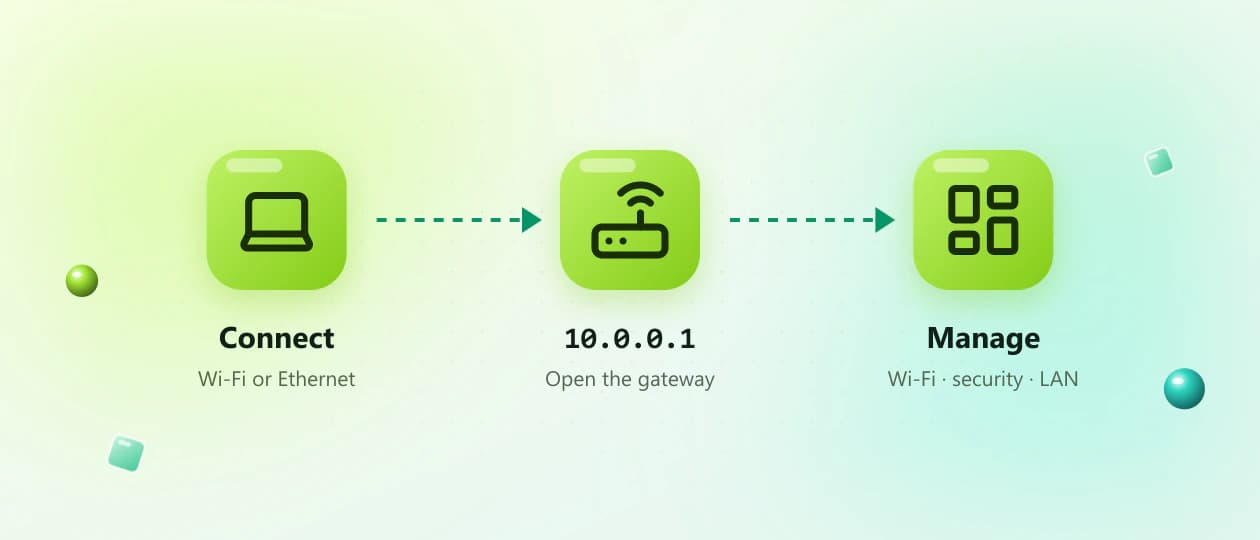
Default gateway · 10.0.0.1
10.0.0.1 Router Login – Open the Admin Panel
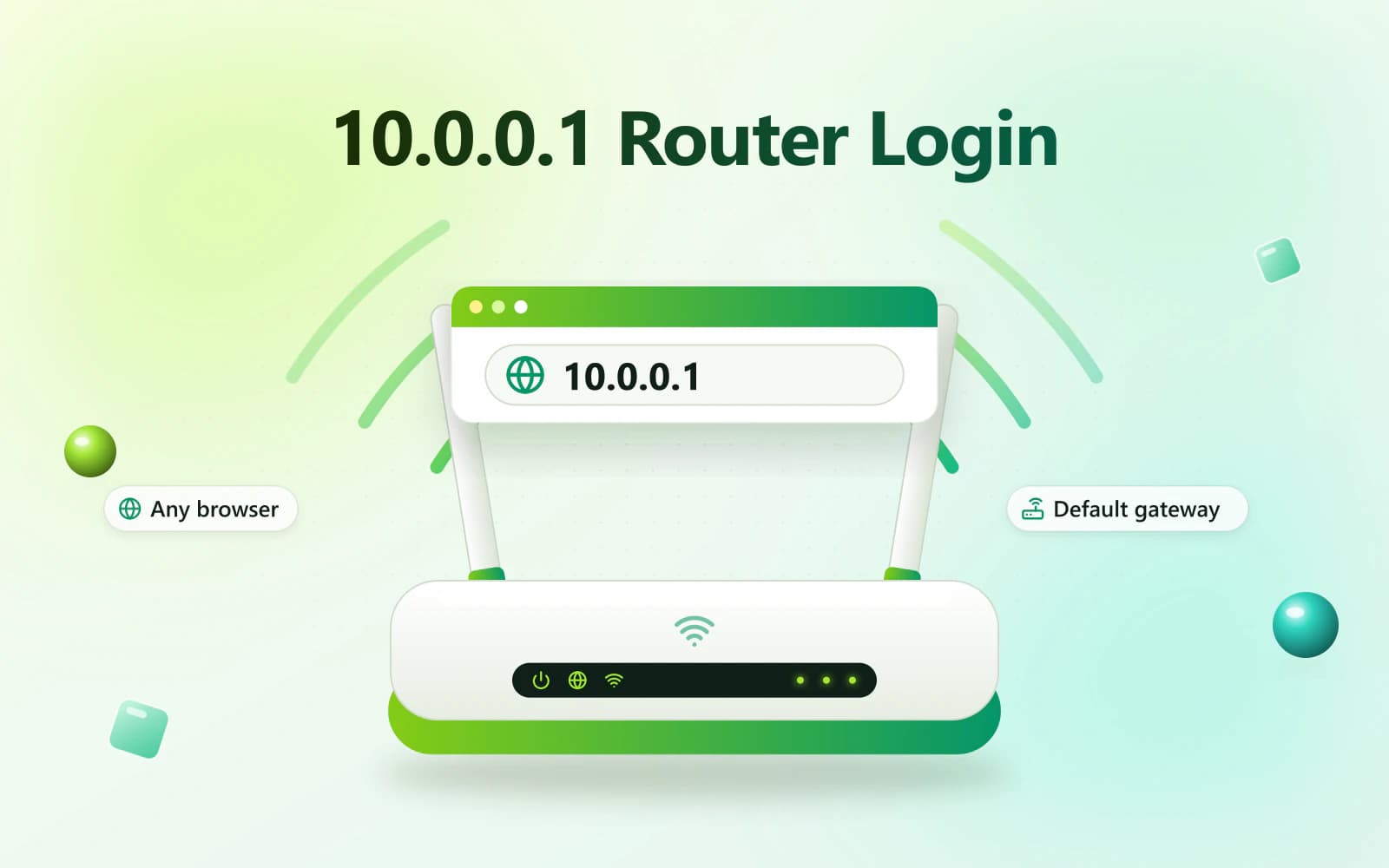
The 10.0.0.1 router login page allows authorized users to access and manage their router settings. If 10.0.0.1 is your router’s Default Gateway, you can enter it in a browser to open the admin panel.
Opens your router login page in a new tab. Works only on your own network.
- Android
- iPhone or iPad
- Windows & macOS

On this page19
Login options
Choose where to sign in
Pick what you are trying to open. Each button goes straight to that address on the network you are connected to.
Router admin login
http://10.0.0.1Wi-Fi name and password, connected devices and security settings on routers and cable gateways that use 10.0.0.1.
Open 10.0.0.1 for Router admin login (opens in a new tab)Router login (HTTPS)
https://10.0.0.1For routers that only accept a secure connection to their admin page.
Open 10.0.0.1 for Router login (HTTPS) (opens in a new tab)Piso WiFi portal & pause time
http://10.0.0.1Insert coin, check your remaining time and pause your session on a Piso WiFi network.
Open 10.0.0.1 for Piso WiFi portal & pause time (opens in a new tab)Not opening?Piso WiFi admin login
http://10.0.0.1/adminOwner settings for Piso WiFi machines, such as rates, vouchers and pause time.
Open 10.0.0.1/admin for Piso WiFi admin login (opens in a new tab)Username & password help
These addresses open on the network you are connected to. Nothing you type is sent to this website.
Overview
What the router dashboard lets you do
From the router dashboard, you may be able to change the Wi-Fi name, create a new wireless password, view connected devices and manage network security. The available options depend on the router model and internet provider.
The address will not work on every network. Before attempting to log in, confirm that 10.0.0.1 is the gateway assigned to your router.
The address
What Is 10.0.0.1?
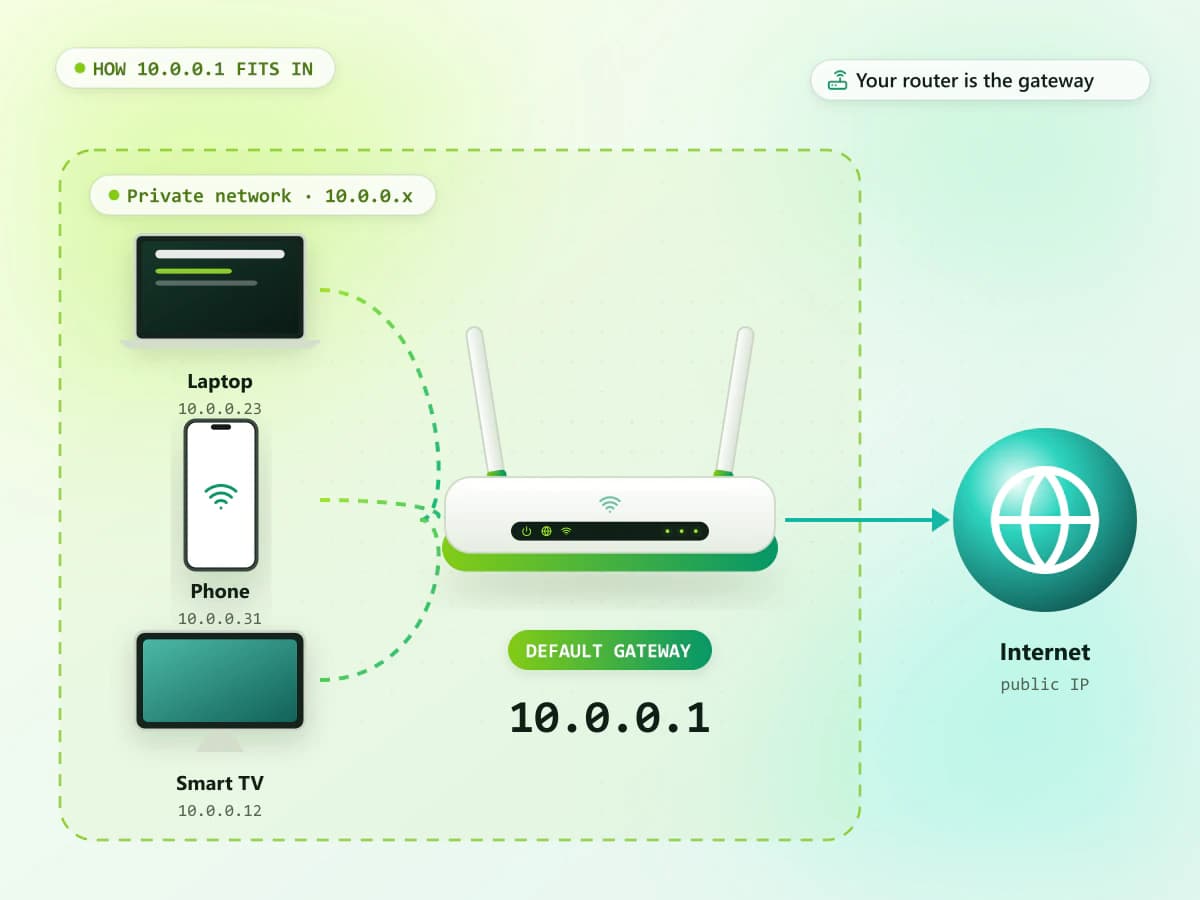
10.0.0.1 is a private IPv4 address. Some routers, modems, access points and local network systems use it as their Default Gateway.
A Default Gateway is the device that connects your local network to other networks, including the internet. On a home network, this device is usually the router.
Unlike a public IP address, 10.0.0.1 is intended for use inside a private network. It cannot normally be reached directly from the public internet.
You may use the 10.0.0.1 admin panel to manage settings such as:
- Wi-Fi name and password
- Wireless security mode
- Guest Wi-Fi
- Connected devices
- Parental controls
- Local network configuration
- Router administrator password
- Firmware settings
- Firewall options
The exact features and menu names vary between routers.
Step by step
10.0.0.1 Router Login Steps
Follow these steps to open the router admin panel:
- 01
Connect your device to the router.
- 02
Open a trusted web browser.
- 03
Select the browser’s address bar.
- 04
Enter http://10.0.0.1.
- 05
Press Enter or Go.
- 06
Wait for the admin login page to appear.
- 07
Enter your router username and password.
- 08
Select Login, Sign In or Submit.
Only access a router that you own or have permission to manage.
The address bar
Open the 10.0.0.1 Admin Page
Enter the following address directly into your browser: http://10.0.0.1
Do not enter it into a search-engine box. If the browser displays Google or another search engine, select the address bar and type the IP again.
Check the numbers carefully. Valid 10.0.0.1 login formatting contains four number blocks separated by three periods.
Checklist
Requirements for Accessing 10.0.0.1
You normally need the following:
- A phone, tablet or computer
- Connection to the router through Wi-Fi or Ethernet
- A trusted web browser
- The correct router IP address
- Authorized administrator credentials
An active internet connection is not always required. The admin panel is stored locally on the router. However, your device must be connected to that router’s network.
Every device
Log in to 10.0.0.1 on any device
How to Log In to 10.0.0.1 on Android
You can open the admin panel from an Android phone without installing an additional application.
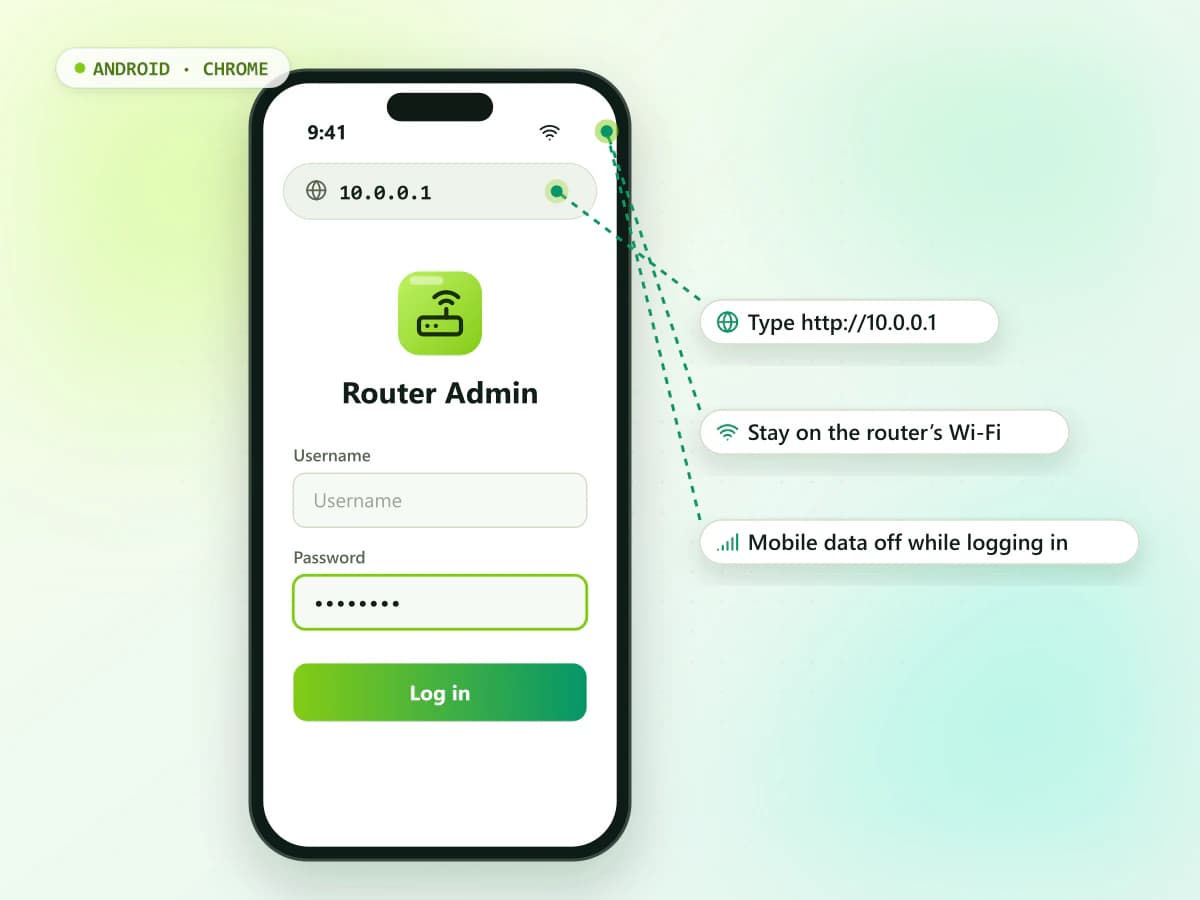
- Connect your Android phone to the router’s Wi-Fi.
- Temporarily turn off mobile data.
- Open Chrome or another trusted browser.
- Enter http://10.0.0.1 in the address bar.
- Tap Go.
- Enter the router’s admin credentials.
- Tap Login or Sign In.
- Mobile data may prevent the phone from reaching the local admin panel. Keep the phone connected to Wi-Fi while managing the router.
AndroidHow to Log In to 10.0.0.1 on iPhone or iPad
Follow these steps on an iPhone or iPad:
- Open Settings.
- Tap Wi-Fi.
- Connect to the router’s network.
- Open Safari or another trusted browser.
- Type http://10.0.0.1 in the address bar.
- Tap Go.
- Enter the authorized username and password.
- If the page does not load, confirm the actual Router address under Settings > Wi-Fi > information icon beside the connected network.
iOS / iPadOSHow to Open 10.0.0.1 on Windows
A Windows computer can access the panel through Wi-Fi or Ethernet.
- Connect the computer to the router.
- Open Chrome, Edge or Firefox.
- Enter http://10.0.0.1 in the address bar.
- Press Enter.
- Wait for the login screen.
- Enter your admin credentials.
- If you are unsure whether this is the correct gateway, open Command Prompt and enter: ipconfig
- Find your active network connection and check Default Gateway. If another address is displayed, use that address instead.
WindowsHow to Open 10.0.0.1 on macOS
- Connect the Mac to the router’s Wi-Fi or Ethernet network.
- Open Safari, Chrome or another browser.
- Type http://10.0.0.1 in the address bar.
- Press Return.
- Enter the router administrator details.
- To confirm the gateway, open System Settings > Network or Wi-Fi > Connected Network > Details > TCP/IP and find the address beside Router.
macOS
On screen
The admin panel on phone and desktop
Android · Chrome
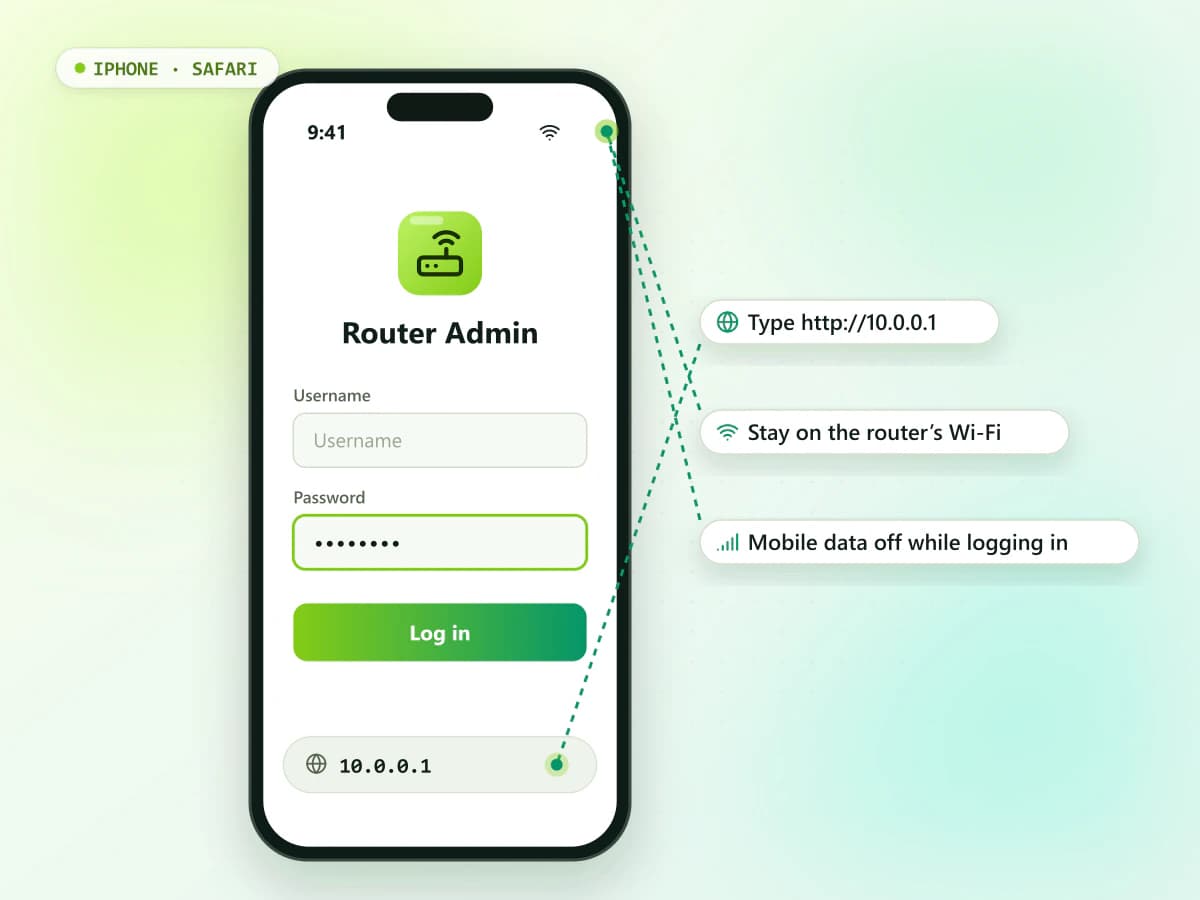
iPhone · Safari
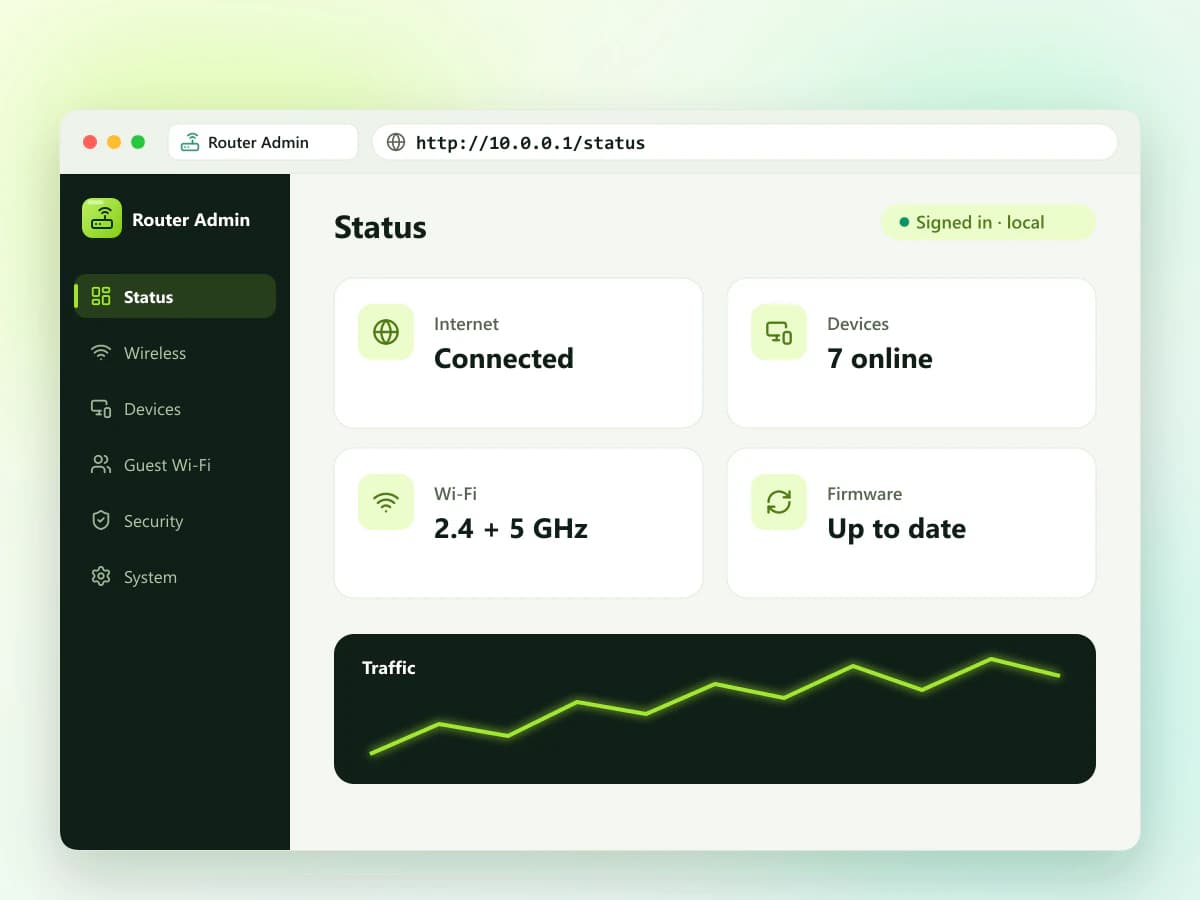
Windows & macOS
Credentials
10.0.0.1 Username and Password
There is no single username and password that works with every 10.0.0.1 router. Login credentials depend on the router brand, model, ISP and previous configuration.
Check these places for the correct information:
- Label underneath or behind the router
- Router setup manual
- Original packaging
- Documents provided by the ISP
- Manufacturer’s official support website
- Browser’s saved passwords
- Trusted password manager
Some routers use a unique admin password printed on their label. Others ask the owner to create one during initial setup. Do not assume that the Wi-Fi password is also the router admin password.
Know which password
Router Admin Password vs Wi-Fi Password
The two passwords serve different purposes.
| Password | Purpose |
|---|---|
| Wi-Fi password | Connects phones and computers to the wireless network |
| Admin password | Provides access to router settings and network controls |
Wi-Fi password
- Purpose
- Connects phones and computers to the wireless network
Admin password
- Purpose
- Provides access to router settings and network controls
The Wi-Fi password may be printed as Wi-Fi Key, Wireless Key, WLAN Key or Network Password. The admin details may be labelled Admin Password, Login Password, Device Password or Web Password.
Admin panel
What Can You Change Through the 10.0.0.1 Admin Panel?
After successfully signing in, you may be able to manage several network settings.
Change the Wi-Fi Name
The Wi-Fi network name is also called an SSID.
- Open the router admin panel.
- Select Wireless, Wi-Fi or WLAN.
- Find Network Name or SSID.
- Enter a new name.
- Save the changes.
- Your devices may disconnect after the name changes. Reconnect them using the new network name.
Change the Wi-Fi Password
- Sign in to the 10.0.0.1 admin panel.
- Open Wireless Settings or Wi-Fi Security.
- Select the main Wi-Fi network.
- Find Password, Security Key or Pre-Shared Key.
- Enter a strong new password.
- Save or apply the changes.
- Connected devices will usually disconnect. Use the new password to reconnect them.
View Connected Devices
Look for a menu named:
- Connected Devices
- Device List
- Attached Devices
- Network Map
- DHCP Clients
- Client List
- This section may show device names, local IP addresses and connection types. Do not block a device unless you are sure it is unknown.
Create a Guest Network
A guest network gives visitors internet access without sharing the primary Wi-Fi password. Open Guest Wi-Fi or Guest Network, create a separate name and password, and save the settings. Enable client isolation if the router provides that option.
Protect the panel
Change the Router Admin Password
Changing a known default admin password can help protect the router settings.
- 01
Open Administration, System or Account Settings.
- 02
Find the administrator password option.
- 03
Enter the current password.
- 04
Create a strong new password.
- 05
Save it securely in a password manager.
Do not use the same password for Wi-Fi and router administration.
Troubleshooting
10.0.0.1 Not Working? Try These Fixes
Several problems can prevent the router page from opening.
Confirm the Correct Address
Check that you entered: 10.0.0.1. Avoid incorrect versions such as:
- 10.0.0.0.1
- 1.0.0.0.1
- 10.0 0.1
- 10.00.1
- 10.0.01
- 10.0.0.l
- The final character is the number 1, not a lowercase L.
Fix 01Check the Default Gateway
Your router may use a different address. Find the gateway through your device’s network settings. Other possible gateways include:
- 192.168.0.1
- 192.168.1.1
- 192.168.1.254
- 10.0.1.1
- Only use the address displayed by your connected device.
Fix 02Connect to the Router’s Network
You cannot normally access a private admin page from mobile data or an unrelated Wi-Fi network. Connect directly to the router through Wi-Fi or Ethernet and reload the page.
Fix 03Enter the IP in the Address Bar
If the browser opens search results, you probably entered the address into a search box. Type the complete address directly: http://10.0.0.1
Fix 04Temporarily Disable the VPN
A VPN or proxy may route the connection away from the local network. Pause it briefly and try opening the admin page again. Enable the VPN after completing your router changes.
Fix 05Try Another Browser
Open the page in a private window or use another browser. Clearing cached data may also solve an old redirect or loading error.
Fix 06Restart the Router
Disconnect the power cable for about 30 seconds. Reconnect it and wait until the router starts fully. Do not press the physical reset button. A factory reset is different from a normal restart and may erase your settings.
Fix 07
Connection refused
Why Does 10.0.0.1 Refuse to Connect?
A refused connection may occur when:
- 10.0.0.1 is not your Default Gateway
- Your device is connected to another network
- The router admin service is temporarily unavailable
- A VPN or proxy is active
- Browser data is causing a problem
- The router uses an official management application
- Remote administration is disabled
Remote administration being disabled is normally a useful security measure. Manage the router while connected to its local network.
Credentials
Why Does the Login Password Not Work?
Your admin credentials may fail because:
- The password was previously changed
- You entered the Wi-Fi password
- The username or password is case-sensitive
- Your ISP configured custom credentials
- The router uses a unique label password
- The wrong router page was opened
- The browser filled an outdated password
Type the credentials manually and check for extra spaces. If they still fail, consult the manufacturer or ISP.
Recover access
Forgot the 10.0.0.1 Admin Password?
Before resetting the router, try:
- Check the router label.
- Review the setup manual.
- Look in the browser’s saved passwords.
- Check your password manager.
- Contact the person who configured the router.
- Contact the ISP if it supplied the equipment.
- Visit the manufacturer’s official support website.
A factory reset should be the final option.
Last resort
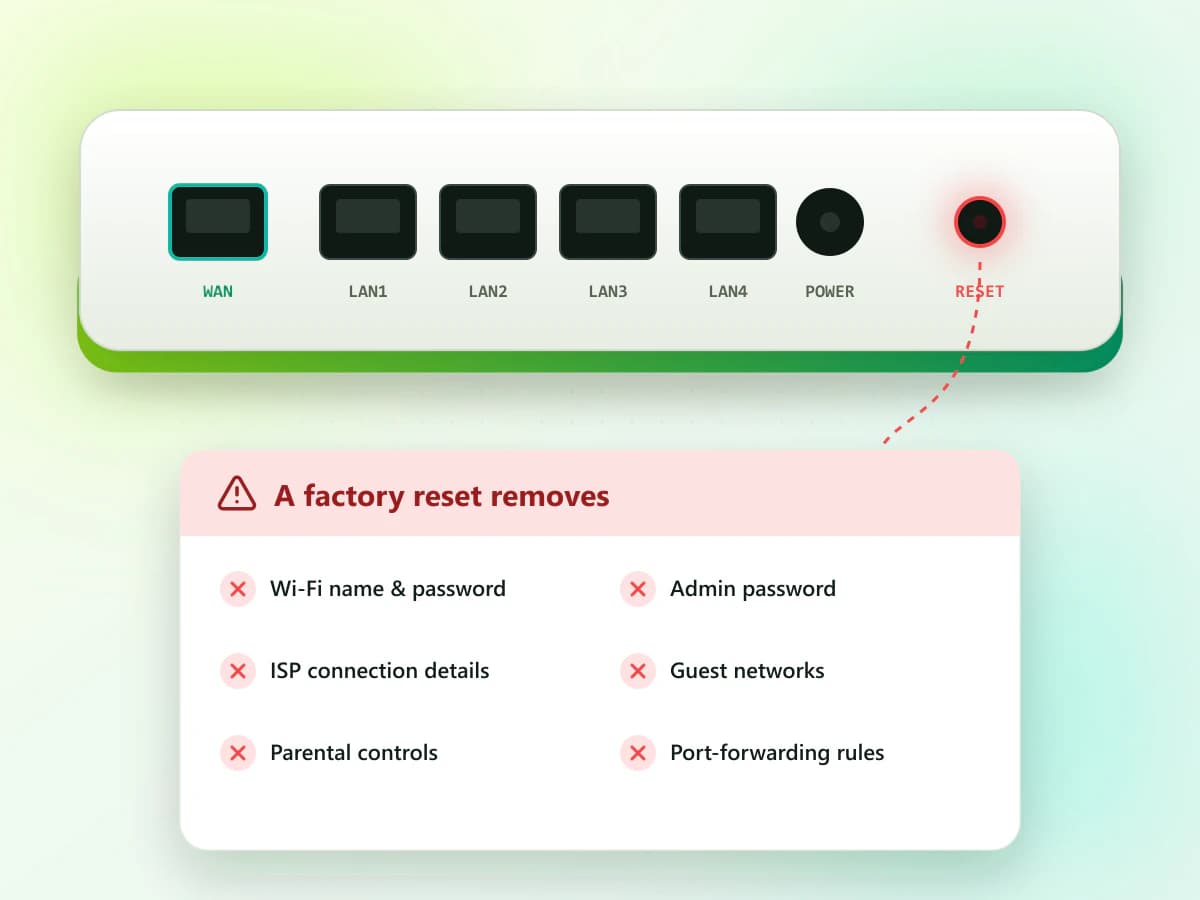
Should You Reset the Router?
Resetting may restore factory settings and remove:
- Current Wi-Fi name
- Wi-Fi password
- Admin password
- ISP connection details
- Guest networks
- Parental controls
- Port-forwarding rules
- Other custom settings
Contact your ISP before resetting provider-supplied equipment. You may need special connection details to restore internet access.
Safety
Is the 10.0.0.1 Router Login Safe?
The 10.0.0.1 router login is generally safe when it is your router’s real local gateway and you are connected to a network you own or manage.
Follow these precautions:
- Verify the Default Gateway first.
- Never submit router credentials to a public website.
- Avoid unofficial router-login applications.
- Do not share the admin password.
- Change known default credentials.
- Use a strong, unique admin password.
- Disable remote administration when it is not needed.
- Keep router firmware updated through official methods.
- Log out after changing important settings.
Certificate or privacy warnings
Some local admin panels may show a certificate or privacy warning. Before continuing, verify that the address matches your router and that you are on the correct local network.
FAQ
10.0.0.1 Router Login FAQs
What is 10.0.0.1 used for?
10.0.0.1 is a private IPv4 address. Some routers and network devices use it as their local gateway and admin-panel address.
How do I open the 10.0.0.1 admin panel?
Connect to the router, open a browser and enter http://10.0.0.1 in the address bar. Use the authorized admin credentials when the login page appears.
Why is 10.0.0.1 not opening?
It may not be your correct gateway. You may also be connected through mobile data, using a VPN or entering the IP into a search box.
What is the default username and password for 10.0.0.1?
There is no universal login. Check the router label, manual, ISP documents or manufacturer’s official support page.
Is the Wi-Fi password the same as the admin password?
Not always. The Wi-Fi password connects devices to the network, while the admin password protects the router settings.
Can I change my Wi-Fi password through 10.0.0.1?
Yes, if 10.0.0.1 is your router’s real gateway. Sign in and open the Wireless, Wi-Fi or WLAN security settings.
Can I open 10.0.0.1 using mobile data?
Normally, no. Connect your phone to the router’s Wi-Fi network and temporarily disable mobile data.
Is 10.0.0.1 the same as 1.0.0.1?
No. 10.0.0.1 is a private address that may be used by a router. The public 1.0.0.1 address is associated with Cloudflare DNS.
Conclusion
The 10.0.0.1 router login page can provide access to Wi-Fi, security and local network settings when 10.0.0.1 is your router’s actual Default Gateway. Connect to the correct network, enter http://10.0.0.1 directly into the browser and use the authorized admin credentials. If it does not open, verify your gateway instead of trying random IP variations.