Protocol · http://10.0.0.1
HTTP 10.0.0.1 – How to Open Your Router Login Page
HTTP 10.0.0.1 is used to open the admin panel of routers that have 10.0.0.1 as their private gateway. When your device is connected to the correct network, you can enter http://10.0.0.1 in a web browser to access the router login page.
Opens your router login page in a new tab. Works only on your own network.
- Wi-Fi name and password
- Connected devices
- Guest network

On this page14
Login options
Choose where to sign in
Pick what you are trying to open. Each button goes straight to that address on the network you are connected to.
Router admin login
http://10.0.0.1Wi-Fi name and password, connected devices and security settings on routers and cable gateways that use 10.0.0.1.
Open 10.0.0.1 for Router admin login (opens in a new tab)Router login (HTTPS)
https://10.0.0.1For routers that only accept a secure connection to their admin page.
Open 10.0.0.1 for Router login (HTTPS) (opens in a new tab)HTTP vs HTTPSPiso WiFi portal & pause time
http://10.0.0.1Insert coin, check your remaining time and pause your session on a Piso WiFi network.
Open 10.0.0.1 for Piso WiFi portal & pause time (opens in a new tab)Not opening?Piso WiFi admin login
http://10.0.0.1/adminOwner settings for Piso WiFi machines, such as rates, vouchers and pause time.
Open 10.0.0.1/admin for Piso WiFi admin login (opens in a new tab)Username & password help
These addresses open on the network you are connected to. Nothing you type is sent to this website.
Overview
What the admin panel lets you do
The admin panel may allow you to change the Wi-Fi name and password, view connected devices, create a guest network and manage security settings.
However, this address does not work with every router. You should confirm that 10.0.0.1 is your router’s Default Gateway before entering any login details.
The address
What Is HTTP 10.0.0.1?
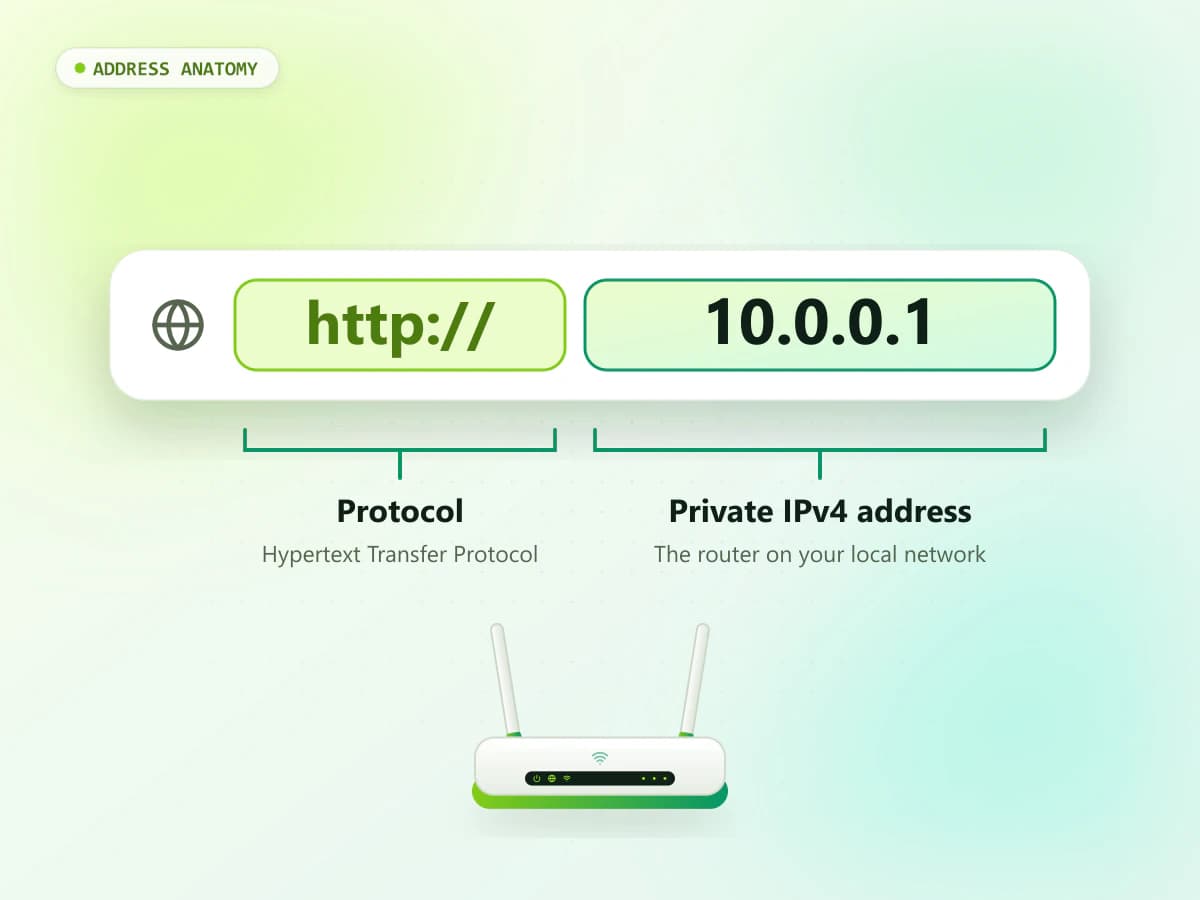
The complete address is: http://10.0.0.1
It contains two important parts:
- http:// tells the browser which communication protocol to use.
- 10.0.0.1 is the private IP address of the local network device.
HTTP stands for Hypertext Transfer Protocol. It allows a browser to communicate with a web interface, including a router’s local admin panel.
The 10.0.0.1 address belongs to a private IPv4 range. Some routers, modems and network gateways use it as their internal management address.
It is not a normal public website. The page is usually stored on the router and can only be opened from its local network.
Step by step
Quick Steps to Open HTTP 10.0.0.1
Follow these steps:
- 01
Connect your device to the router.
- 02
Open Chrome, Edge, Safari or Firefox.
- 03
Select the browser address bar.
- 04
Enter http://10.0.0.1.
- 05
Press Enter or Go.
- 06
Wait for the router login page.
- 07
Enter the authorized admin username and password.
- 08
Select Login or Sign In.
Only access a router you own or have permission to manage.
Get the address right
Correct Way to Enter HTTP 10.0.0.1
Do not include spaces. Do not replace the numbers with letters, commas, slashes or extra periods.
Correct format
Enter this exact address in your browser:
- http://10.0.0.1
Use thisCommon incorrect formats
- http //10.0.0.1
- http//10.0.0.1
- http 10.0 0.1
- https //10.0.0.1
- 10.0.0.0.1
- 10.00.1
- 10.0.01
- 10.0.0.l
- 1.0.0.0.1
The last character in 10.0.0.1 is the number 1, not the lowercase letter L.
Avoid these
Protocols
HTTP 10.0.0.1 vs HTTPS 10.0.0.1
HTTP and HTTPS are different connection methods.
| Address | Connection type | Common result |
|---|---|---|
| http://10.0.0.1 | Standard HTTP | May open an older local router panel |
| https://10.0.0.1 | Encrypted HTTPS | May open a modern secure router panel |
| 10.0.0.1 | No protocol entered | Browser normally chooses a suitable method |
http://10.0.0.1
- Connection type
- Standard HTTP
- Common result
- May open an older local router panel
https://10.0.0.1
- Connection type
- Encrypted HTTPS
- Common result
- May open a modern secure router panel
10.0.0.1
- Connection type
- No protocol entered
- Common result
- Browser normally chooses a suitable method
HTTPS encrypts the connection between the browser and router. However, not every router supports HTTPS for its local management page. Some routers automatically redirect HTTP to HTTPS. Other models work only through HTTP or an official application.
If one protocol does not work
If one protocol does not work, check the router manual or manufacturer’s official support instructions. Do not ignore browser security warnings without first verifying that you are connected to your own router and using the correct gateway.
Check first
Is 10.0.0.1 Your Router’s IP Address?
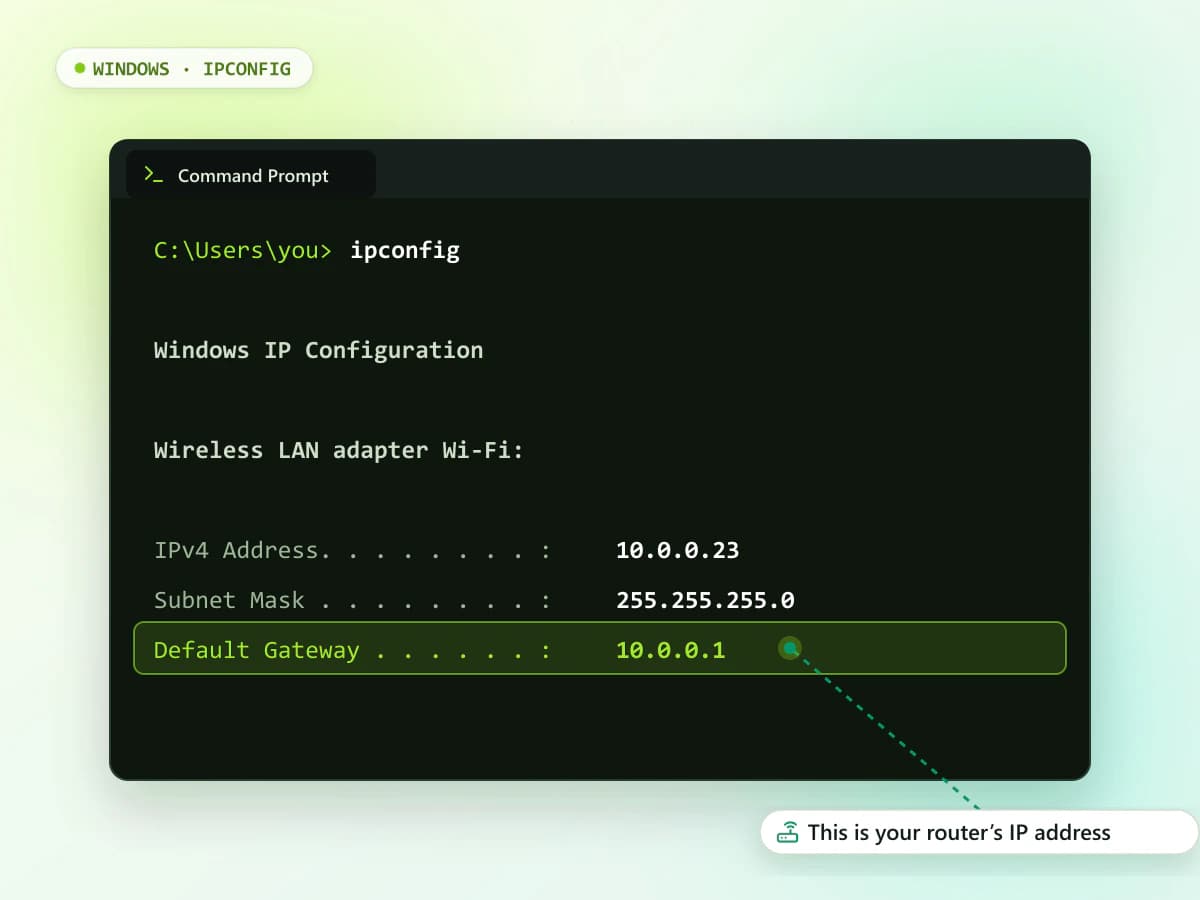
Not all routers use 10.0.0.1. Before attempting the login, find the Default Gateway displayed on your connected device.
Possible router addresses include:
- 10.0.0.1
- 10.0.1.1
- 192.168.0.1
- 192.168.1.1
- 192.168.1.254
Use the address reported by your device rather than testing random options.
Default gateway
Find the Default Gateway on your device
Find the Default Gateway on Windows
- Connect the computer through Wi-Fi or Ethernet.
- Press Windows + R.
- Enter cmd.
- Select OK.
- Type ipconfig.
- Press Enter.
- Find your active network connection.
- Look for Default Gateway.
If the result shows 10.0.0.1, you can try opening http://10.0.0.1.
If another value appears, use that address instead.
WindowsFind the Router IP on macOS
- Open the Apple menu.
- Select System Settings.
- Choose Network or Wi-Fi.
- Open the connected network’s details.
- Select TCP/IP if needed.
- Find the value beside Router.
The Router value is the local gateway you should enter in the browser.
macOSFind the Gateway on Android
Menu names differ between Android manufacturers.
- Open Settings.
- Tap Network & internet, Connections or Wi-Fi.
- Select the connected Wi-Fi network.
- Open Network details or Advanced.
- Find Gateway or Router.
Do not confuse the phone’s IP address with the gateway. Your phone’s address identifies the phone, while the gateway normally identifies the router.
AndroidFind the Router Address on iPhone or iPad
- Open Settings.
- Tap Wi-Fi.
- Connect to the correct network.
- Tap the information icon beside the network name.
- Scroll to the IPv4 section.
- Find Router.
Enter the Router value directly into Safari or another trusted browser.
iOS / iPadOS
Every device
Open HTTP 10.0.0.1 on any device
How to Open HTTP 10.0.0.1 on Android
- Connect the phone to the router’s Wi-Fi.
- Turn off mobile data temporarily.
- Open Chrome or another trusted browser.
- Type http://10.0.0.1 in the address bar.
- Tap Go.
- Enter the admin username and password.
- Tap Login.
Mobile data may prevent the phone from connecting to the local admin page. Keep Wi-Fi active during the process.
AndroidHow to Open HTTP 10.0.0.1 on iPhone
- Connect the iPhone to the router’s Wi-Fi.
- Open Safari.
- Select the address bar.
- Enter http://10.0.0.1.
- Tap Go.
- Enter the authorized router credentials.
If Safari performs a search, enter the complete address again, including http://.
iPhoneHow to Open HTTP 10.0.0.1 on a Computer
- Connect the computer to the router using Wi-Fi or Ethernet.
- Open a trusted web browser.
- Enter http://10.0.0.1 in the address bar.
- Press Enter.
- Wait for the admin page to load.
- Enter the router username and password.
An Ethernet connection may be useful if Wi-Fi settings are being changed because the wireless connection may temporarily disconnect.
Computer
Credentials
10.0.0.1 Username and Password
There is no universal username and password for every router using 10.0.0.1.
Check the following places:
- Router label
- Setup manual
- Original packaging
- ISP installation documents
- Browser password manager
- Trusted password manager
- Manufacturer’s official support website
The router may display separate details for:
- Admin username
- Admin password
- Wi-Fi name or SSID
- Wi-Fi password
- Device access key
Do not assume the Wi-Fi password will work on the router login page.
Know which password
Admin Password vs Wi-Fi Password
| Password | Function |
|---|---|
| Admin password | Opens and protects the router settings |
| Wi-Fi password | Connects devices to the wireless network |
Admin password
- Function
- Opens and protects the router settings
Wi-Fi password
- Function
- Connects devices to the wireless network
The admin password may be printed as Device Password, Web Password, Login Password or Admin Key. The wireless password may appear as Wi-Fi Key, WLAN Key, Network Key or Pre-Shared Key.
Admin panel
What Can You Do After Logging In?
Available settings depend on the router model, but you may find the following options.
Change the Wi-Fi Name
- Open Wireless, Wi-Fi or WLAN Settings.
- Find SSID or Network Name.
- Enter a new name.
- Save the changes.
Avoid including your full name, house number or other private information in the network name.
Change the Wi-Fi Password
- Open the router’s wireless settings.
- Select Security or Wireless Security.
- Find Password, Security Key or Pre-Shared Key.
- Enter a strong new password.
- Save or apply the changes.
- Reconnect your devices.
Changing the password normally disconnects all wireless devices.
View Connected Devices
Look for a menu called:
- Connected Devices
- Device List
- Attached Devices
- DHCP Clients
- Client List
- Network Map
This page may display device names, local IP addresses and connection types.
Create a Guest Network
A guest network provides separate access for visitors.
Open Guest Wi-Fi or Guest Network, create a unique name and password, and save the changes. Use client isolation if your router provides it.
Change the Admin Password
Open Administration, System or Account Settings. Create a strong, unique administrator password and store it in a trusted password manager.
Troubleshooting
Why Is HTTP 10.0.0.1 Not Opening?
The admin page may fail for several reasons.
Incorrect Address Format
Confirm that you entered:
- http://10.0.0.1
The address must not contain spaces or extra periods.
Cause 01Wrong Default Gateway
Your router may use another private IP. Check the Default Gateway or Router value in your device settings.
Cause 02Device Connected to Mobile Data
A local router page normally works only from its own network. Connect to Wi-Fi and temporarily disable mobile data.
Cause 03IP Entered in a Search Box
Select the browser’s main address bar and enter the complete HTTP address. If necessary, use a private or incognito tab.
Cause 04VPN or Proxy Interference
A VPN can send traffic away from the local network. Pause it temporarily, open the router page and enable it again afterward.
Cause 05Browser Cache Problems
Try:
- Opening an incognito window
- Clearing cached browser data
- Using another browser
- Testing another connected device
Cause 06Router Needs a Restart
Unplug the router from power for about 30 seconds. Reconnect it and wait until it starts completely.
Do not press the reset button. A factory reset may remove your network configuration.
Cause 07Router Uses an Official App
Some modern routers and mesh systems are managed through an official application. Check the device manual or manufacturer’s support website.
Cause 08
Search results instead?
Why Does HTTP 10.0.0.1 Open a Search Page?
A browser may treat the IP as a search query when:
- Spaces were added to the address
- http:// was written incorrectly
- The IP was entered in a search-engine box
- A typing error changed the address
- The browser does not recognize the incomplete format
Enter the full address without spaces:
http://10.0.0.1
HTTP 10.0.0.1
When your device is connected to the correct network, you can enter http://10.0.0.1 in a web browser to access the router login page.