On this page
Learning how to access 10.0.0.1 on Android and iPhone allows you to manage a compatible router without using a computer. If 10.0.0.1 is your network’s Default Gateway, you can open this address in a mobile browser and sign in to the router admin panel.
Once logged in, you may be able to change the Wi-Fi password, rename the wireless network, review connected devices and manage security settings.
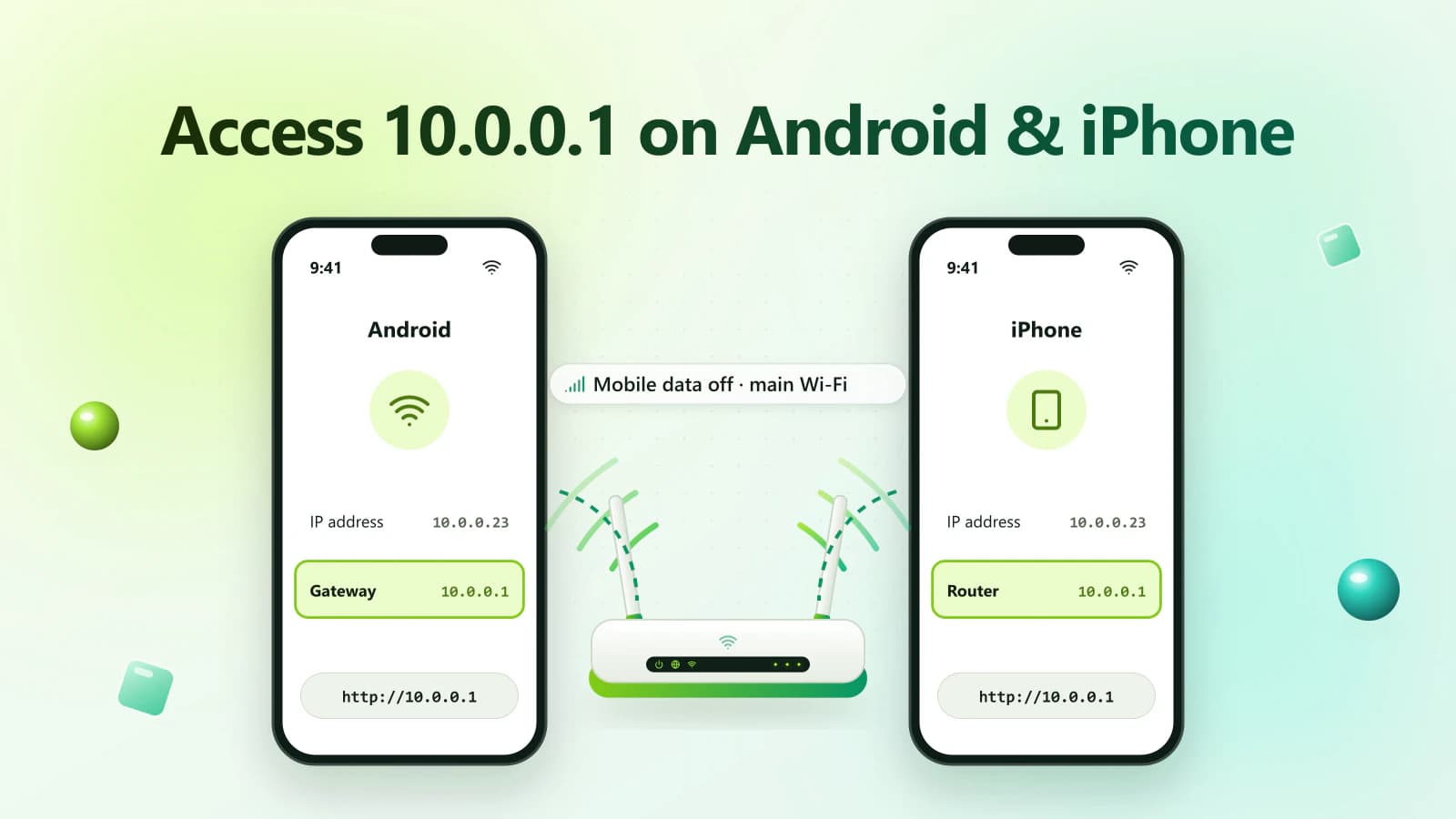
You must connect your phone to the router’s Wi-Fi before opening the page. The address will not normally work through mobile data.
Quick Mobile Login Steps
Follow these steps on Android or iPhone:
- Connect your phone to the router’s Wi-Fi.
- Temporarily turn off mobile data.
- Open Chrome, Safari or another trusted browser.
- Select the browser address bar.
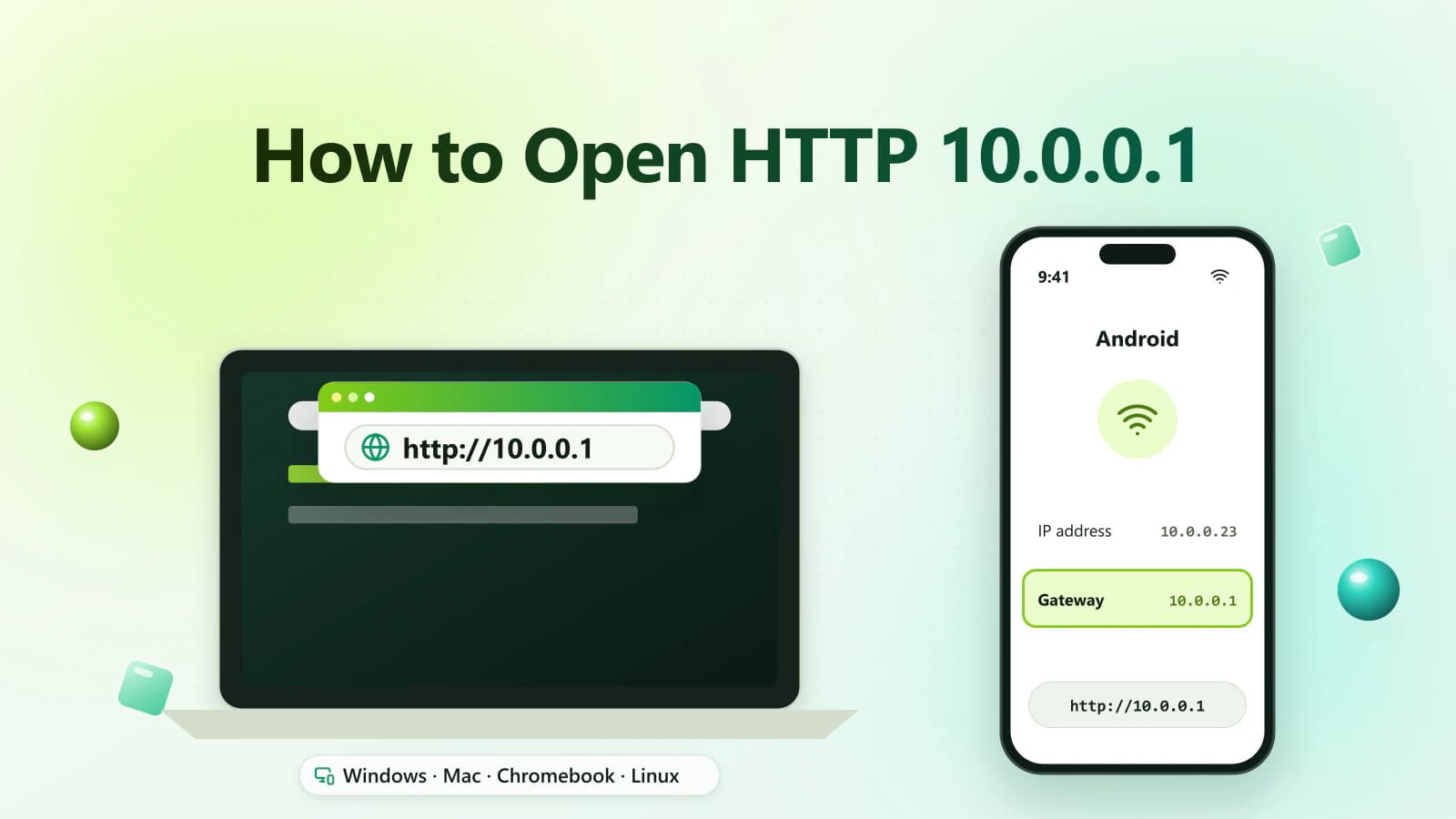
- Enter http://10.0.0.1.
- Tap Go.
- Wait for the router login page.
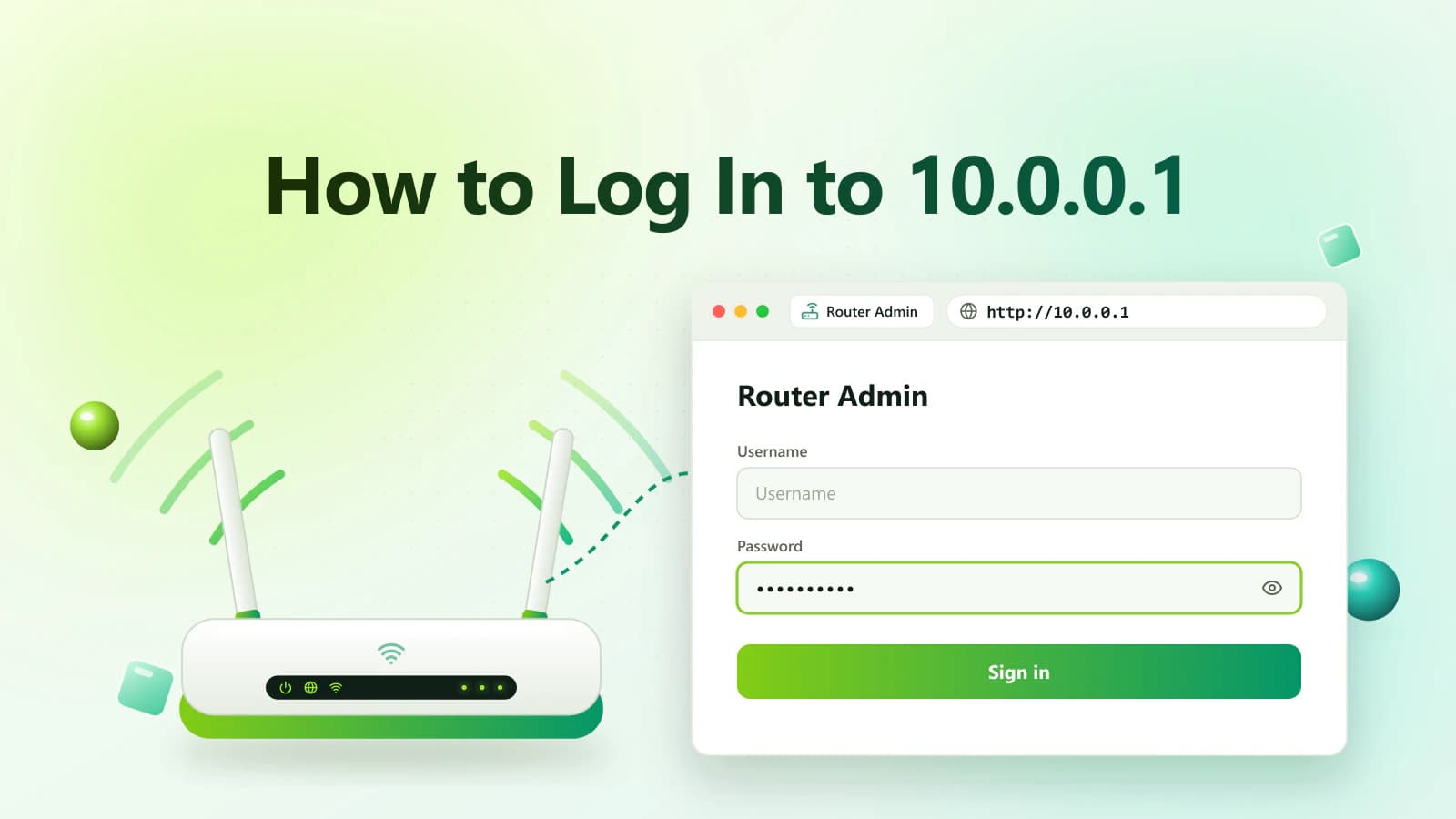
- Enter the authorized username and password.
- Tap Login or Sign In.
Only access a router you own or have permission to manage.
What Is 10.0.0.1?
10.0.0.1 is a valid private IPv4 address. Some routers, modems and network gateways use it as their local management address.
Because it is a private IP, the router page is normally available only from inside the local network. It does not work like a regular public website.
The 10.0.0.1 admin panel may include options for:
- Wi-Fi name
- Wi-Fi password
- Connected devices
- Guest network
- Parental controls
- Wireless security
- Router admin password
- Local network settings
- Router firmware
- Firewall options
The available options depend on the router model and internet provider.
Is 10.0.0.1 Your Correct Router Address?
Not every router uses 10.0.0.1.
Other common private gateways include:
- 192.168.0.1
- 192.168.1.1
- 192.168.1.254
- 10.0.1.1
Check the Gateway or Router field in your phone’s Wi-Fi details. If it shows another address, use that value instead.
Correct 10.0.0.1 Mobile Login Address
Enter the following address directly into your browser:
http://10.0.0.1Some routers may require or automatically redirect to:
https://10.0.0.1Avoid these incorrect formats:
- 10.0.0.0.1
- 1.0.0.0.1
- 10.00.1
- 10.0.01
- 10.0 0.1
- 10..0.0.1
- 10.0.0.l
- http //10.0.0.1
The final character is the number 1, not a lowercase L.
What You Need Before Opening 10.0.0.1
Prepare the following:
- An Android phone, iPhone or iPad
- Connection to the router’s main Wi-Fi
- A trusted mobile browser
- The correct router gateway
- Authorized admin credentials
- Permission to manage the network
You may not need an active internet connection. The router login page is normally stored locally on the router.
How to Access 10.0.0.1 on Android
Follow these steps:
- Unlock your Android phone.
- Open Settings.
- Tap Network & internet, Connections or Wi-Fi.
- Connect to the router’s main Wi-Fi network.
- Turn off mobile data temporarily.
- Open Chrome or another trusted browser.
- Tap the address bar.
- Enter http://10.0.0.1.
- Tap Go.
- Enter the router username and password.
- Tap Login, Sign In or Submit.
Keep the phone connected to Wi-Fi while changing router settings.
Find the Router Gateway on Android
Android menu names vary between manufacturers.
- Open Settings.
- Tap Wi-Fi, Network & internet or Connections.
- Select the connected Wi-Fi network.
- Open Network details, View more or Advanced.
- Find Gateway or Router.
The value may look like:
Gateway: 10.0.0.1Do not confuse the Gateway with:
- Phone IP address
- Subnet mask
- DNS server
- MAC address
The phone IP belongs to your device. The Gateway normally belongs to the router.
How to Access 10.0.0.1 on a Samsung Phone
Menu names can differ between Samsung software versions.
- Open Settings.
- Tap Connections.
- Select Wi-Fi.
- Tap the settings icon beside the connected network.
- Tap View more if available.
- Find Gateway.
- Open Chrome.
- Enter the gateway in the address bar.
- Sign in with the authorized credentials.
If the Gateway is not 10.0.0.1, use the displayed address.
How to Access 10.0.0.1 on iPhone
Follow these steps:
- Open Settings.
- Tap Wi-Fi.
- Connect to the router’s main network.
- Temporarily disable cellular data if necessary.
- Open Safari.
- Tap the address bar.
- Enter http://10.0.0.1.
- Tap Go.
- Enter the router admin details.
- Tap Login or Sign In.
If Safari opens search results, enter the full address again and make sure it contains no spaces.
Find the Router Address on iPhone
- Open Settings.
- Tap Wi-Fi.
- Tap the information icon beside the connected network.
- Scroll to the IPv4 section.
- Find Router.
Example:
Router: 10.0.0.1The address beside Router is the one you should open in Safari.
How to Access 10.0.0.1 on iPad
The steps are similar to those for an iPhone:
- Connect the iPad to the router’s Wi-Fi.
- Open Settings > Wi-Fi.
- Tap the information icon beside the network.
- Confirm that the Router address is 10.0.0.1.
- Open Safari.
- Enter http://10.0.0.1.
- Tap Go.
- Enter the administrator details.
The larger screen can make some desktop-style router panels easier to use.
Should Mobile Data Be Turned Off?
Temporarily turning off mobile data can prevent the phone from switching away from the local Wi-Fi network.
This is useful when:
- Wi-Fi has no internet access
- The router is being configured
- The phone automatically uses cellular data
- The admin page keeps timing out
- The browser cannot reach the local gateway
Turn mobile data back on after completing the router changes.
Can You Access 10.0.0.1 Without Internet?
Yes. An active internet connection is not always required.
The admin panel is normally hosted locally on the router. You generally need:
- Power to the router
- A working Wi-Fi connection to it
- The correct local gateway
- A trusted browser
- Authorized credentials
If Wi-Fi is connected but displays “No internet,” the local router page may still open.
10.0.0.1 Username and Password
There is no universal username and password for all routers using 10.0.0.1.
Check:
- Router label
- Setup manual
- Original packaging
- ISP documents
- Saved browser passwords
- Trusted password manager
- Manufacturer’s official support website
Some routers use a unique admin password printed on the label. Others ask the owner to create one during setup.
Avoid trying random login combinations.
Admin Password vs Wi-Fi Password
The two passwords can be different.
| Credential | Purpose |
|---|---|
| Wi-Fi password | Connects the phone to the wireless network |
| Admin password | Opens and protects router settings |
| Wi-Fi name or SSID | Identifies the network |
| Admin username | Identifies the administrator account |
The Wi-Fi password may be labelled:
- Wi-Fi Key
- WLAN Key
- Wireless Key
- Network Key
- Pre-Shared Key
The admin password may be labelled:
- Admin Password
- Login Password
- Device Password
- Web Password
- Access Key
What Can You Change From a Mobile Phone?
After logging in, available options may include the following.
Change the Wi-Fi Password
- Open Wireless, Wi-Fi or WLAN Settings.
- Select Security or Wireless Security.
- Find Password, Security Key or Pre-Shared Key.
- Enter a strong new password.
- Save the changes.
- Reconnect your phone using the new password.
Your phone will normally disconnect as soon as the new password is applied.
Change the Wi-Fi Name
- Open the wireless settings.
- Find SSID or Network Name.
- Enter the new name.
- Save or apply the changes.
- Reconnect to the renamed network.
Avoid including personal information in the Wi-Fi name.
View Connected Devices
Look for a section named:
- Connected Devices
- Device List
- Attached Devices
- Client List
- DHCP Clients
- Network Map
Some devices may appear with unclear names. Make sure a device is unknown before blocking it.
Create a Guest Network
- Open Guest Wi-Fi or Guest Network.
- Enable the feature.
- Create a separate network name.
- Add a strong password.
- Limit access to local devices when supported.
- Save the changes.
Change the Admin Password
- Open Administration, System or Account Settings.
- Find the admin password option.
- Enter the current password.
- Create a strong replacement.
- Save it securely.
Use different passwords for Wi-Fi and router administration.
Why Is 10.0.0.1 Not Opening on Android?
Common causes include:
- Mobile data is active
- Phone is connected to the wrong Wi-Fi
- Guest network blocks local access
- 10.0.0.1 is not the correct gateway
- A VPN is active
- Browser cache is causing a problem
- The address was typed incorrectly
- The router requires an official app
Try:
- Connect to the main Wi-Fi.
- Turn off mobile data.
- Pause the VPN.
- Check the Gateway value.
- Open an incognito tab.
- Enter http://10.0.0.1.
- Restart the phone if needed.
Why Is 10.0.0.1 Not Opening on iPhone?
Possible causes include:
- Cellular data is taking priority
- Private Relay or a VPN is affecting local access
- The iPhone is connected to guest Wi-Fi
- Safari has stored an old redirect
- The Router address is different
- The router is not responding
Try:
- Verify the Router address.
- Turn off cellular data temporarily.
- Pause any VPN.
- Open a new private tab in Safari.
- Test another trusted browser.
- Restart the router normally.
- Reconnect the iPhone to Wi-Fi.
Why Does 10.0.0.1 Open Google?
The browser may treat the IP as a search when:
- It was entered in a search-engine box
- Spaces were included
- The address was written incorrectly
- http:// is missing and the browser chooses to search
- A letter replaced a number
Enter the complete address in the main browser address bar:
http://10.0.0.110.0.0.1 Refused to Connect on Mobile
A refused connection may mean:
- 10.0.0.1 is not the correct gateway
- The router requires HTTPS
- Mobile browser access is disabled
- Your phone is using a guest network
- A VPN is blocking the local address
- The router uses an official application
- The router has not started fully
Check the router manual or manufacturer’s official support website.
Browser Privacy Warning on Mobile
Chrome or Safari may display:
- Your connection is not private
- Certificate not trusted
- Connection is not secure
- Cannot verify server identity
Some local router panels use certificates that mobile browsers cannot publicly verify.
Before continuing:
- Confirm the address matches the Gateway or Router field.
- Make sure you are connected to your own router.
- Check the official login instructions.
- Confirm that the page has not redirected to another domain.
Never enter admin credentials on an unrelated public website.
Router Page Is Too Small on Mobile
Some older router dashboards are designed for computers.
Try:
- Turning the phone sideways
- Zooming in carefully
- Enabling desktop-site mode
- Using a tablet
- Using a computer through Ethernet
- Using the official router application
Avoid tapping unfamiliar advanced settings when the page is difficult to read.
Username or Password Does Not Work
Check whether:
- You entered the Wi-Fi password
- The admin password was changed
- The credentials are case-sensitive
- Mobile autofill inserted an old password
- Your ISP configured custom details
- Extra spaces were included
- The router has a unique label password
- You opened the wrong gateway
Type the credentials manually and check the router label.
Forgot the Router Admin Password
Try these recovery methods:
- Check the router label.
- Read the setup manual.
- Check mobile browser saved passwords.
- Search your password manager.
- Ask the person who configured the router.
- Contact your ISP.
- Visit the manufacturer’s official support page.
A factory reset should be the final option because it can erase Wi-Fi and internet settings.
Should You Install a Router Login App?
Use an application only when it comes from:
- The router manufacturer
- Your internet provider
- The official Google Play Store listing
- The official Apple App Store listing linked by the manufacturer
Avoid applications that:
- Promise to reveal router passwords
- Claim to bypass admin security
- Request unrelated personal information
- Contain unclear publisher details
- Require unnecessary permissions
You can normally access a traditional router page through Chrome or Safari without installing an app.
Mobile Security Tips for Router Login
- Access only a router you own or manage.
- Use the router’s main private Wi-Fi.
- Verify the Gateway or Router address.
- Never submit credentials to a public website.
- Avoid public Wi-Fi while managing the router.
- Change known default admin credentials.
- Use a unique administrator password.
- Install firmware through official methods.
- Log out after changing settings.
- Turn mobile data and VPN services back on afterward.
FAQ
Frequently Asked Questions
How do I access 10.0.0.1 on Android?
Connect the Android phone to the router’s Wi-Fi, turn off mobile data and enter http://10.0.0.1 in Chrome’s address bar.
How do I open 10.0.0.1 on an iPhone?
Connect the iPhone to Wi-Fi, open Safari and enter http://10.0.0.1. Confirm the Router address under the Wi-Fi details first.
Can I access the router without a computer?
Yes. A mobile browser or the router manufacturer’s official application can be used on supported devices.
Why is 10.0.0.1 not opening on my phone?
It may not be your correct gateway. Mobile data, a VPN, guest Wi-Fi, browser cache or an incorrect address may also block access.
Do I need internet to open 10.0.0.1?
Not always. You generally need only a local connection to the powered router.
Should I turn off mobile data?
Temporarily turning it off can prevent the phone from switching away from the router’s local Wi-Fi network.
What is the default 10.0.0.1 username and password?
There is no universal combination. Check the router label, manual, ISP documents or manufacturer’s official support website.
Can I change my Wi-Fi password from a phone?
Yes. Sign in to the authorized admin panel and open the Wireless, Wi-Fi or WLAN security settings.
Why does 10.0.0.1 open a search page?
The address may have been entered in a search box or written incorrectly. Enter the complete HTTP address directly in the browser address bar.
Is it safe to access 10.0.0.1 on mobile?
Yes, when it is your verified local gateway and you are authorized to manage the router. Never enter credentials on an unrelated website.
Conclusion
Understanding how to access 10.0.0.1 on Android and iPhone allows you to manage a compatible router without using a computer.
Connect your phone to the router’s main Wi-Fi, temporarily disable mobile data and verify the Gateway or Router address. Enter http://10.0.0.1 directly into Chrome or Safari and use the authorized administrator credentials.
If the page does not open, check the network connection, disable any VPN temporarily and confirm that 10.0.0.1 is the correct gateway. Avoid unofficial login applications and never submit router credentials to a public website.