Reset · Recover · Restore
How to Reset a Router and Recover the Admin Password
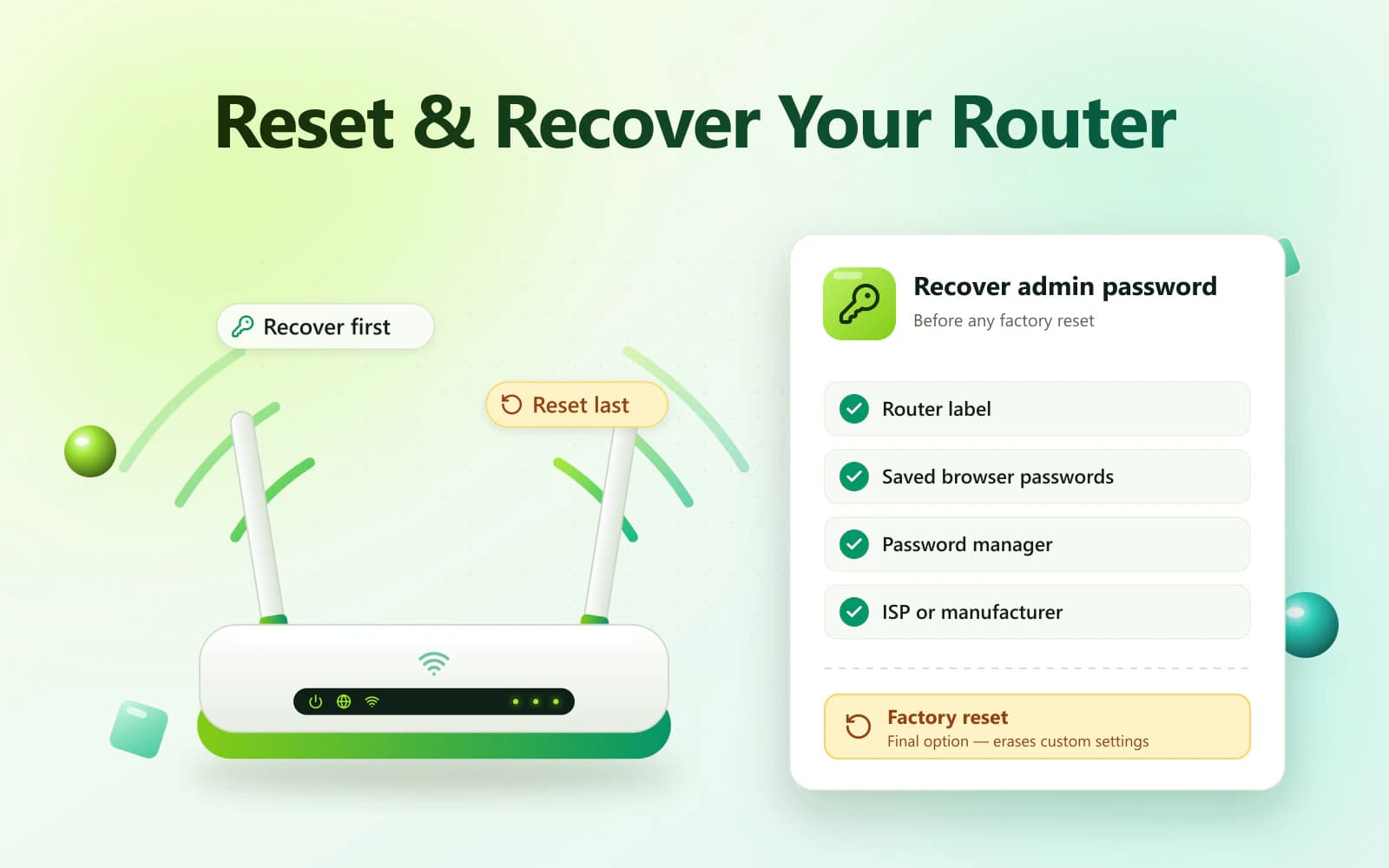
Learning how to reset a router can help when you have forgotten the administrator password or cannot access the router settings. However, a factory reset should be your final recovery option because it can erase the Wi-Fi name, wireless password, ISP details and other custom settings.
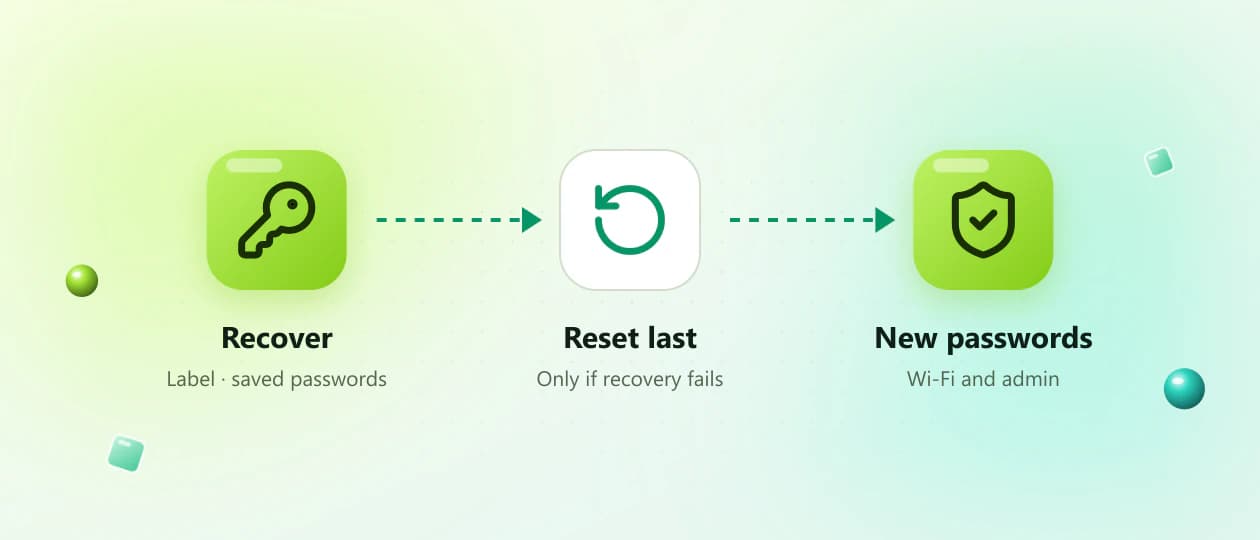
- Recover first
- Reset last
- Restore Wi-Fi

On this page24
Overview
Try recovery before a reset
Before resetting anything, check the router label, setup documents, saved browser passwords and password manager. You may be able to recover the router admin password without losing your network configuration.
This guide explains the difference between restarting and resetting a router, safe password-recovery methods and what to do after a factory reset.
Step by step
Quick Answer: How Do You Reset a Router?
The general process is:
- 01
Keep the router powered on.
- 02
Locate the physical Reset opening or button.
- 03
Confirm the procedure in the router’s official manual.
- 04
Use the approved method to hold the Reset control.
- 05
Release it when the router indicates that the reset has started.
- 06
Wait for the router to restart completely.
- 07
Connect using the factory Wi-Fi details.
- 08
Open the default gateway.
- 09
Sign in or complete the initial setup.
- 10
Create new Wi-Fi and admin passwords.
The button location, required hold time and light behaviour vary between models. Always check the manufacturer’s official instructions for your exact router.
Know the difference
Restart vs Factory Reset
Restarting and resetting are different actions.
| Action | What it does | Does it erase settings? |
|---|---|---|
| Restart | Turns the router off and on | Normally no |
| Factory reset | Restores the original configuration | Usually yes |
| Admin password change | Replaces only the login password | No |
| Wi-Fi password change | Changes the wireless password | No |
Restart
- What it does
- Turns the router off and on
- Does it erase settings?
- Normally no
Factory reset
- What it does
- Restores the original configuration
- Does it erase settings?
- Usually yes
Admin password change
- What it does
- Replaces only the login password
- Does it erase settings?
- No
Wi-Fi password change
- What it does
- Changes the wireless password
- Does it erase settings?
- No
Try a normal restart when the router is slow or the login page is temporarily unavailable. Use a factory reset only when recovery methods have failed or official support recommends it.
When to reset
When Should You Reset a Router?
A factory reset may be appropriate when:
- You forgot the router admin password
- Saved login details are unavailable
- The router has no supported recovery option
- You purchased a used router
- Incorrect settings prevent normal access
- The manufacturer recommends a reset
- You are preparing an owned router for transfer
- You need to restore its original configuration
A reset is not normally required simply to:
- Restart the internet connection
- Change the Wi-Fi password
- Rename the Wi-Fi network
- Remove one connected device
- Update router firmware
- Fix a temporary loading error
Try less disruptive solutions first.
What you lose
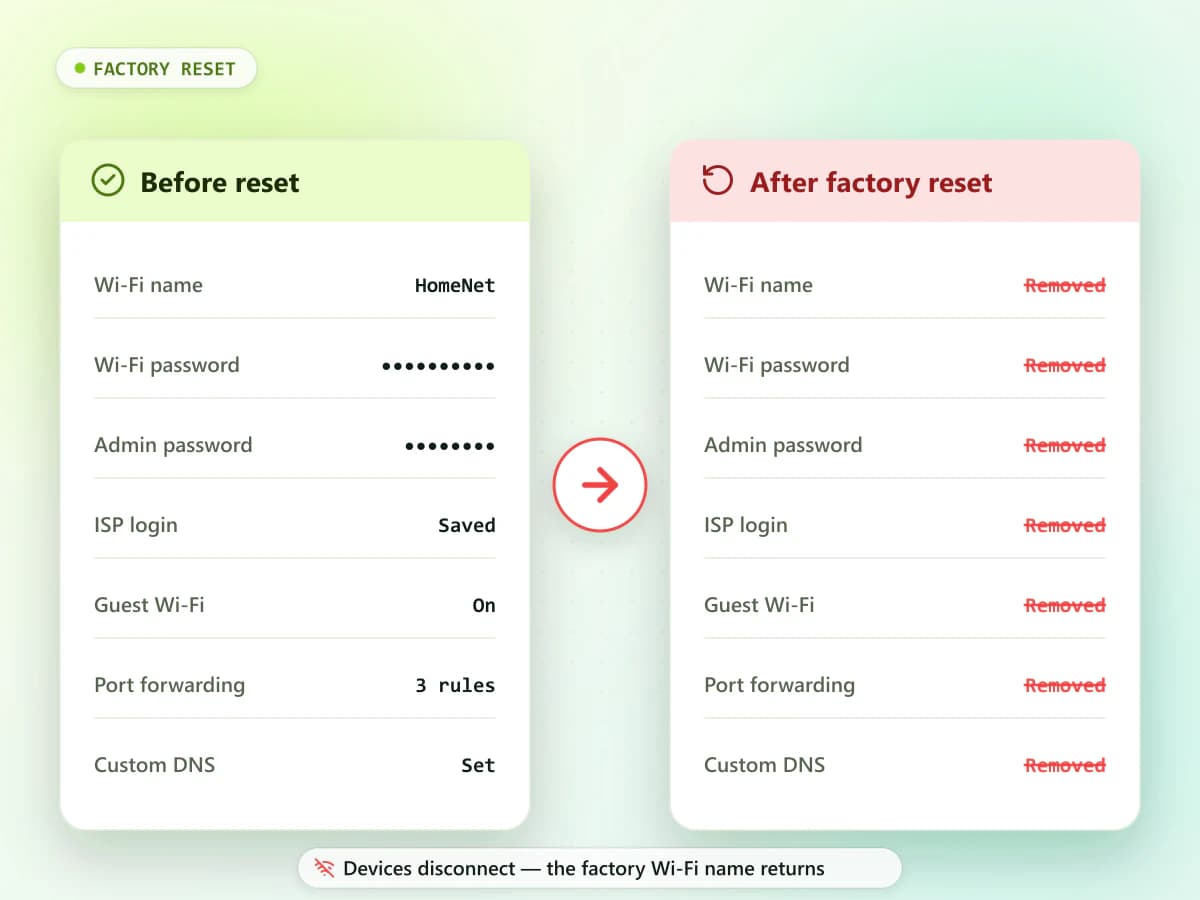
What Does a Factory Reset Remove?
A factory reset may remove:
- Custom Wi-Fi name
- Current Wi-Fi password
- Router administrator password
- Internet connection settings
- ISP username and password
- Guest Wi-Fi
- Parental controls
- Blocked-device list
- Port-forwarding rules
- Static IP assignments
- Custom DNS settings
- Firewall changes
- VPN configuration
- Mesh or extender connections
- Other personalized settings
Your devices will usually disconnect because the router may return to its original Wi-Fi name and password.
Checklist
Before You Reset the Router
Complete these checks before starting.
Confirm That You Own or Manage the Router
Only reset a router that you own or have permission to manage. Resetting an ISP-owned, workplace, school or shared router without authorization could interrupt service for other users.
Check 01Check the Router Model
Find the manufacturer and model number on the router label. The correct reset procedure may differ between models from the same company.
Check 02Save Important Network Information
If you can still access the admin panel, record or export:
- ISP connection type
- ISP account details
- Wi-Fi name
- Wireless security mode
- Local IP range
- DNS settings
- Port-forwarding rules
- Parental-control configuration
- Guest-network settings
- Mesh or extender details
Do not store passwords in an unsecured public file.
Check 03Contact Your ISP
Contact the internet provider before resetting an ISP-supplied router. The provider may:
- Manage the router remotely
- Use custom admin credentials
- Require special connection information
- Automatically restore the configuration
- Prohibit customer factory resets
- Provide a safer recovery method
Ask what information you will need after the reset.
Check 04Check the Router Label
The label may contain:
- Default gateway
- Admin username
- Admin password
- Wi-Fi name or SSID
- Wi-Fi password
- Model number
- Serial number
- Setup address
You may need these details after resetting.
Check 05
Recovery
Recover the Admin Password Without Resetting
Try the following methods first.
Check the Router Label
Look underneath and behind the router. The administrator password may be identified as:
- Admin Password
- Login Password
- Device Password
- Web Password
- GUI Password
- Access Key
Do not confuse it with the Wi-Fi password.
Method 01Check the Setup Manual
The router manual may explain:
- Whether it has default admin credentials
- Whether the password was created during setup
- Whether password recovery is available
- Which official application manages the router
- How to perform a model-specific reset
Use the manufacturer’s official support website if the printed manual is unavailable.
Method 02Check the Original Packaging
Look for a quick-start card or setup label inside the router box. Some devices provide unique login information in their packaging.
Method 03Check Saved Browser Passwords
If you previously logged in, your browser may have saved the details.
Search the password manager for:
- Router
- Gateway
- Admin
- Router model
- Router manufacturer
- Local gateway address
- 10.0.0.1
- 192.168.0.1
- 192.168.1.1
Reveal saved passwords only on a trusted personal device.
Method 04Check Your Password Manager
Search for terms such as Wi-Fi, router, admin panel, network or gateway. The credentials may have been stored during initial setup.
Method 05Use an Official Router Application
Some routers provide password recovery or management through an official mobile application. Use only the application listed by the manufacturer or ISP.
Avoid unofficial applications claiming to reveal or bypass router passwords.
Method 06Ask the Person Who Configured the Network
A family member, technician or network administrator may have changed and securely stored the admin password.
Method 07Contact the Manufacturer or ISP
Official support may confirm whether recovery is possible without resetting. They may ask for the router model, serial number or proof that you are authorized to manage it.
Method 08
Know which password
Wi-Fi Password vs Router Admin Password
Make sure you are trying to recover the correct password.
| Password | Purpose |
|---|---|
| Wi-Fi password | Connects phones and computers to the wireless network |
| Admin password | Opens and protects the router settings |
| ISP password | Authenticates certain internet connections |
Wi-Fi password
- Purpose
- Connects phones and computers to the wireless network
Admin password
- Purpose
- Opens and protects the router settings
ISP password
- Purpose
- Authenticates certain internet connections
The Wi-Fi password may be labelled:
- Wi-Fi Key
- WLAN Key
- Wireless Key
- Network Key
- Pre-Shared Key
The admin password may be labelled:
- Admin Password
- Login Password
- Device Password
- Web Password
- Access Key
Resetting the router may affect all three, depending on how it was configured.
Restart first
How to Restart a Router Without Erasing Settings
Try a restart before performing a factory reset.
- Disconnect the router’s power cable.
- Wait approximately 30 seconds.
- Reconnect the power.
- Wait for the router to start completely.
- Reconnect your device.
- Test the internet and admin page.
A normal restart may fix:
- Temporary connection errors
- Slow router response
- Admin page not loading
- Minor Wi-Fi problems
- Short-term software issues
Do not press the Reset button during this process.
Reset button
How to Reset a Router Using the Reset Button
The exact method varies by model. Check the official manual first.
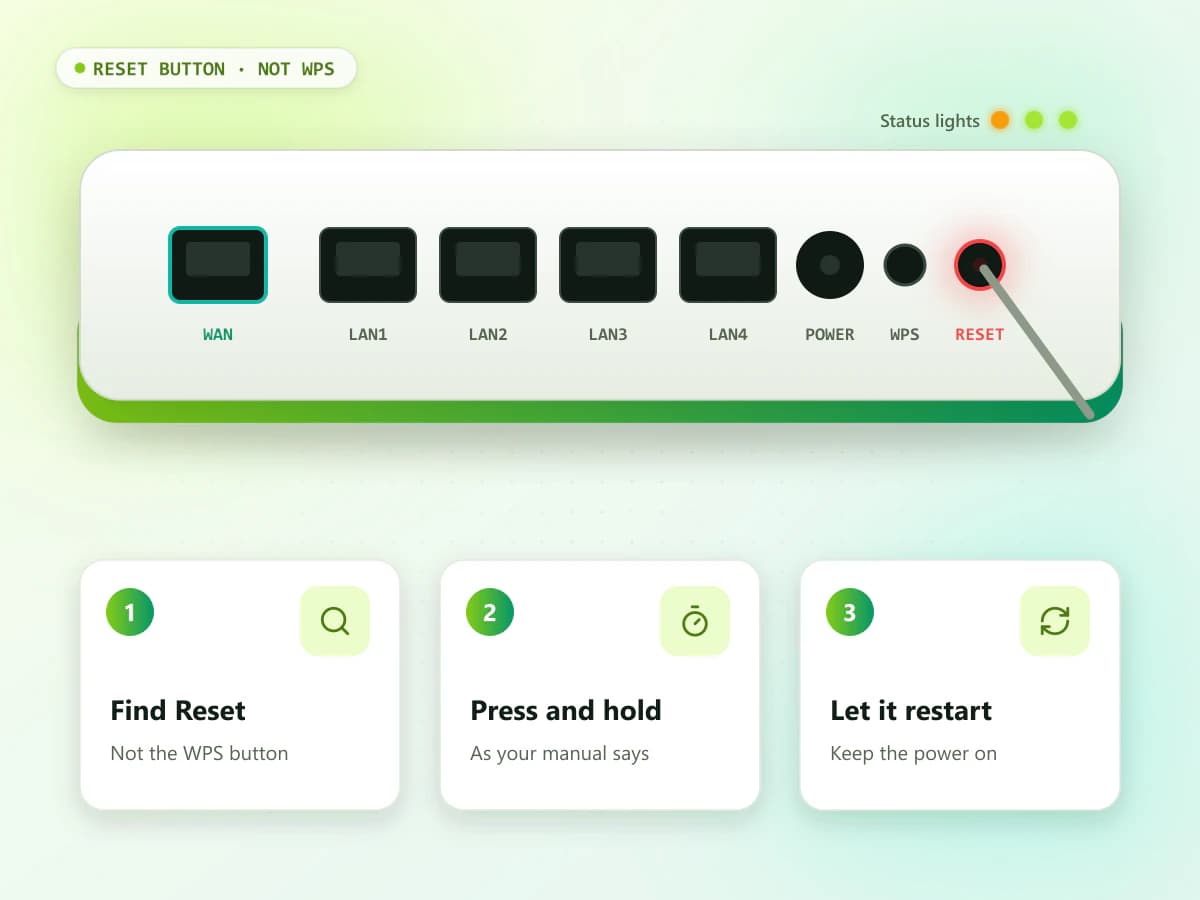
The general procedure is:
- Keep the router connected to power.
- Locate the button or small opening labelled Reset.
- Confirm it is not the WPS button.
- Follow the manufacturer’s required press-and-hold procedure.
- Release the button when the official light pattern appears.
- Wait for the router to restart.
- Do not disconnect power during the reset.
- Allow several minutes for the router to become ready.
Some routers have a combined Reset and WPS button. Pressing it for the wrong amount of time may activate WPS instead of resetting the device.
Never force a sharp object deeply into the opening. Use a suitable tool carefully and follow the manufacturer’s directions.
Admin panel
How to Reset a Router Through the Admin Panel
If you can still access the admin dashboard:
- Open the router’s Default Gateway in a browser.
- Sign in with the authorized admin credentials.
- Open Administration, System or Advanced Settings.
- Find Factory Defaults, Reset or Restore.
- Read the warning carefully.
- Save or export the configuration if available.
- Confirm the reset.
- Wait for the router to restart completely.
Do not close the page or disconnect power while the reset is in progress.
Menu names vary between router models.
Official app
How to Reset a Router Using an Official App
Some mesh systems and modern routers are managed through an application.
- Open the manufacturer’s official app.
- Select the correct router or network.
- Open Settings, System or Device Management.
- Find Factory Reset or Remove Device.
- Read what will be deleted.
- Confirm the action.
- Wait for the router to restart.
- Follow the app’s setup instructions.
Removing a router from an application may not always perform a complete factory reset. Follow the exact instructions for the device.
During the reset
What Happens During a Router Reset?
During the reset, the router may:
- Turn its lights off and on
- Restart more than once
- Stop broadcasting the custom Wi-Fi name
- Restore the factory Wi-Fi network
- Disconnect every device
- Return to its original gateway
- Require initial setup
- Temporarily lose internet access
Do not disconnect power until the process is complete.
After the reset
How to Connect After a Factory Reset
After the router restarts:
- Check the router label for the factory Wi-Fi name.
- Open Wi-Fi settings on your phone or computer.
- Select the default network.
- Enter the printed Wi-Fi password if required.
- Wait for the device to connect.
- Find the current Default Gateway.
- Open that address in a trusted browser.
- Enter the label credentials or start the setup wizard.
Using an Ethernet cable can simplify initial setup when supported.
Default gateway
How to Find the Router IP After Resetting
The router may return to its original local address.
Common examples include:
- 192.168.0.1
- 192.168.1.1
- 192.168.1.254
- 10.0.0.1
- 10.0.1.1
Do not guess. Check the Default Gateway.
Windows
- Open Command Prompt.
- Enter: ipconfig
- Find Default Gateway under the active connection.
WindowsmacOS
Open System Settings > Network or Wi-Fi > Connected Network > Details > TCP/IP and check Router.
macOSAndroid
Open the connected Wi-Fi details and find Gateway or Router.
AndroidiPhone or iPad
Open Settings > Wi-Fi, tap the information icon and check Router.
iPhone / iPad
Admin login
How to Recover the Admin Login After Resetting
A factory reset may restore the login method listed on the router label or require a new password during setup.
Try these sources:
- Router label
- Setup manual
- Quick-start card
- Official setup application
- Manufacturer’s support website
- ISP instructions
Do not assume every router uses admin as its username or password. Many devices use unique credentials or require a new admin password.
New password
How to Create a New Admin Password
During or after setup:
- Open the router administration page.
- Select Administration, System or Account Settings.
- Find the admin password option.
- Create a strong, unique password.
- Confirm it.
- Save the changes.
- Store it in a trusted password manager.
The new password should:
- Be long and unique
- Use a mixture of characters
- Be different from the Wi-Fi password
- Not contain personal information
- Not reuse an email or social-media password
Wi-Fi
How to Restore Your Wi-Fi Network
After regaining admin access:
- Open Wireless, Wi-Fi or WLAN Settings.
- Enter a Wi-Fi name or SSID.
- Select a supported modern security mode.
- Create a strong wireless password.
- Configure other bands if required.
- Save the changes.
- Reconnect every approved device.
If you reuse the previous Wi-Fi name and password, some devices may reconnect automatically. Others may still require the network to be forgotten and added again.
Internet
How to Restore the Internet Connection
Some routers automatically recover the ISP configuration. Others require additional information.
You may need:
- ISP username and password
- Connection type
- VLAN details
- Static IP information
- DNS configuration
- Provider-specific setup application
Do not guess these settings. Contact your ISP if internet access does not return after the reset.
Internet Not Working After Router Reset
Try these checks:
- Confirm that all cables are connected correctly.
- Wait for the router and modem to finish starting.
- Restart the modem and router normally.
- Check the router’s internet or WAN status.
- Complete the setup wizard.
- Enter ISP details if officially required.
- Test another connected device.
- Contact the internet provider.
A factory reset does not fix problems outside your home network, such as an ISP outage.
Problem 01Router Login Page Not Opening After Reset
Possible causes include:
- Your device is still connected to the old Wi-Fi name
- The router returned to another gateway
- Mobile data is active
- A VPN or proxy is interfering
- The router has not started completely
- The router requires an official setup application
- Browser cache contains an old redirect
Reconnect using the factory network details and find the current gateway.
Problem 02Default Username and Password Still Not Working
The router may:
- Use unique label credentials
- Require password creation
- Be managed by an ISP
- Need setup through an official application
- Not have completed the reset
- Use a different admin address
- Have a hardware problem
Stop attempting random passwords. Consult the official manual or contact authorized support.
Problem 03Router Keeps Resetting or Restarting
Repeated restarts can indicate:
- Unstable power
- Faulty power adapter
- Overheating
- Damaged firmware
- Hardware failure
- A stuck Reset button
- Incorrect setup
- ISP provisioning problems
Disconnect unnecessary cables and confirm that the official power adapter is being used. Contact the manufacturer or ISP if the problem continues.
Problem 04
Backups
Should You Restore an Old Configuration Backup?
A saved configuration can quickly restore settings, but it may also restore the problem that caused the reset.
Use a backup only when:
- It belongs to the same router model
- It was created before the problem
- It comes from your own trusted storage
- The manufacturer supports the firmware version
- You understand which settings it contains
Never upload a configuration file downloaded from an unknown website.
Prevention
How to Avoid Losing the Admin Password Again
After recovering access:
- Store the password in a trusted password manager.
- Record the router model and gateway.
- Keep the manual or setup card secure.
- Maintain a secure configuration backup.
- Use a memorable but strong password.
- Do not reuse the Wi-Fi password.
- Limit the number of administrators.
- Update recovery details in the official app.
- Avoid sharing login information through messages.
Security
Router Security After a Factory Reset
A factory reset may restore older or weaker default settings. Review the security configuration after setup.
Consider these steps:
- Replace default admin credentials.
- Create a strong Wi-Fi password.
- Use WPA2 or WPA3 when supported.
- Disable remote administration if unnecessary.
- Turn off WPS if you do not use it.
- Create a separate guest network.
- Review connected devices.
- Update firmware through official methods.
- Remove unused forwarding rules.
- Log out after completing setup.
Do not change advanced options unless you understand their effect.
FAQ
Frequently Asked Questions
How do I reset my router?
Locate the model-specific Reset control and follow the manufacturer’s official instructions. The general process involves holding the control while the router is powered on and waiting for it to restart.
Does resetting a router change the Wi-Fi password?
A factory reset normally restores the original Wi-Fi settings. The current password may be removed and replaced with the factory password printed on the router.
Will a router reset recover the admin password?
It may restore the original login method or require you to create a new admin password. The exact result depends on the router model.
Can I recover the admin password without resetting?
You may find it on the router label, in saved browser passwords, a password manager, setup documents or an official application.
Is restarting the same as resetting?
No. Restarting normally keeps your settings, while a factory reset usually removes custom configuration.
Will resetting the router fix the internet?
It may fix a configuration problem, but it will not resolve an ISP outage or damaged hardware. It can also remove settings required for internet access.
How long does a router reset take?
The time varies by router. Allow the device to complete its restart and wait for the status lights to stabilize before reconnecting.
What is the default router username and password?
There is no universal combination. Check the router label, manual, ISP documents or manufacturer’s official support page.
Why is the login page not opening after a reset?
The router may have returned to a different gateway or Wi-Fi name. Reconnect using the factory details and check the current Default Gateway.
Should I reset an ISP-provided router?
Contact the ISP first. A reset may remove provider-specific settings and interrupt your internet connection.
Conclusion
Understanding how to reset a router can help you recover the admin password, but a factory reset should remain the final option. First, check the router label, manual, saved browser passwords, password manager and ISP documents. If recovery is impossible, save important settings and follow the official reset procedure for your exact router model. After the reset, reconnect using the factory details, find the current Default Gateway and create strong new Wi-Fi and administrator passwords. Contact your ISP if the internet connection does not return or the router requires custom setup information.