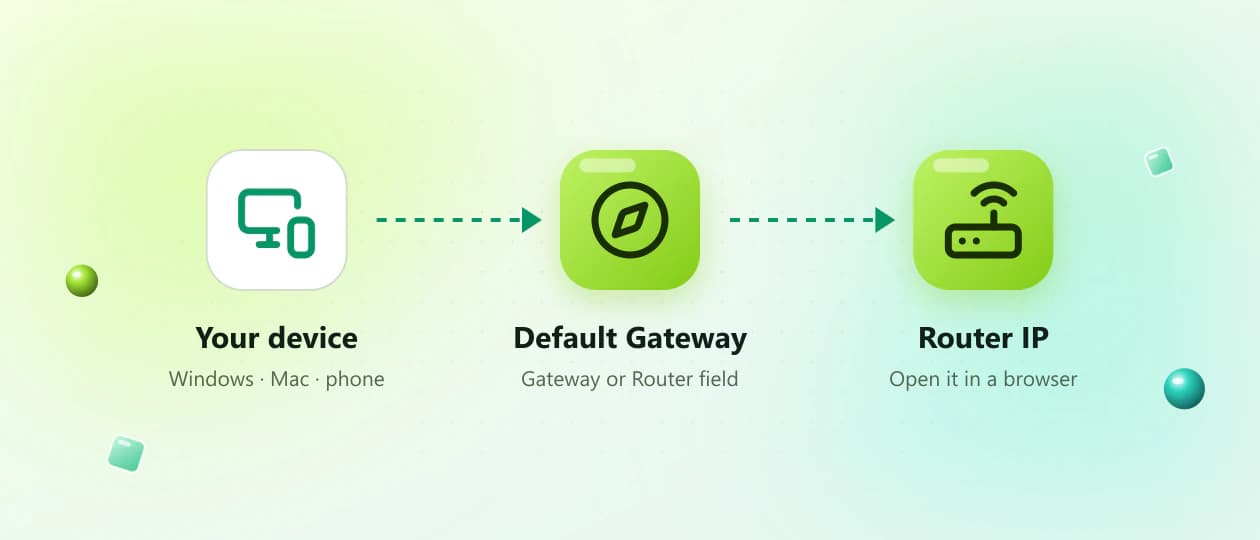
Default gateway · every device
How to Find Your Router IP Address and Default Gateway
Learning how to find your router IP address can help you access the router’s admin panel and manage your home network. Your router IP is commonly shown as Default Gateway, Gateway or Router in the network settings of a connected device.
- Windows · macOS
- Android · iPhone
- Linux · Chromebook
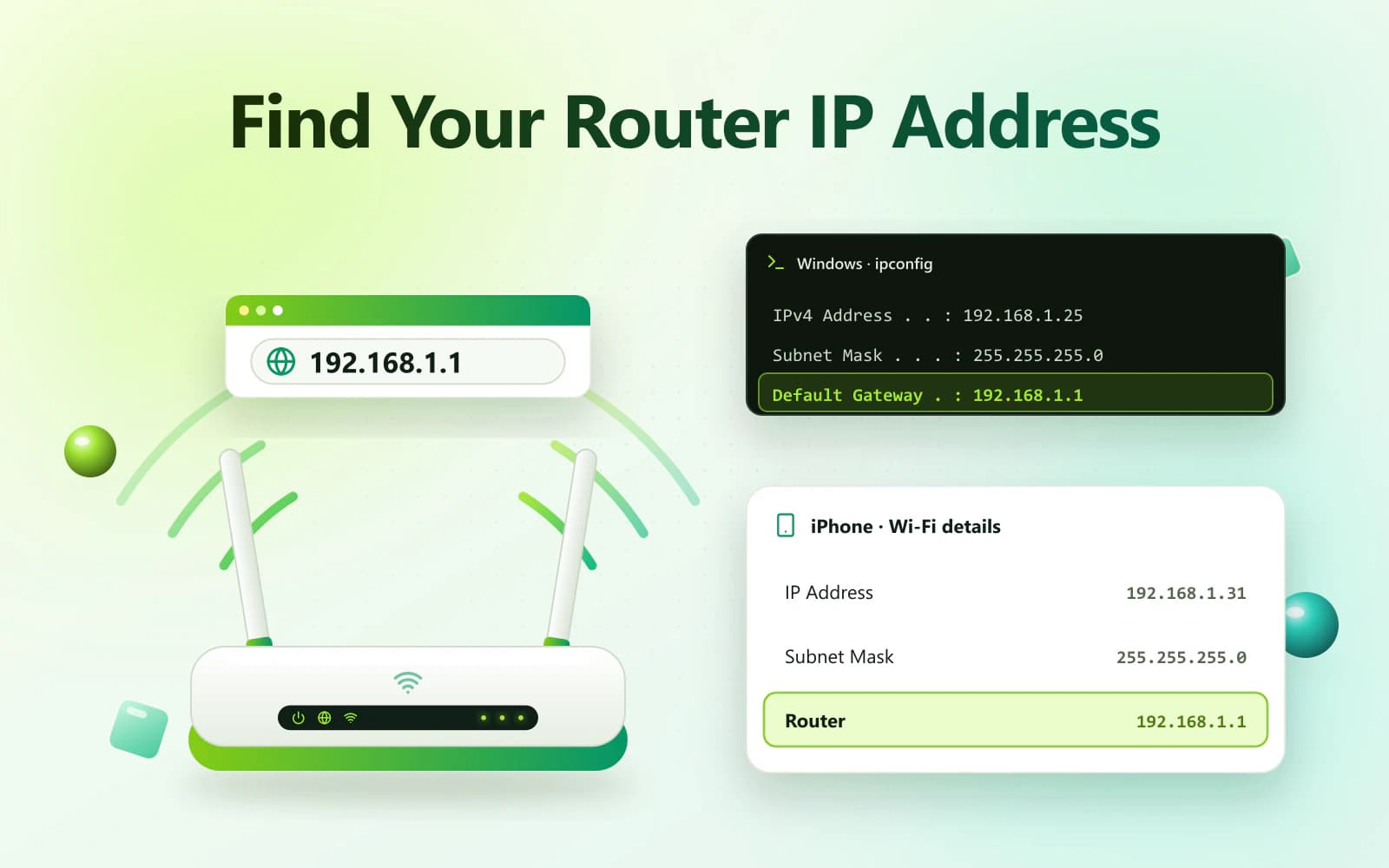

On this page23
Overview
What you can do with it
Once you find the correct address, you may be able to enter it in a browser to change your Wi-Fi password, rename the network, view connected devices and adjust security settings.
This guide explains how to find the router IP address on Windows, macOS, Android, iPhone, iPad, Linux and Chromebook.
The basics
What Is a Router IP Address?
A router IP address is the local network address assigned to your router. Connected phones and computers use it to communicate with the router and reach other networks, including the internet.
Common private router IP addresses include:
- 192.168.0.1
- 192.168.1.1
- 192.168.1.254
- 10.0.0.1
- 10.0.1.1
- 172.16.0.1
These are examples only. Your router may use a different address.
Instead of guessing, check the network settings on a device already connected to your router.
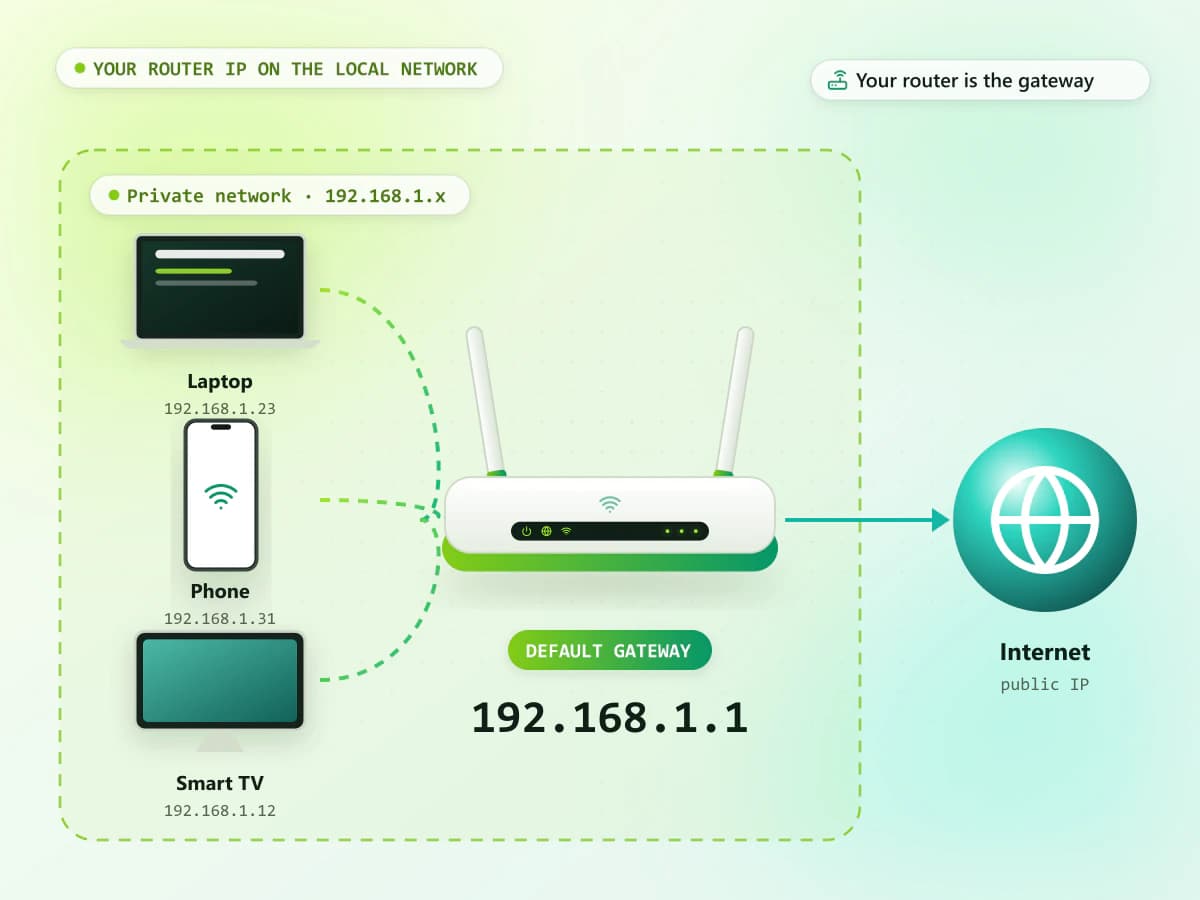
Gateway
What Is a Default Gateway?
A Default Gateway is the network device used when traffic needs to leave the local network. On a typical home network, the router acts as the Default Gateway.
Your device may show this information under different names:
| Device or system | Common label |
|---|---|
| Windows | Default Gateway |
| macOS | Router |
| Android | Gateway or Router |
| iPhone and iPad | Router |
| Linux | Default or Gateway |
| Chromebook | Gateway |
Windows
- Common label
- Default Gateway
macOS
- Common label
- Router
Android
- Common label
- Gateway or Router
iPhone and iPad
- Common label
- Router
Linux
- Common label
- Default or Gateway
Chromebook
- Common label
- Gateway
For most home users, the Default Gateway and local router IP refer to the same address.
Address types
Router IP vs Public IP Address
Your router can be associated with more than one type of IP address.
| Address type | Purpose | Example |
|---|---|---|
| Private router IP | Used inside the local network | 192.168.1.1 |
| Device IP | Identifies a connected device locally | 192.168.1.25 |
| Public IP | Identifies the internet connection externally | Assigned by ISP |
Private router IP
- Purpose
- Used inside the local network
- Example
- 192.168.1.1
Device IP
- Purpose
- Identifies a connected device locally
- Example
- 192.168.1.25
Public IP
- Purpose
- Identifies the internet connection externally
- Example
- Assigned by ISP
The private router IP opens the local admin page. Your public IP normally does not. Do not share your public IP, router credentials or screenshots containing sensitive network information unnecessarily.
Fastest methods
Quick Ways to Find Your Router IP
The fastest methods are:
- Run ipconfig on Windows
- Check the Router field on macOS
- Open Wi-Fi network details on Android
- Check the Router value on iPhone or iPad
- Run ip route on Linux
- Open network details on Chromebook
Make sure your device is connected to the correct router before checking.
Windows
How to Find Your Router IP Address on Windows
Windows displays the router address as the Default Gateway.
Method 1: Use Command Prompt
- Connect your computer to Wi-Fi or Ethernet.
- Press Windows + R.
- Type cmd.
- Select OK.
- Enter the following command: ipconfig
- Press Enter.
- Find your active Wi-Fi or Ethernet adapter.
- Look for Default Gateway.
Example:
Default Gateway . . . . . . : 192.168.1.1
In this example, 192.168.1.1 is the router IP address.
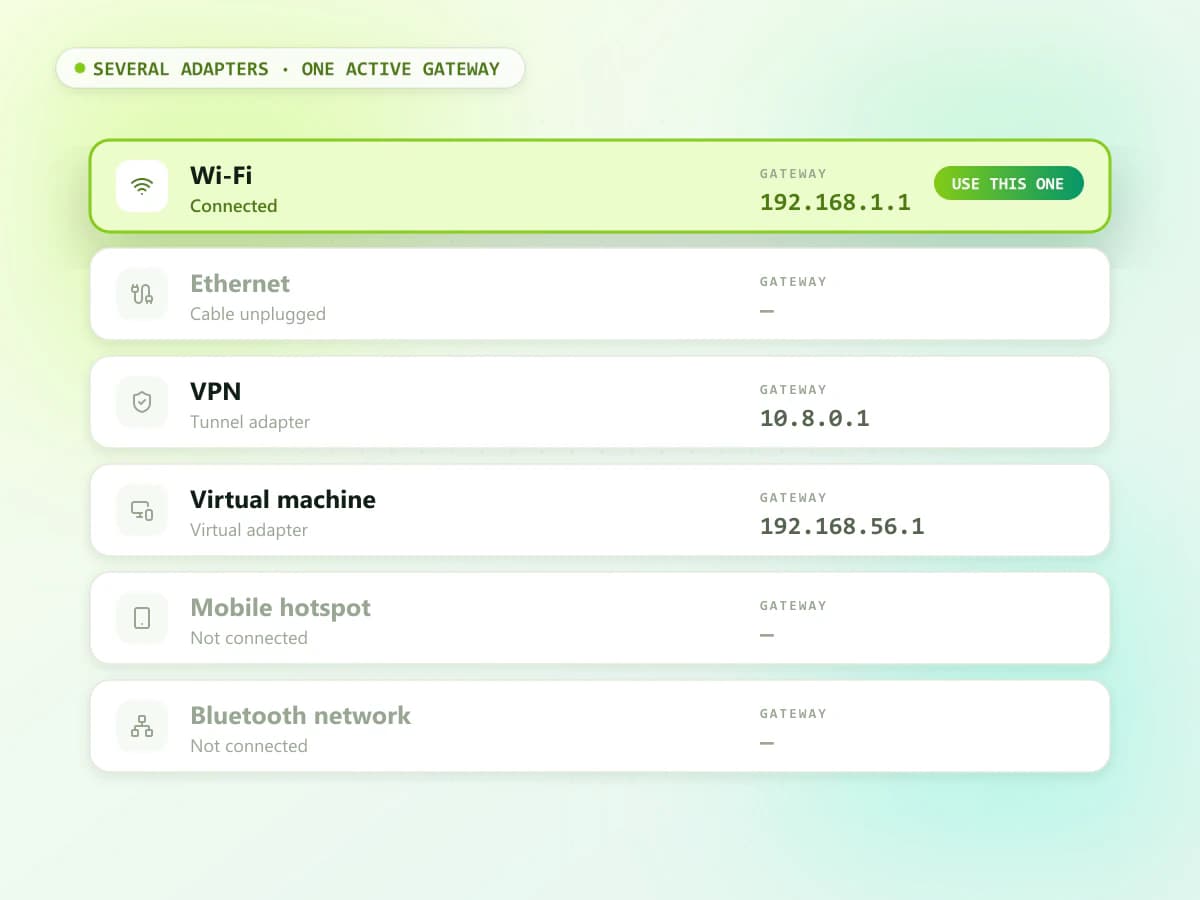
If several adapters are listed, use the one currently connected to your network. Ignore disconnected adapters and unused VPN connections.
Command PromptMethod 2: Use Windows Settings
The exact menu can vary between Windows versions.
- Open Settings.
- Select Network & internet.
- Choose Wi-Fi or Ethernet.
- Open the properties of the active connection.
- Find the gateway or network details.
If Windows Settings does not clearly display the gateway, use the Command Prompt method.
SettingsMethod 3: Use PowerShell
- Right-click the Start button.
- Open Terminal or PowerShell.
- Enter: Get-NetIPConfiguration
- Find the active connection.
- Check IPv4DefaultGateway.
The displayed address is normally the router gateway.
PowerShell
macOS
How to Find the Router IP Address on macOS
macOS usually labels the gateway as Router.
Method 1: Use System Settings
- Open the Apple menu.
- Select System Settings.
- Click Network or Wi-Fi.
- Select the connected network.
- Open Details.
- Select TCP/IP, if required.
- Find the address beside Router.
That Router value is the local gateway.
System SettingsMethod 2: Use Terminal
- Open Terminal.
- Enter: route -n get default
- Press Return.
- Find the line labelled gateway.
You may also use:
netstat -nr
Find the default route and its gateway address.
Terminal
Android
How to Find Your Router IP Address on Android
Android settings vary between phone manufacturers and system versions.
General Android Steps
- Connect the phone to the router’s Wi-Fi.
- Open Settings.
- Select Network & internet, Connections or Wi-Fi.
- Tap the connected Wi-Fi network.
- Open Network details, View more or Advanced.
- Find Gateway or Router.
Do not confuse these fields:
- IP address: Address assigned to the phone
- Gateway: Address of the router
- DNS: Address used for domain-name lookups
The Gateway value is normally the router address you need.
AndroidFind the Router IP on Samsung Phones
Depending on the software version:
- Open Settings.
- Tap Connections.
- Select Wi-Fi.
- Tap the settings icon beside the connected network.
- Choose View more, if available.
- Find Gateway.
SamsungIf Android Does Not Show the Gateway
If the gateway is hidden:
- Open the advanced network details.
- Check the router label.
- Use a computer connected to the same network.
- Open your router or ISP’s official application.
Avoid installing unknown network-scanner applications.
Hidden gateway
iPhone / iPad
How to Find the Router IP Address on iPhone or iPad
iOS and iPadOS display the gateway as Router.
- Open Settings.
- Tap Wi-Fi.
- Connect to the correct network.
- Tap the information icon beside the network name.
- Scroll down to the IPv4 section.
- Find the value beside Router.
For example:
Router: 192.168.1.1
That value is the local router IP.
Do not use the value beside IP Address. It usually belongs to the iPhone or iPad.
Linux
How to Find the Default Gateway on Linux
Several Linux commands can display the gateway.
Method 1: Use the IP Route Command
- Open Terminal.
- Enter: ip route
- Find the line beginning with default via.
Example:
default via 192.168.1.1 dev wlan0
Here, 192.168.1.1 is the gateway.
You can also use:
ip route | grep default
TerminalMethod 2: Check Network Settings
- Open Settings.
- Select Network or Wi-Fi.
- Open the active connection.
- Check the IPv4 or route details.
- Find Default Route or Gateway.
Menu names vary between Linux distributions.
Settings
Chromebook
How to Find the Router IP on Chromebook
- Connect the Chromebook to Wi-Fi.
- Select the time in the lower-right corner.
- Select the connected network.
- Open the Wi-Fi network details.
- Find Network, Gateway or the related connection information.
ChromeOS menus may change between versions. If the gateway is not displayed, use another connected device or check the router label.
Router label
How to Find the Router IP From the Router Label
Some routers print their default management address on a label underneath or behind the device.
Look for:
- Router IP
- Login IP
- Default Gateway
- Web Address
- Management Address
- Admin URL
- Router Login
The label may show an IP address or a local hostname.
The printed address may not work if:
- The gateway was changed
- The router is working in access-point mode
- An ISP installed custom firmware
- Another router controls the network
- The device was previously configured
Network settings on a connected device usually provide the current gateway.
Step by step
How to Open the Router Admin Page
After finding the correct address:
- 01
Connect to the router through Wi-Fi or Ethernet.
- 02
Open a trusted browser.
- 03
Select the address bar.
- 04
Enter the gateway exactly as displayed.
- 05
Press Enter or Go.
- 06
Wait for the login page.
- 07
Enter the authorized admin credentials.
Only access a router you own or are authorized to manage.
Example
For example, if the gateway is 192.168.1.1, enter:
http://192.168.1.1
If the router supports HTTPS, it may automatically redirect to a secure connection.
Credentials
Where to Find the Router Username and Password
There is no universal router username and password.
Check:
- Router label
- Setup manual
- Original packaging
- ISP documents
- Saved browser passwords
- Trusted password manager
- Manufacturer’s official support website
The Wi-Fi password and router admin password may be different.
Know which password
Wi-Fi Password vs Admin Password
| Password | Purpose |
|---|---|
| Wi-Fi password | Connects devices to the wireless network |
| Admin password | Protects the router settings |
Wi-Fi password
- Purpose
- Connects devices to the wireless network
Admin password
- Purpose
- Protects the router settings
The router label may use terms such as:
- Wi-Fi Key
- WLAN Key
- Network Key
- Admin Password
- Device Password
- Web Password
Enter the correct type of password on the router login page.
Troubleshooting
Why Is My Default Gateway Blank?
A blank gateway can mean that your device is not properly connected to a router.
Possible causes include:
- Wi-Fi is disconnected
- Ethernet cable is unplugged
- Router has not assigned an address
- Network adapter has a problem
- Manual network settings are incorrect
- Router is offline
- VPN adapter is being viewed instead
Try these steps:
- Reconnect to Wi-Fi.
- Check the Ethernet cable.
- Restart the device.
- Restart the router normally.
- Set network configuration to automatic if appropriate.
- Run the gateway command again.
Do not factory reset the router during basic troubleshooting.
Not opening
Why Does the Router IP Not Open?
Finding the gateway does not always guarantee that a browser admin page is available.
Incorrect Network Connection
Make sure you are connected to the router whose address you found. Guest Wi-Fi may block access to local devices.
Cause 01Mobile Data Is Active
Temporarily disable mobile data and keep the phone connected to Wi-Fi.
Cause 02Address Entered in a Search Box
Enter the gateway directly into the browser address bar rather than a search-engine field.
Cause 03VPN or Proxy Is Interfering
Pause the VPN temporarily or enable its local-network access option.
Cause 04Router Uses an Official App
Some modern routers and mesh systems are managed through an official application rather than a browser.
Cause 05Browser Cache Problem
Try an incognito window, another browser or another connected device.
Cause 06Router Needs a Restart
Disconnect the power cable for about 30 seconds. Reconnect it and wait for the router to start fully.
Do not press the reset button because a factory reset may remove your settings.
Cause 07
Multiple adapters
What If Several Gateways Are Displayed?
Your computer may have multiple network adapters, such as:
- Wi-Fi
- Ethernet
- VPN
- Virtual machine
- Mobile hotspot
- Bluetooth network
- Virtual network adapter
Use the gateway listed under the connection currently providing access to your router.
If both Wi-Fi and Ethernet are connected, temporarily disconnect one to make the active route easier to identify.
IPv6
What If the Gateway Is an IPv6 Address?
Some networks display an IPv6 gateway containing letters, numbers and colons.
For example:
fe80::1
Your network may still have an IPv4 gateway. Check both IPv4 and IPv6 connection details.
IPv6 addresses must be formatted differently when entered in a browser. Follow the router manufacturer’s instructions rather than modifying the address yourself.
Admin panel
What Can You Do From the Router Admin Panel?
Depending on the router model, you may be able to:
- Change the Wi-Fi name
- Change the wireless password
- View connected devices
- Create a guest network
- Set parental controls
- Update router firmware
- Change the admin password
- Manage network security
- Restart the router
- Adjust local network settings
Avoid changing advanced settings unless you understand their effect.
Security
How to Keep Router Access Secure
Follow these safety practices:
- Access only a network you own or manage.
- Verify the Default Gateway before logging in.
- Never enter router credentials on a public website.
- Replace known default admin credentials.
- Use a strong, unique admin password.
- Keep remote administration disabled when unnecessary.
- Install firmware through official methods.
- Log out after changing settings.
- Avoid unofficial router-login applications.
- Keep a secure record of important configuration details.
FAQ
Frequently Asked Questions
How do I find my router IP address?
Check the Default Gateway, Gateway or Router field in the network settings of a device connected to your router.
Is the Default Gateway my router IP address?
On most home networks, yes. The router normally serves as the Default Gateway for connected devices.
How can I find my router IP on Windows?
Open Command Prompt, type ipconfig and check the Default Gateway under your active network adapter.
How do I find the router address on an iPhone?
Open Settings > Wi-Fi, tap the information icon beside the connected network and check the Router field.
How can I find the gateway on Android?
Open the connected Wi-Fi network’s details and look for Gateway or Router. Menu names vary between Android devices.
What is the most common router IP address?
Common examples include 192.168.0.1, 192.168.1.1 and 10.0.0.1, but the correct address depends on your network.
Why is my Default Gateway blank?
Your device may not be connected correctly, or the router may not have assigned the required network information.
Can I find the router IP without internet access?
Yes. You normally only need a local Wi-Fi or Ethernet connection to the router.
Why does my router IP open a search page?
You may have entered the address into a search box. Type it directly into the browser’s address bar.
Is my public IP the same as my router IP?
No. The public IP identifies your internet connection externally, while the private router IP is used within the local network.
Conclusion
Understanding how to find your router IP address makes it easier to access your network settings without guessing login addresses. Look for Default Gateway, Gateway or Router on a device connected to the network. On Windows, use ipconfig. On macOS, check the Router field. Android and iPhone users can find the address in their Wi-Fi network details. After finding the correct gateway, enter it directly into a trusted browser. Only use authorized credentials and never submit a router password to an unrelated public website.