On this page
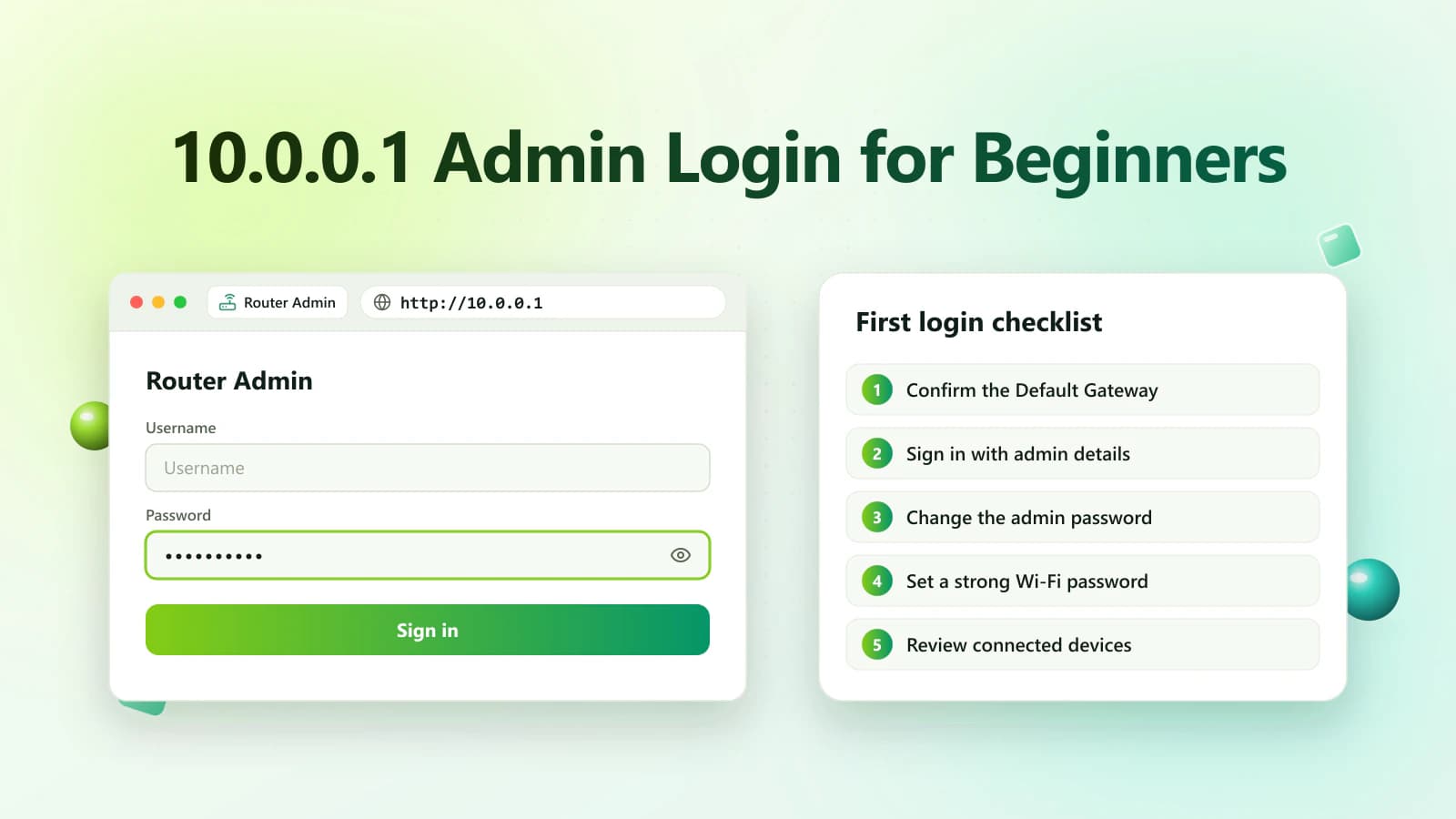
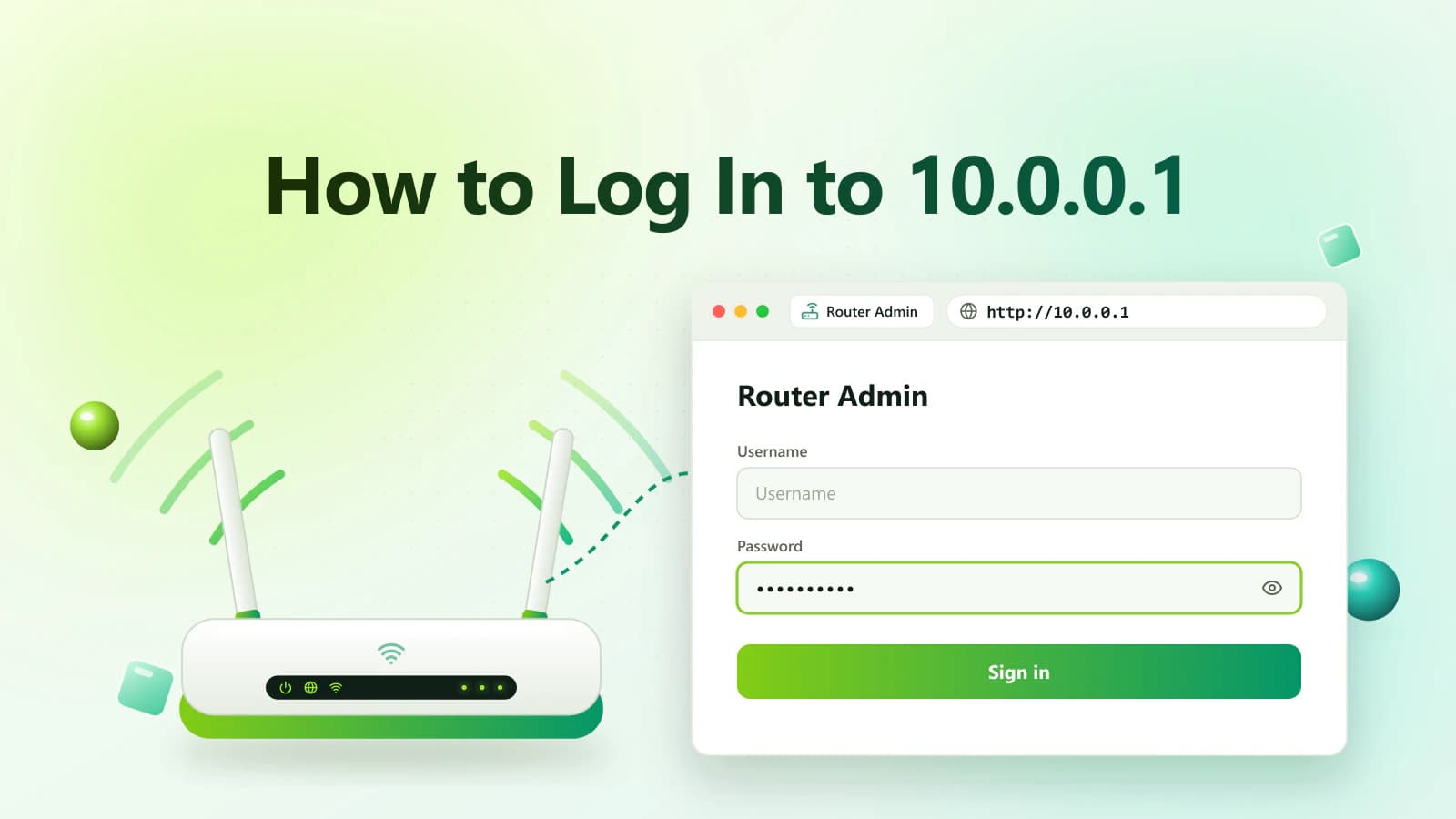
Learning how to open 10.0.0.1 on Windows and Mac lets you access the admin panel of a compatible router. If 10.0.0.1 is your network’s Default Gateway, you can enter the address in Chrome, Edge, Safari or another trusted browser.
After signing in, authorized users may be able to change the Wi-Fi password, rename the network, view connected devices and adjust security settings.
However, 10.0.0.1 is not used by every router. Confirm the current gateway on your Windows PC or Mac before entering the administrator credentials.
Quick Steps to Open 10.0.0.1
Follow these steps:
- Connect the computer to the router.
- Open a trusted browser.
- Select the browser address bar.
- Enter http://10.0.0.1.
- Press Enter or Return.
- Wait for the router login page.
- Enter the authorized username and password.
- Select Login, Sign In or Submit.
Only access a router you own or have permission to manage.
What Is 10.0.0.1?
10.0.0.1 is a private IPv4 address. Some routers, modems and network gateways use it as their local management address.
A private IP address works inside a local network. It is different from the public IP address assigned to your internet connection.
If your router uses 10.0.0.1, the address may open its administration page even when the internet is unavailable. Your computer must still be connected to the router through Wi-Fi or Ethernet.
What Is the 10.0.0.1 Admin Panel?
The admin panel is a private dashboard used to manage router settings.
Available options may include:
- Wi-Fi name
- Wi-Fi password
- Guest network
- Connected devices
- Parental controls
- Wireless security
- Administrator password
- Router firmware
- Firewall options
- Local IP configuration
- Network diagnostic tools
The layout and available features depend on the router manufacturer, model, firmware and internet provider.
Correct 10.0.0.1 Login Address
Enter this address directly into your browser:
http://10.0.0.1Some routers may support or require:
https://10.0.0.1The router may automatically redirect your browser to the correct connection type.
Avoid Incorrect Addresses
Do not use:
- 10.0.0.0.1
- 1.0.0.0.1
- 10.00.1
- 10.0.01
- 10.0 0.1
- 10..0.0.1
- 10.0.0.l
- http //10.0.0.1
The final character is the number 1, not a lowercase L.
Is 10.0.0.1 Your Default Gateway?
Not every router uses this address.
Other common gateways include:
- 192.168.0.1
- 192.168.1.1
- 192.168.1.254
- 10.0.1.1
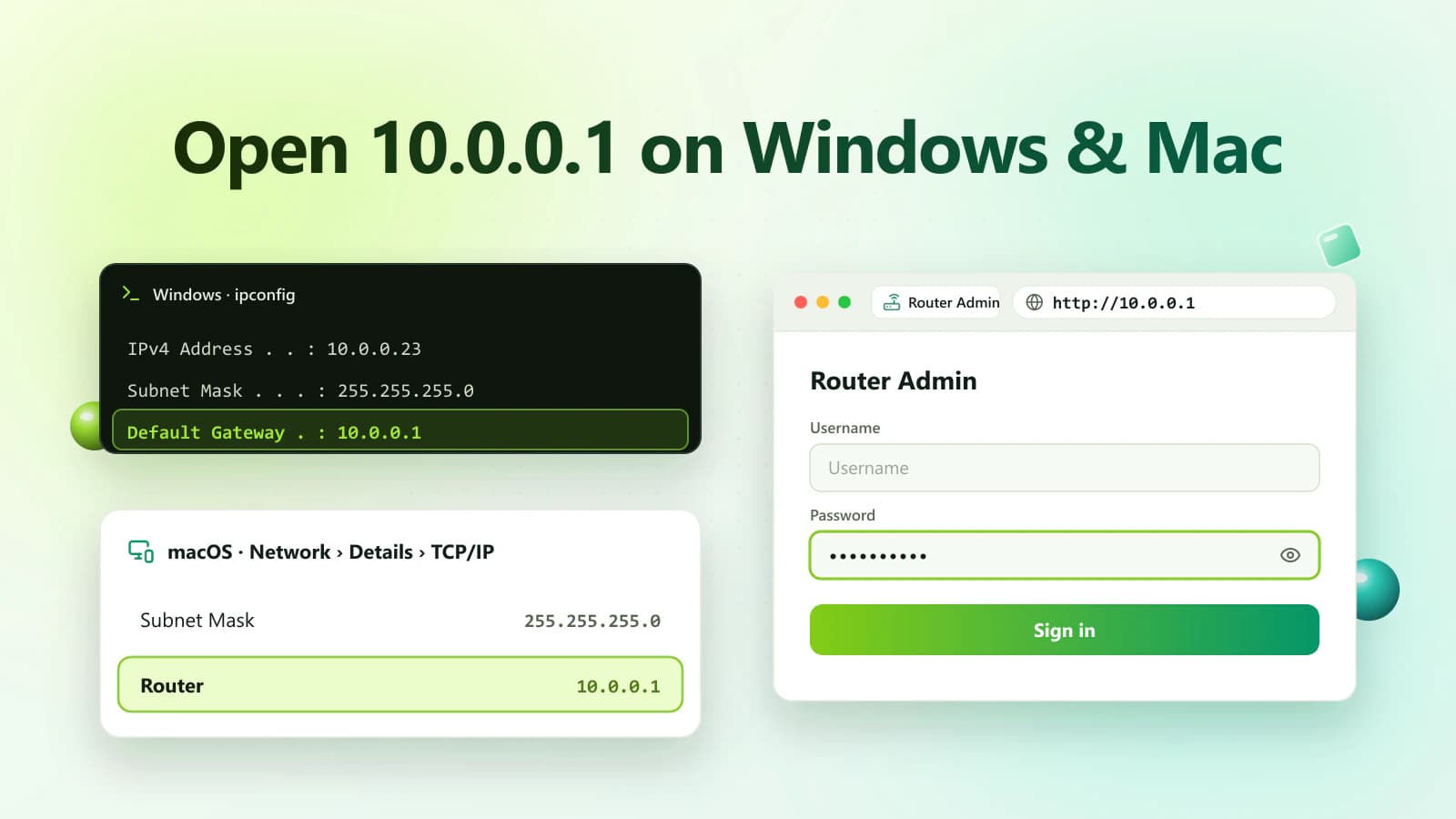
On Windows, the router address appears as Default Gateway. On macOS, it normally appears as Router.
Use the address displayed by your computer instead of guessing.
Requirements for Accessing 10.0.0.1
Before starting, make sure you have:
- A Windows PC or Mac
- Wi-Fi or Ethernet connection to the router
- A trusted browser
- The correct Default Gateway
- Authorized administrator credentials
- Permission to manage the network
An Ethernet connection can be useful while changing Wi-Fi settings because the wireless connection may temporarily disconnect.
How to Open 10.0.0.1 on Windows
Follow these steps on a Windows computer:
- Connect to the router through Wi-Fi or Ethernet.
- Open Microsoft Edge, Chrome, Firefox or another browser.
- Click the main address bar.
- Enter http://10.0.0.1.
- Press Enter.
- Wait for the router login screen.
- Enter the admin username and password.
- Select Login.
If a search-engine page appears, type the complete address directly into the browser address bar.
How to Find the Default Gateway on Windows
Confirm the router IP before trying to log in.
Method 1: Use Command Prompt
- Press Windows + R.
- Type cmd.
- Select OK.
- Enter: ipconfig
- Press Enter.
- Find your active Wi-Fi or Ethernet adapter.
- Look for Default Gateway.
Example:
Default Gateway . . . . . : 10.0.0.1If another gateway is displayed, open that address instead.
Method 2: Use PowerShell
- Right-click the Start button.
- Open Terminal or PowerShell.
- Enter: Get-NetIPConfiguration
- Find the active network adapter.
- Check IPv4DefaultGateway.
Method 3: Use Windows Settings
- Open Settings.
- Select Network & internet.
- Open Wi-Fi or Ethernet.
- Select the active connection.
- Review its network properties.
If the gateway is not clearly displayed, use the Command Prompt method.
How to Open 10.0.0.1 on a Mac
Follow these steps:
- Connect the Mac to the router.
- Open Safari, Chrome or Firefox.
- Select the address bar.
- Enter http://10.0.0.1.
- Press Return.
- Wait for the admin page.
- Enter the authorized router credentials.
- Select Login or Sign In.
Keep the Mac connected until all router changes are saved.
How to Find the Router IP on macOS
Method 1: Use System Settings
- Open the Apple menu.
- Select System Settings.
- Choose Network or Wi-Fi.
- Open the connected network’s details.
- Select TCP/IP, if required.
- Find Router.