On this page
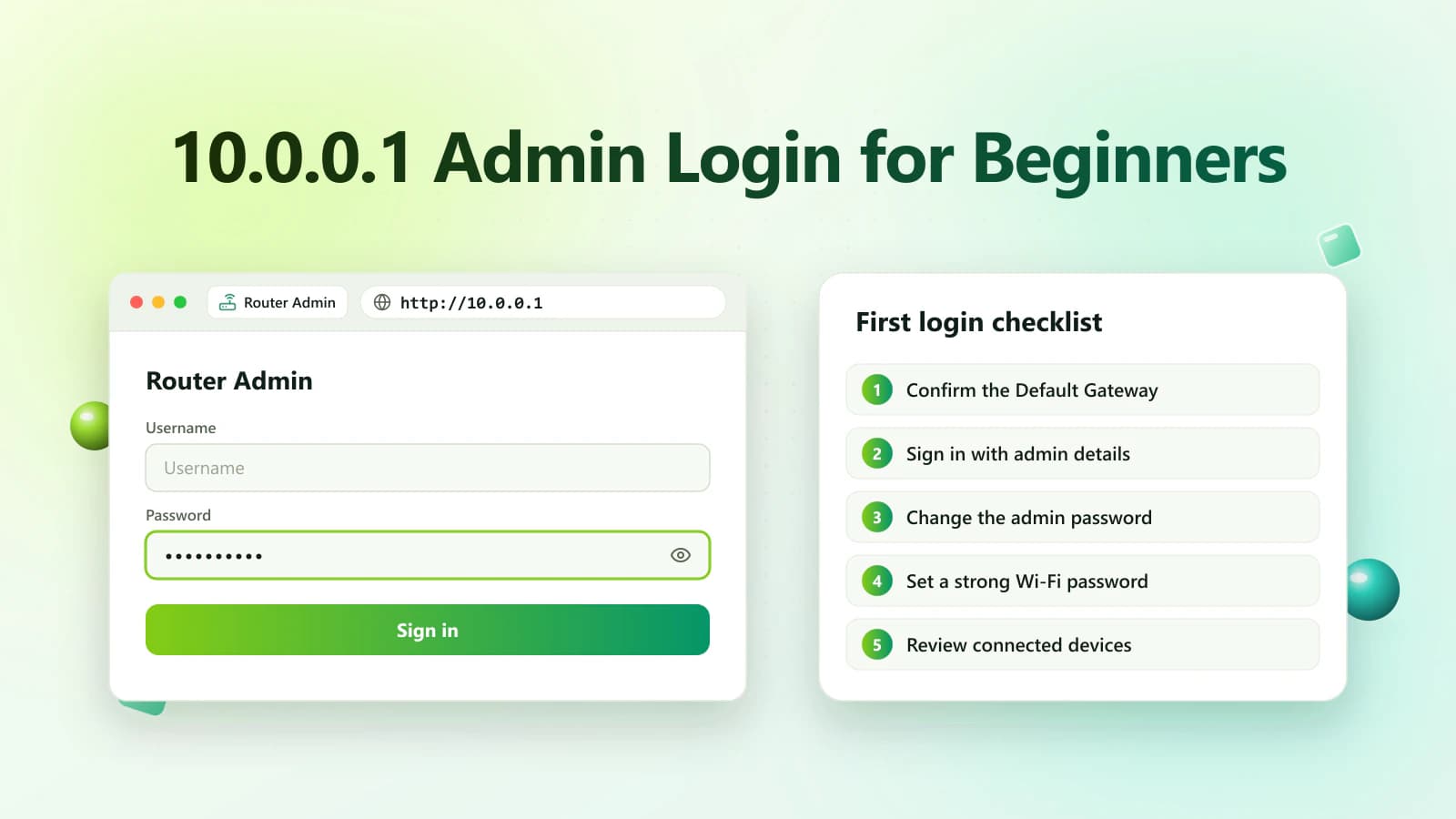
Learning how to log in to 10.0.0.1 allows authorized users to access and manage their router settings. If 10.0.0.1 is your router’s Default Gateway, you can enter this private IP address in a browser to open its admin panel.
Once signed in, you may be able to change the Wi-Fi password, rename the network, view connected devices and adjust security settings.
However, 10.0.0.1 does not work with every router. Confirm the Default Gateway before entering your administrator credentials.
Quick 10.0.0.1 Login Steps
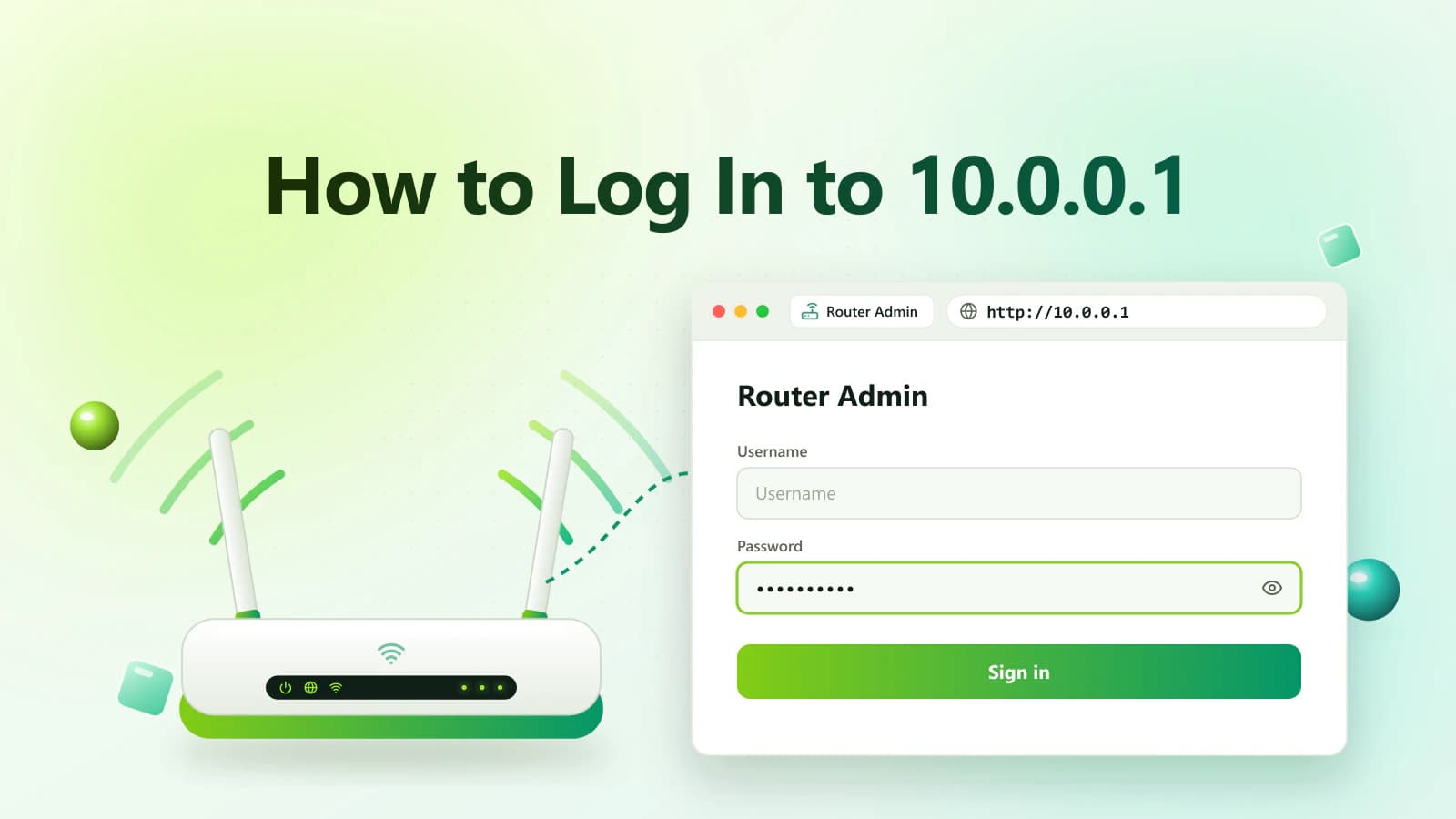
Follow these steps to open the router admin panel:
- Connect your device to the router.
- Open a trusted web browser.
- Select the browser’s address bar.
- Enter http://10.0.0.1.
- Press Enter or Go.
- Wait for the router login page.
- Enter the authorized username and password.
- Select Login, Sign In or Submit.
Only access a router you own or have permission to manage.
What Is the 10.0.0.1 Router Admin Panel?
The 10.0.0.1 router admin panel is a local management interface available on some routers, modems and network gateways.
It is not a regular public website. The interface is normally stored on the router and can only be accessed by a device connected to its local network.
The admin dashboard may include options for:
- Wi-Fi name and password
- Wireless security
- Guest network
- Connected devices
- Parental controls
- Local IP configuration
- Router admin password
- Firewall settings
- Firmware updates
- Network diagnostics
The exact settings and menu names vary by router model and internet provider.
Is 10.0.0.1 Your Router IP Address?
Not every router uses 10.0.0.1. Common alternatives include:
- 192.168.0.1
- 192.168.1.1
- 192.168.1.254
- 10.0.1.1
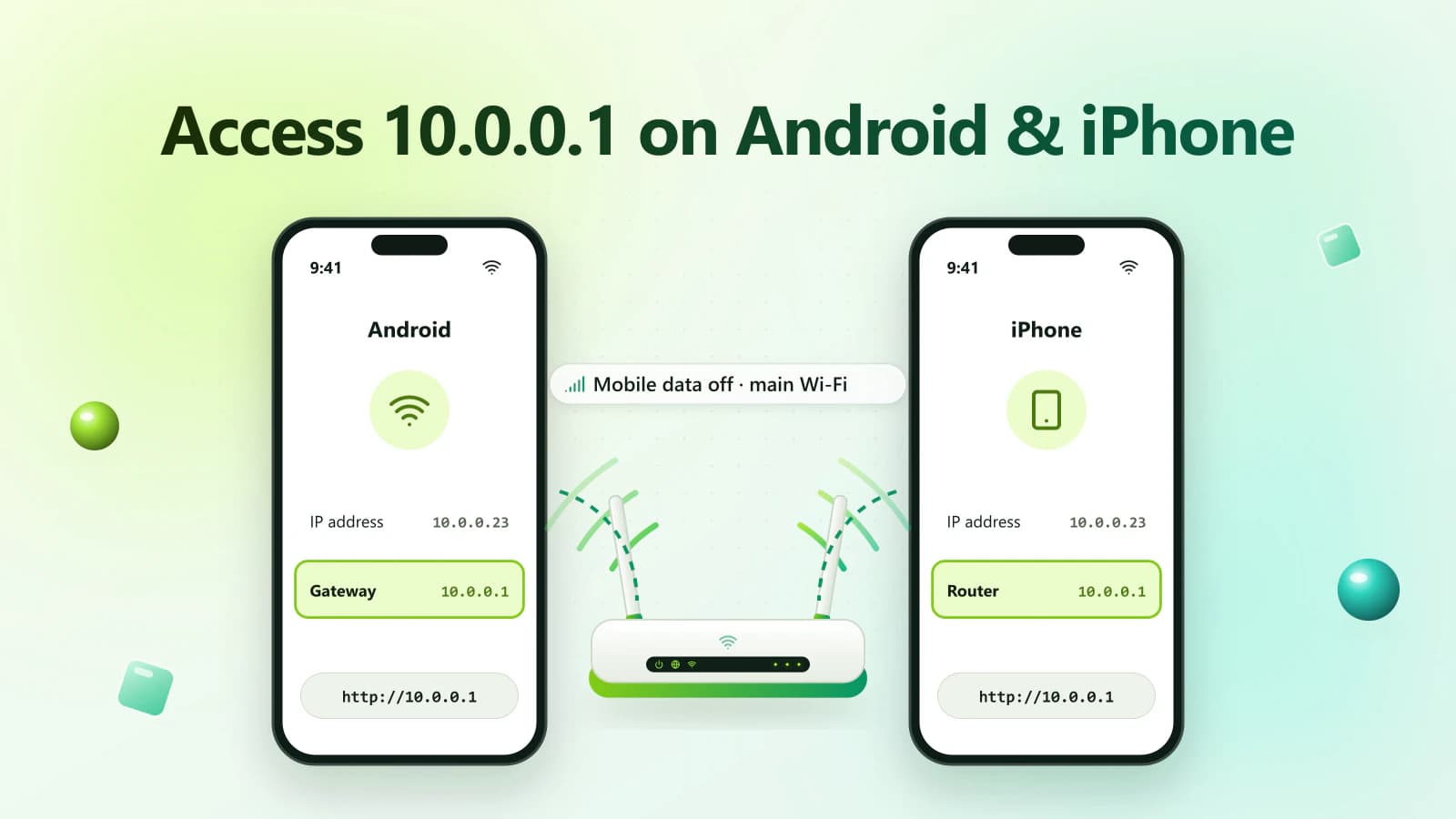
The correct router address is normally shown as Default Gateway, Gateway or Router on a connected device.
If your device displays another gateway, use that address instead.
Correct 10.0.0.1 Login Address
Enter this address directly into the browser:
http://10.0.0.1Some routers may support or require:
https://10.0.0.1The router may automatically select or redirect to the supported protocol.
Avoid incorrect variations such as:
- 10.0.0.0.1
- 1.0.0.0.1
- 10.00.1
- 10.0.01
- 10.0 0.1
- 10..0.0.1
- 10.0.0.l
- http //10.0.0.1
The last character is the number 1, not a lowercase L.
Requirements for the 10.0.0.1 Login
Before starting, make sure you have:
- A phone, tablet or computer
- Connection to the router’s main network
- A supported browser
- The correct gateway address
- The router administrator credentials
- Permission to manage the router
An active internet connection is not always required because the page is hosted locally. Your device must still be connected to the router through Wi-Fi or Ethernet.
How to Confirm 10.0.0.1 on Windows
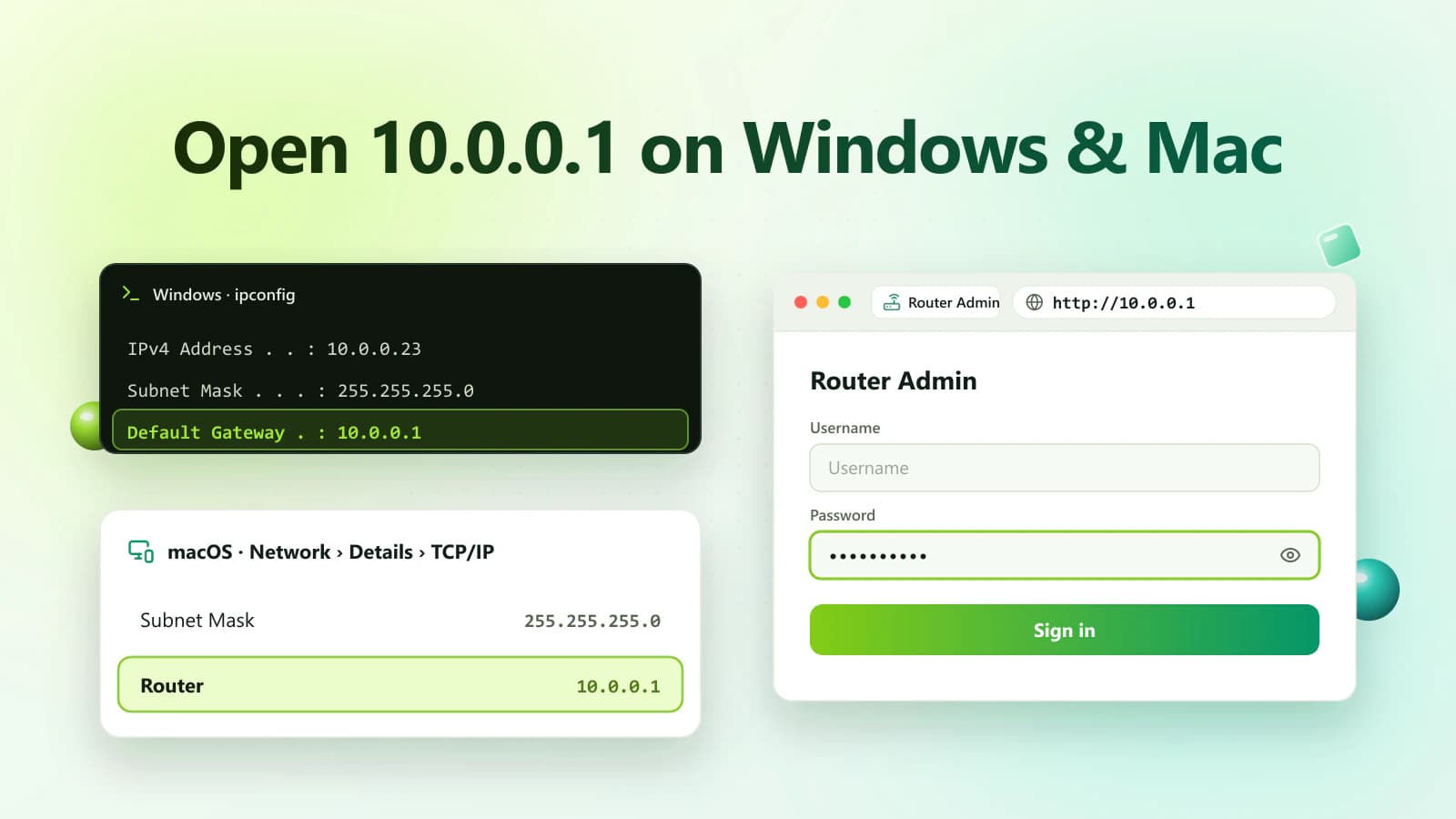
Windows displays the router address as Default Gateway.
- Press Windows + R.
- Enter cmd.
- Select OK.
- Type: ipconfig
- Press Enter.
- Find the active Wi-Fi or Ethernet adapter.
- Check Default Gateway.
Example:
Default Gateway . . . . . : 10.0.0.1If another address is shown, enter that gateway in your browser.
How to Confirm the Router IP on macOS
- Open the Apple menu.
- Select System Settings.
- Choose Network or Wi-Fi.
- Open the connected network’s details.
- Select TCP/IP, if required.